

I’m trying to recover the data from a faulty WD elements hard drive that randomly stopped working. The HD lights up (solid light) and spins but the computers (various) will recognise it’s been plugged in but it doesn’t actually show up unless you go to computer manager. Any advice? We would be greatful for a solution. I’m also wanting to know how to format the drive if it’s in this state?
— From Reddit Community
Your WD Elements external hard drive might light up and spin, and your computer may even recognize that it’s plugged in—but you still can’t access your files.
In some cases, the drive won’t appear in File Explorer at all, only in Computer Management. When that happens, most people try data recovery tools . The problem is, those tools don’t always work. They might not detect the drive or return any results. Other recovery software can run into the same issue, often saying the drive isn’t ready or accessible.
This kind of problem can come from something simple, like a faulty cable, or from a more serious hardware issue inside the drive itself.
In this guide, we’ll explain what’s actually happening and walk you through the WD external hard drive data recovery process, including how to handle it yourself.

Why is WD External Hard Drive Losing Data?
WD drives don’t fail at a hardware level often. They use NTFS or exFAT to store files. They keep a map of where each file is. Most data loss happens when this map breaks. The loss can happen in the following ways:
- Accidentally deleted files on WD external drive: The file entry is removed, but the data is still there until it gets overwritten.
- WD external hard drive formatted by mistake: Formatting cleans the file system, so the drive shows as empty even if data is still there.
- WD drive becomes RAW or corrupted: The file system breaks, so the computer can’t read it.
- WD external hard drive not showing up in File Explorer: The drive is detected, but Windows can’t open it.
- Files disappeared due to virus or system crash: The file records get messed up, so files don’t show even if the data is still there.
Does WD Do Data Recovery?
Yes, but not through WD themselves. They work with a third-party called Ontrack. WD doesn’t promise that your data will be recovered, and they’re not responsible for the results.
How Does WD’s Data Recovery Partnership Work?
As a Western Digital customer, you can get those services with Ontrack:
- Lab recovery
- Recovery for situations like drive failure, viruses, and software issues
- Engineering support using special tools and environments
- Global service availability
Data Recovery Plan and Cost
While normally you would be looking at costs as high as $2000 (though that’s only for hardware cases), WD’s plan with Ontrack includes the following:
- Starters at $9.99 as a one-time payment
- One in-lab data recovery attempt
- Shipping cost coverage to and from the recovery center
- In most cases, a replacement device
- A money-back guarantee if data cannot be recovered under covered conditions
What devices and situations are covered? Well, you can use this for most standard storage, but it is limited. It covers one registered device only, and it does not support RAID or pre-existing issues.
Recovery Process
The recovery process is short and simple
- Select a plan and submit a claim
- Ship the device to the recovery lab
- The lab performs one in-lab recovery attempt
- Recovered data is returned (as a download or physical storage device)
Additional Details
- The process can take up to 14 business days after the device is received
- Only one recovery attempt is included
- The original device may be disposed of after recovery
Risks of Using Third-Party Services
Third-party services like Ontrack are useful for complex WD external hard disk recovery, but there are important risks. During recovery, the drives are sent to a lab where engineers perform low-level access, including the following:
- Reading raw disk sectors
- Rebuilding file systems and partitions
- Accessing deleted or hidden files
This means all data on the drive becomes visible to the provider, not only the files you want. That data may be handled by other teams and moved between systems or locations
The process can also damage the drive more. The refunds are only for no recovery, you won’t get anything if your data is partially recovered. Cost can go up to $1,000-$2,000 for the WD external hard disk data recovery in the worst-case scenario.
Before WD External Hard Drive Data Recovery – Key Things You Must Know
Before you try to learn more about how to recover WD external hard drive data, remember this:
Do not make the damage worse. Recovery only works if the drive stays stable. Most data loss happens from wrong recovery attempts. A failing drive is not stable.
Keep the following in mind
- Don’t turn it on and off repeatedly if it acts strange
- Do not test it, copy files or format it
- Do not recover to the same drive
- Do not use repair tools
How to Recover WD External Hard Drive Data?
If the drive still shows up in Windows, then a good first step is to try out free tools. There’s a high chance you can recover data if it’s just deleted files or light corruption.
- Method 1: WD External Hard Drive Data Recovery Free
- Method 2: Best WD External Hard Drive Data Recovery Tool – 99% Success Rate🔥
Method 1: WD External Hard Drive Data Recovery Free
Start here before moving to advanced recovery tools. These options are simple, but they will only work when the system can still read the drive in some way.
WinFRGUI

WinFRGUI is a completely free Windows file recovery software, which is built to simplify the data recovery process for users of all experience levels from Microsoft.
The downside is that there is no fine control – you would have to delve into using the terminal, something that’s not the most comfortable approach for an average user. And its GUI package oversimplifies things a little bit and is hard to navigate.
Here are steps how to use WinFRGUI
- Install WinFRGUI: You can download it from the Microsoft Store.
- Connect the WD drive and A Separate Drive to Your Computer: If you don’t want to overwrite the deleted files, make sure the recovery files go to the separate drive.
- Select The Options: This is the main step. You select your drive, then set the Separate Drive in “Save To” – for scanning mode, we recommend Deep Scan. You’ll have higher chances of finding your file even if it will take longer.
- Use Advanced Settings: To make the scan go faster, you can specify what type of file you’re looking for, as well as its folder.
- Start Recovery: You can just press the Start Recovery Button now. Once you do, it’ll start the process and at the end, will give you a link to a folder you can open to view all the recovered files.
Recuva
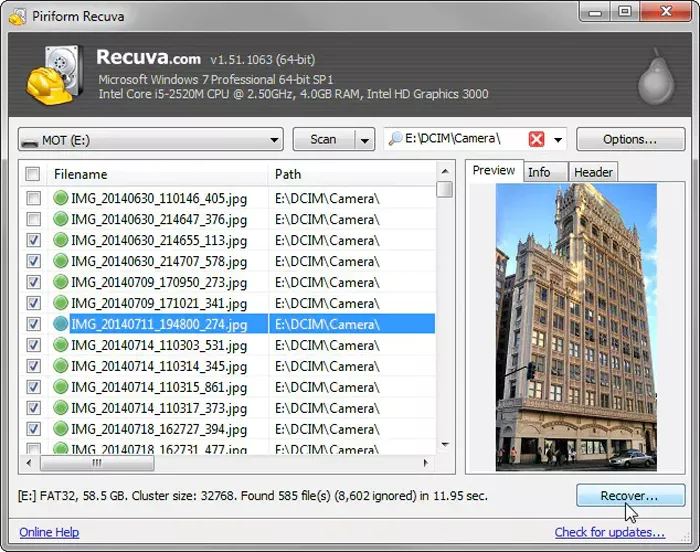
You can also try CCleaner’s Recuva – it’s a guided GUI, meant for people that aren’t all that techy or want to do a quick try. It’s just as reliable, but less user-friendly than Microsoft’s tool.
Here’s Step-by-step guide
- Open Recuva and cancel the wizard if it starts and then click “Next” button.
- Click “Options” button and choose “Scan for non-deleted files.”
- Select the wd drive as a scan location, press “Scan ”next to the drop down menu.
- Look for files marked with a green status icon. The green ones are recoverable, red ones aren’t. If you see any marked yellow, that means they are partially recoverable. Now, select files you want to recover, and then you can save them to a different drive.
Recuva Options Explained
It’s a bit more flexible than WinFR – here’s what each option does.
- Deep Scan: Performs a slow, thorough scan of the drive. Finds more lost files, including partially damaged ones.
- Restore Folder Structure: Attempts to rebuild original folders and file organization during recovery.
- Scan for Non-Deleted Files: Searches for existing files still present on the drive, not just deleted ones.
- Securely Overwritten Files Scan: Tries to detect files that were overwritten, though recovery is usually limited or unlikely.
Method 2: Best WD External Hard Drive Data Recovery Tool – 99% Success Rate🔥
If above recovery methods don’t work, you’ll need a safer and more reliable tool— iToolab RecoverGo Windows Data Recovery. It’s designed for users who want to recover data on their own. The clean, user-friendly interface and simple three-step process make it easy to get started.
What’s more, RecoverGo combines powerful recovery capabilities with up to a 99% success rate—without the need for expensive services.
Compared with Third-Party Recovery Services, iToolab RecoverGo Windows Data Recovery offers:
- Lower Cost: No lab fees or shipping costs, making it a much more affordable option.
- 99% High recovery success rate: Delivers results close to professional recovery services.
- Faster Recovery: Recover your lost data in minutes or hours, instead of waiting 10–14 working days.
- Better Data Privacy: No need to send your device out; your data stays on your own computer.
- Simpler Process: Just select, scan, preview, and recover—no technical skills required.
- Wide File Compatibility:Supports 1000+ file types and formats.
- No Hassle: No shipping, no waiting, no back-and-forth communication—everything is done instantly.
How to Use iToolab RecoverGo Windows Data Recovery?
Download iToolab Windows Data Recovery from the official website.
Step 1 Insert the WD external hard disk on your computer. Launch RecoverGo Windows Data Recovery on your computer. Select the External Drive that you want to recover data from. Then click the “Search for Lost Data”.
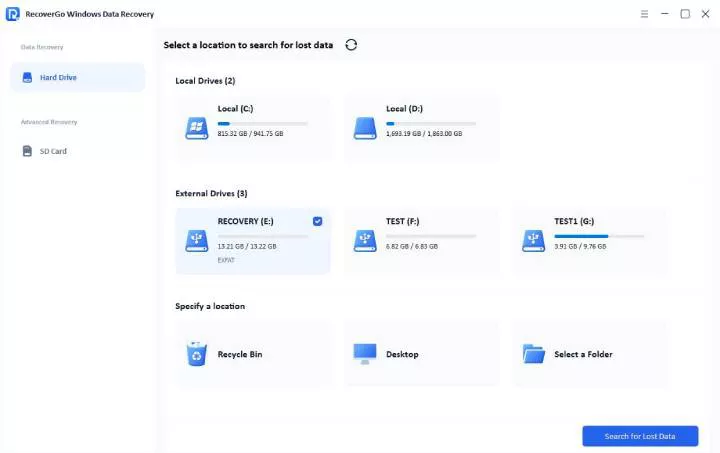
Step 2 Start the scan. It offers quick scan, deep scan and advanced scan to increase the recovery rate.

Step 3 Once it’s finished, you can click the “Preview” button to check if the files are the right ones. And then click “Recover” button and choose a different location to save the recovered file.

The powerful data recovery tool lets you preview and recover files immediately, helping you recover only what you need and avoid unnecessary costs.
How to Recover Data from a WD External Hard Disk Which Is Not Detecting?
When a WD external drive is missing, find out if it’s the cable. This is the first step in western digital external drive recovery. After that, you can start looking deeper.
- Fix Drive Setup: Insert the drive through another USB port – with a different cable, and check Disk Management. If the drive is “Offline”, set it to Online. If it’s missing a drive letter, assign one. Don’t run CHKDSK, it can remove data that is still recoverable.
- Change Connection: Pull the drive out of its case and plug it in with SATA. If the BIOS sees it, you’ll need to resort to Linux to copy your files. If it’s acting glitchy, clone it before doing anything else.
- Update USB Drivers: Normally, Windows does this for you. But if you’re using a modified or debloated version, then automatic driver updates might be off. To do this, open Device Manager (Win + X → Device Manager), expand “Universal Serial Bus controllers”, right-click each USB Root Hub/Controller, and select “Update driver” or “Uninstall device” then scan for changes.
If the BIOS sees it but software fails, call a professional. If the BIOS doesn’t see it via SATA, the drive’s parts are likely damaged heavily.
FAQs About WD External Hard Drive Data Recovery
Why did CHKDSK make my data recovery worse?
On some Windows setups, CHKDSK runs automatically on damaged drives. It’s a crude repair tool that rewrites the file system to force consistency. Instead of helping, this rewrite of file structures scatters data, making recovery more difficult or incomplete.
Can BitLocker block access during Western Digital external hard drive recovery?
Yes. Your system might auto-encrypt the drive through Bitlocer policies or registry settings. In that case, you’ll need to get a recovery key to access the data.
Is WD external hard disk data recovery possible after formatting?
Yes, formatting only changes the file structure. Unless the data was overwritten (so as long as the loss is fairly recent), recovery will be possible.
Can I recover data from a dead WD external hard drive?
Sometimes. If it is a logical issue, software may work. If it is physically damaged, it may need a lab.
Conclusion
Don’t worry, you don’t need to be a programmer to do your WD external hard drive data recovery – nor do you need to spend thousands of grand. Simple tools like the iToolab RecoverGo Windows Data Recovery are more than enough. You won’t lose any data trying to recover with it, unlike Microsoft’s own messy solutions like CHKDSK.