

You’re chatting with a friend on Messenger, and they ask, “Where are you?” Knowing how to share your location on Messenger saves a lot of time. But it’s easy to ignore Messenger’s location sharing feature — until you really need it.
In this guide, you’ll learn how to share location on Messenger step by step on both Android and iPhone. I’ll also show you a workaround if you ever want to share a location without using your real GPS.
Part 1. What You Need to Know About Messenger Location Sharing
Let’s be honest: telling someone “I’m by the big tree” when you are trying to meet up doesn’t really help. That’s where Messenger location sharing comes in. It is perfect for crowded places like concerts or malls, letting someone find you without constant “where are you” texts.
Messenger gives you two different ways to share where you are: live location and pinned location. Live location is best when you’re moving. Pinned location works for fixed spots like a coffee shop or a friend’s house.
Part 2. How to Share Location in Facebook Messenger (Step-by-Step)
Once you understand the difference between live location and pinned location, let’s walk through exactly how to share your location in Messenger on both Android and iPhone.
Method 1. How to Share Location in Messenger on Android
It’s surprisingly simple to share your location from an Android phone. Just follow the steps below — you’ll have it done in under a minute.
Step 1. Open a conversation.
Launch the Messenger app and tap the chat where you want to share your location.Step 2. Find the location option.
Tap the “+” icon(next to the message input box). Select “Location” from the menu.

Step 3. Choosing your sharing type.
Messenger will display a map showing your current position. Here’s where you decide between the two options:To share your live location:
Tap “Share Live Location for 60 minutes”. Your friend will now see your real-time movement.To share a static pin:
Tap the red pin icon on the map. You can drag the pin to any location — or search for a specific address — and then tap “Send This Location.”That’s it. Your friend can now tap the map preview in the chat and open the location in their own map app.
Method 2. How to Share Location in Messenger on iPhone
On iPhone, the steps are nearly the same as on Android — just a few small visual differences. Here’s how to do it.
Step 1. Open the conversation.
Launch Messenger on your iPhone and navigate to the chat.Step 2. Tap the “+” icon.
To the left of the message composition box, tap the plus icon. Then select the Location icon(a blue arrow or a map pin).
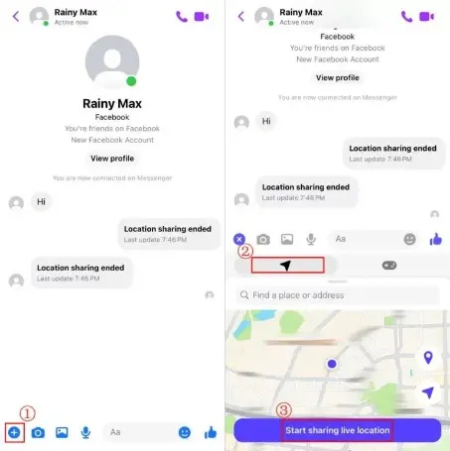
Step 3. Choose your sharing type.
A map will appear showing your current position. From here you have two options:To share live location:
Tap “Share Live Location for 60 min.” Your friend will see your movement in real time.To share Static pin:
Tap the small red pin icon on the map. Then tap “Send Pin” at the bottom of the screen.Step 4. Confirm it worked.
After you send, an interactive map preview will appear in the chat. The recipient can tap it to view the location and get directions.Now you know exactly how to share your location in Messenger on both Android and iPhone. Simple, right?
Part 3. Can I Share a Location in Messenger Without Using Real GPS?
Sometimes, people have real reasons to share a Messenger location that isn’t their actual GPS. For example, you’re planning a surprise and need to appear somewhere else. But Messenger won’t help you fake it — the app simply sends whatever GPS data your phone reports. So if you want to share a virtual location, you have to change your phone’s GPS first. That’s where iToolab AnyGo comes into the picture.
What Makes AnyGo the Right Tool for sharing a fake location on Messenger?
AnyGo is a GPS location changer that works on both iPhone and Android without jailbreak or root. Simply connect your phone via USB, and you can set your GPS to any location in the world instantly.

A few features make it particularly useful for sharing fake locations on Messenger:
1. One-click teleport.
This feature can change your GPS location instantly to anywhere in the world. No technical skills are needed.2. Works seamlessly with social apps and dating apps.
AnyGo is designed for social apps like Messenger, WhatsApp, Instagram and Snapchat, as well as dating apps like Tinder, Bumble, Grindr and Hinge.3. No jailbreak or root required.
Many location spoofing methods force you to modify your phone’s operating system, which may lead to security risks. AnyGo works safely with standard and unmodified devices.4. Simulate realistic movement.
With AnyGo, you can create custom walking, cycling, or driving routes with a joystick or keyboard controls. This makes your fake location move naturally, just like real walking.If you’re a game player, this feature is perfect for you too — it helps you hatch eggs or explore new areas without actually moving.
5. Multi-device support.
AnyGo can mock GPS location on up to 15 devices simultaneously. This is perfect if you have multiple phones or want to help your friends set up their own spoofed locations.For game players, this means you can manage several accounts at once.In short, AnyGo gives you full control over your GPS location — realistic movement, multi-device support, and no technical headaches.
- Change GPS location on iPhone/iPad in clicks (No Jailbreak).
- Fake Pokemon Go GPS on Android and iOS devices.
- Simulate GPS movement along any custom path with joystick.
- Collect and import popular GPX route files for next use.
- Works well with location-based social apps and AR games.
- Fully support the latest iOS 18/Android 15.
How to Change GPS in Messenger with One-click?
Here’s the simple, detailed process to share a fake location on Messenger using AnyGo.
Step 1 Download and install AnyGo
Download and install AnyGo for iOS app on your device, connect it through Wi-Fi.
Step 2 Set a fake GPS location
Enter the location or coordinates on the search box to locate the destination.

Step 3 Teleport with one-click
The map will be displayed as the corresponding city for the coordinates you entered, Click “Go” on the map.

Step 4 Open Messenger and share your location
Now, your location will be teleported to the specific place. Open the Messenger app on your phone, navigate to the chat where you want to share your location, tap the “+” icon, and select “Location”, then share it. Now, Messenger will use the fake GPS coordinates you just set through AnyGo — not your real location.

That’s it. From the recipient’s perspective, your shared location will show exactly where you said you are, not where you actually are.
Part 4. FAQs About Location Sharing in Messenger
You’ve learned how to share your location in Messenger on Android and iPhone — and even how to share a virtual location using a tool like AnyGo. But before you start sending your location pins left and right, there are a few common questions worth answering.
Three questions stand out: how safe Messenger location sharing really is, how to stop sharing your location when you no longer want someone to see where you are, and duration of live location sharing in Messenger.
Q1. Is Location Sharing in Messenger Safe?
The short answer: Yes, with a few important conditions.
Messenger’s location sharing feature gives you privacy controls (like time-limited live locations) — but “safe” depends entirely on how you use it and who you share it with.
What you should watch out for: Live location shows your movement. If you share live location with someone you don’t fully trust, they can see exactly where you’re walking, driving, or standing. That’s a real privacy risk.
Q2. How to Stop Sharing Location on Messenger Manually?
There are two ways to stop sharing location on Messenger, depending on whether you’re sharing a live location (real-time tracking) or you want to prevent Messenger from accessing your location in the future.
To stop sharing live location :
Open the conversation where you’re sharing your location.
Tap the map preview or location banner.
Tap “Stop Sharing” (or “Stop Sharing Live Location”).
The recipient will no longer see your movement.
To block Messenger from accessing your location entirely:
Android: Settings > Apps > Messenger > Permissions > Location > “Don’t allow”
iPhone: Settings > Privacy & Security > Location Services > Messenger > “Never”
Q3. How long does live location sharing last on Messenger?
60 minutes. Messenger’s live location sharing automatically stops after one hour. After that, the other person can no longer track your real-time position. If you need to share for longer, just send a new live location again.
Conclusion
Now you know how to share your real location on Messenger. But what if you want to share a fake one? iToolab AnyGo makes it simple — teleport anywhere with one click. It works seamlessly with Messenger and other major social apps.
Stop sharing where you actually are. Start sharing anywhere you want to be.