

Getting Started
Have you ever opened your phone and seen a strange notification: “You’re sharing your live location on Messenger”? And you don’t remember when you turned it on?
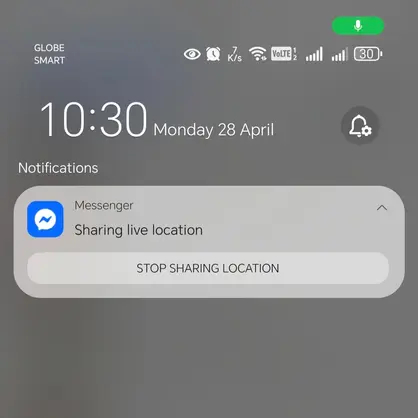
Actually, you’re not alone.
Many Messenger users on Reddit complain about this problem. Some people say their phone keeps telling them Messenger is sharing their live location without them doing anything. Others report that location sharing turns on automatically, without their permission.
This feels like a privacy invasion. And it’s a risk that you shouldn’t ignore.
In this guide, I’ll show you how to stop sharing live location on Messenger and protect your privacy.
Part 1. Why Stop Sharing Live Location on Messenger?
There are several reasons you should stop sharing your live location on Messenger — even if you’re only sharing with your friends or family.
First, you don’t need to share forever.
Maybe you shared your live location so a friend could find you at a concert. Or you used it to let your family know you arrived safely at a hotel. Once you’ve met up or checked in, there’s no need to keep sharing.
Second, accidental exposure happens more often than you think.
Maybe you shared it for a short time and simply forgot to turn it off. Or maybe Messenger had a bug that kept it on longer than it should. Whatever the reason, your location could be seen by someone you don’t fully trust — an old friend, an ex, or someone you barely know.
Stopping live location sharing on Messenger is a simple step that protects your daily privacy. That way, only you decide whether to share your location and with whom.
Part 2. How to Remove Live Location Sharing in Facebook Messenger
If you’re currently sharing your live location, here’s how to turn it off. The steps are slightly different depending on your phone.
2.1 Disable Live Location Sharing on Messenger (Android)
Follow these steps to end live location sharing on Facebook Messenger from your Android device:
1. Open the Messenger app.
2. Go to the conversation where you’re sharing your live location.
3. Tap on the map preview or the banner that says “You’re sharing your live location”.
4. Tap “Stop Sharing Location” (or “Stop Sharing Live Location”).

That’s it. The person you’re sharing with will no longer see where you are.
To completely block Messenger from accessing your location in the future:
Go to Settings > Apps > Messenger > Permissions > Location.
Select “Don’t allow”.
Note:
This is the most reliable way to disable live location on Android for Messenger.
2.2 Turn Off Live Location Sharing on Messenger (iPhone)
If you’re using an iPhone, here’s how to turn off live location on iPhone for Messenger:
1. Open Messenger and open the conversation where you’re currently sharing your live location.
2. Tap the map preview or the live location banner.
3. Tap “Stop Sharing Live Location”.

Once you complete these steps, the sharing will stop immediately.
To prevent Messenger from accessing your location entirely:
Go to Settings > Privacy & Security > Location Services > Messenger.
Select “Never”.
Messenger will no longer have access to your location on your iPhone.
Part 3. How to Keep My Real Location Private on Messenger?
Stopping live location sharing or blocking Messenger from accessing your location is one way to protect your privacy. But what if you want to share a location that isn’t where you actually are? Maybe you don’t want people to know exactly where you live.
Messenger won’t help you with that. It only shares your real GPS. So if you want to share a virtual location instead, you need to change your phone’s GPS first.
That’s where a tool like iToolab AnyGo comes in. It helps you keep your Messenger private by letting you share any location you choose — without exposing your real location.
3.1 What is AnyGo?
AnyGo is a reliable GPS location changer that works on both Android and iPhone. By connecting your phone via USB, you can instantly set your location anywhere in the world—with just one click and no rooting or jailbreaking.
Key Features for Messenger Privacy
Here’s why AnyGo is useful for Messenger users who care about privacy:
1. Set custom virtual locations to hide your real position
You can pick any spot on the map — a different city, a different state — and Messenger will think that’s where you are. Your real location stays hidden.
2. Simulate natural movement routes to avoid real-time tracking
If you need to appear like you’re moving, AnyGo lets you create walking, biking, or driving paths. Your fake location moves naturally.
3. Works on both Windows and Mac, and supports Android and iOS
No matter what computer or phone you use, AnyGo works well. You don’t need to buy new hardware or switch devices.
4. Easy to use — no root or jailbreak required
Many location spoofing methods force you to modify your phone’s operating system. That is risky. AnyGo works on standard, unmodified phones.
3.2 How AnyGo Helps You Hide Location on Messenger
Using AnyGo is simple:
Step 1 Download and install AnyGo for iOS app on your device, connect it through Wi-Fi.
- Change GPS location on iPhone/iPad in clicks (No Jailbreak).
- Fake Pokemon Go GPS on Android and iOS devices.
- Simulate GPS movement along any custom path with joystick.
- Collect and import popular GPX route files for next use.
- Works well with location-based social apps and AR games.
- Fully support the latest iOS 18/Android 15.
Step 2 Enter the location or coordinates on the search box to locate the destination.

Step 3 The map will be displayed as the corresponding city for the coordinates you entered, Click “Teleport” on the map to change your iphone’s location.

Step 4 Open the Messenger app on your phone, navigate to the chat where you want to share your location, tap the “+” icon, and select “Location”, then share it. Now, Messenger will use the fake GPS coordinates you just set through AnyGo — not your real location.

Conclusion
Now you know how to stop sharing live location on Messenger in just a few steps — whether you’re using Android or iPhone. You can turn it off manually for a chat, or block Messenger’s location access entirely.
But if you want more privacy control, iToolab AnyGo is a reliable solution. It gives you a virtual location to share instead of your real one.
With AnyGo, you decide what to share and what to keep private.