Your smartphone tracks your every move, but you don’t have to let it. Most apps default to tracking your precise location via GPS, exposing your exact coordinates to advertisers, third-party services, and even potential snoopers.
Learning how to turn off precise location is one of the quickest ways to boost your digital privacy. In under a minute, you can disable this setting on both iPhone and Android. This step-by-step guide covers the exact steps for popular apps like Gmail, Life360, Google Maps, and Find My.

Part 1. Why Disabling Precise Location Matters
Precise location uses GPS, Wi-Fi, and cell towers to pinpoint your device within a few meters. When enabled, an app can tell exactly where you are—whether at your desk or in the break room. Turning it off reverts to approximate location, which typically covers a mile-wide radius. That’s plenty for weather updates or local search results, but vague enough to keep your daily routine private.
Before we dive into the step-by-step guide on how to turn off precise location, let’s look at three concrete benefits of disabling this setting:
- Protect Your Personal Privacy
When you share your exact coordinates, apps can build a detailed profile of your life, where you live, work, shop, and even spend your evenings. Opting out of precise location sharing is the easiest way to cut off that data pipeline. - Extend Your Battery Life
Constantly pinging GPS satellites is a major power drain. When you disable precise location tracking, your phone accesses GPS hardware far less frequently. This simple switch can noticeably extend your battery life throughout the day. - Keep Full App Functionality
Most apps don’t need your exact address to work well. Weather apps, news platforms, and even store locators function perfectly with approximate location data. Learning how to turn off precise location for these apps gives you the best of both worlds: full usability plus enhanced privacy.
Part 2. How to Turn Off Precise Location on iPhone & Android
Now that you understand the privacy and battery benefits of disabling precise location tracking, let’s walk through the actual steps on iPhone and Android. The setting lives deep inside your system menus, but the process is straightforward on both iOS and Android.
While the steps apply to any app, they are exactly what you need if you’re searching for how to turn off precise location on Instagram or how to turn off precise location on Life360, just locate those apps in the permission list and follow the same toggle procedure.
How to Turn Off Precise Location on iPhone
1. Open the Settings app and tap Privacy & Security > Location Services.
2. Scroll down to find the specific app you want to modify.
3. Tap that app, then toggle off the switch for Precise Location.

How to Turn Off Precise Location on Android
1. Open Settings > Location > App location permissions.
2. Select the app whose permissions you wish to change.
3. Choose Approximate location or Precise location.

Note: If your device runs Android 12 or newer, you’ll see this approximate/precise toggle option directly when the app requests location access for the first time.
Part 3. Pro Tips: Disable Precise Location on Find My & How to Fully Hide Location
Now that you know how to disable precise location for third-party apps like Instagram and Life360, let’s tackle Apple’s own Find My service. Unlike standard apps, Find My has a slightly different settings path, and more importantly, turning off precise location here comes with trade-offs you should understand before making the change.
Below is the exact step-by-step guide to adjust Find My’s location accuracy, followed by a crucial distinction that you may overlook.
How to Turn Off Precise Location on Find My
1. Open Settings on your iPhone and tap your name at the top.
2. Tap Find My.
3. Tap Find My iPhone and toggle off Precise Location if that option is available. You can also adjust preferences via Settings > Privacy > Location Services.
️Important: If you turn off Find My entirely, you’ll lose all functionality for locating a stolen phone and using Lost Mode. Think carefully before trading these security features for extra privacy.
Share My Location vs. Precise Location on iPhone
You might confuse these two settings, but they serve distinct purposes:
- Share My Location controls who can see your location—friends, family, or specific contacts via Find My or Messages.
- Precise Location controls how accurately apps (including Find My) can pinpoint where you are.
You can disable Share My Location while keeping Precise Location on for other apps, and vice versa, they operate independently.
Why Turning off Precise Location Isn’t Enough💡
Disabling precise location makes your GPS less accurate, but it doesn’t make you invisible. Apps can still estimate your whereabouts via your IP address, Wi-Fi networks, and approximate GPS coordinates. If you truly want to control where your device appears to be, not just make it less precise, you need a different solution.
This is where iToolab AnyGo comes in. AnyGo is a professional GPS location changer that lets you set a custom location on your iPhone or Android, so apps think you’re somewhere you’re not.
- Change your GPS to anywhere worldwide while your true location stays hidden.
- Simulate natural travel patterns with adjustable speed.
- Spoof location across all location-based apps, including social platforms like Instagram and Twitter, as well as dating apps like Tinder and Hinge.
- Set up in minutes without jailbreaking, rooting, or complex steps.
- Run seamlessly on Windows, Mac, iOS, and Android devices.
- Fully support the latest iOS 27/Android 16.
How to Share a Fake Location with AnyGo
Step 1 Download and install the iToolab AnyGo app on your iPhone or Android.
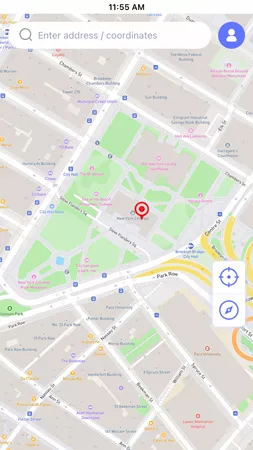
Step 2 Enter your desired city, address, or coordinates in the search bar, then click the Teleport button.
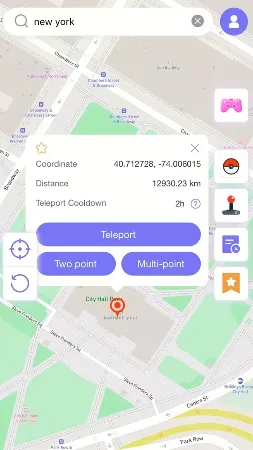
Step 3 Your location on Find My (and all other apps) updates instantly to the new spot.

Conclusion
If you value your privacy and want to squeeze more battery life out of your smartphone, turning off precise location is one of the smartest, quickest fixes you can make. Whether you’re on iPhone or Android, the steps we’ve covered work seamlessly across Instagram, Life360, Google services, and virtually any location-based app.
But what if you want more than just less accurate tracking? What if you want to change your GPS location entirely—for gaming, dating apps, or simply peace of mind? AnyGo Location Changer is the best choice. With a single tap, you can teleport to any city or address worldwide, simulate realistic multi-point movement, and take full control of your device’s location.
Download AnyGo today and hide your location anywhere.