

How accurate is Snap location? If a friend has ever messaged asking why you’re at the mall when you’ve been on the couch all night, you’ve seen the answer go wrong. Snap Map is Snapchat’s way of showing where you and your friends are, and for the most part, it works well.
Moments like that make people wonder: how accurate is Snap location, really? The short version is that Snapchat borrows your phone’s location rather than finding you itself. GPS signals, WiFi, battery settings, and a couple of easy-to-miss permissions all play a part, and we’ll go through each one, plus the fixes.

Part 1. How Accurate Is Snap Location?
Pretty accurate, as long as Precise Location is on and you’re outside. Then Snap Map usually puts you within a few meters. Inside a building, or with approximate location on, expect it to wander.

So, how accurate is Snap Maps location? Snapchat doesn’t have its own tracking system. It just asks your phone, and your phone works it out from three things. Whether Snap Map location is accurate depends entirely on what those three sources can provide.
- GPS. The satellites do the heavy lifting. Out in the open, a phone’s GPS is usually good to about 5 meters (roughly 16 feet). Put a roof, a tall building or thick trees overhead, and that number gets worse fast.
- Wi-Fi and cell towers. These are the backup. Your phone checks which networks and towers are nearby and guesses from there. Wi-Fi is often close enough. Cell towers alone can be off by a few blocks.
- Permissions. iOS and Android decide how much Snapchat gets to know. Turn off Precise Location, and Snapchat only sees a rough area. The same setting also decides whether it can check in while the app is closed.
Part 2. Snap Map vs Live Location
Snapchat shares your location in two different ways, and people mix them up all the time. If you’re wondering how accurate is Snap live location compared to Snap Map, the two are not the same. Here’s how they differ.

Snap Map
Snap Map is the one everybody knows, with Bitmojis scattered across town. You decide who sees yours: everyone you have added back, a chosen few, or nobody at all with Ghost Mode. The tricky part is timing. On “While Using,” your Bitmoji only moves when Snapchat is open, and your spot drops off the map after about a day. “Always” keeps your position updating in the background, whether you opened the app or not.
Live Location
Live Location is a one-to-one arrangement. You share with a single friend, who has to have added you back, for 15 minutes, an hour, eight hours, or until you stop it. While that window is open, they watch your dot move in real time, even with Snapchat closed. Two details people miss: it is off by default, and Ghost Mode does not switch it off. Change your mind halfway and you can end it early, with no notification sent.
Part 3. Why Is My Snap Location Not Accurate?
Bitmoji in the wrong place? If you’re wondering why is my Snap location not accurate, before you blame Snapchat, check your phone. One of these five is usually behind it.

- Precise Location Is Turned Off: Both iOS and Android let you hand apps an approximate area instead of your exact spot. With Precise Location off, Snapchat places you somewhere in your neighborhood rather than on your street.
- Your Location Data Is Old: Snap Map only refreshes when Snapchat checks in. On “While Using,” your Bitmoji stays at whichever place you last opened the app. A dead battery or a dropped connection leaves it there too. Tap your Bitmoji and the map shows when it last updated, which tells you straight away whether this is the cause.
- The GPS Signal Is Weak: Satellites need open sky. Concrete, tunnels, underground garages, and tall buildings scatter the signal, which is when your dot hops across the street or lands in a building you have never entered.
- Your Phone Is Mixing Location Sources: When GPS struggles, the phone falls back on Wi-Fi networks and cell towers. A router that moved buildings, or a tower covering a wide area, can put you a few blocks out for a minute or two.
- Battery Saver Is Limiting Updates: Android’s battery optimization and iPhone’s Low Power Mode both cut background activity, Background App Refresh included. Location access can still be set to “Always” and updates will still arrive late.
Part 4. How to Make Snapchat Location More Accurate
Fixing an inaccurate Snap location rarely takes long. In most cases, a few changes in your phone’s settings are enough, and you won’t have to install anything extra.

Work down this list and check Snap Map after each change:
- Turn on Precise Location. If your Bitmoji keeps showing up in the wrong neighborhood, this is usually the culprit. On iPhone, it’s a little toggle inside Snapchat’s entry in Location Services. Android hides it in the app’s permission screen, labeled “Use precise location.”
- Give Snapchat “Always” access. It’s called “Allow all the time” on Android. With it, your spot keeps refreshing after you swipe the app away. Some people find that a bit much, which is fair. “While Using” works too. You’ll just need to open the app to update.
- Get Snapchat out of battery saver. Android is a bit ruthless about putting apps to sleep. Setting Snapchat’s battery usage to Unrestricted wakes it back up. On an iPhone, the sneaky one is Low Power Mode, because it shuts off Background App Refresh without telling you.
- Don’t switch off Wi-Fi. Weirdly, you don’t have to join a network for this to help. Your phone just notes which routers are around, and indoors that makes a real difference.
- Switch on Google Location Accuracy. Android only. It’s buried under Location services, and once it’s on, the phone stops relying on GPS alone.
- Reset the permission. Set it to Never, close Snapchat, then turn it back on. Odd as it sounds, this forces a completely fresh fix.
- Toggle Airplane Mode. The classic “turn it off and on again.” Ten seconds is plenty. Your phone reconnects to nearby towers, and a frozen dot usually wakes up.
- Update and restart. If nothing else has worked, grab the latest Snapchat update and reboot. Stale data rarely survives that.
Part 5. Can You Make Snapchat Show a Different Location?
Sometimes accuracy is not even the issue. You may want the map to show a place that has nothing to do with where you are standing, whether that is the city you fly to next month or a spot you would rather keep to yourself.
iToolab AnyGo is a location changer for Snapchat and the other apps that read your phone’s GPS. It changes the coordinate the phone reports, so Snap Map receives a different number without anything inside Snapchat being edited. Your account, your friends list, and your Snaps stay as they are.

- Change GPS location without jailbreaking iPhone or rooting Android.
- Simulate GPS movement along any custom path with joystick.
- Newly released Native Mode: spoof iOS location without modded apps for all LBS apps safely.
- Support Monster Hunter Now, Pikmin Bloom and other location-based apps.
- Run seamlessly on Windows, Mac, iOS, and Android devices.
- Fully support the latest iOS 27/Android 17.
Key Features of AnyGo
- ✔ Put your Bitmoji on any street you like: Search a city or a landmark, or tap the map, then hit Go. Snap Map picks up the new spot the next time it refreshes.
- ✔ Draw a route and let it play out: Set a start and an end, add stops if you want them, and choose a pace. Your position travels the line instead of jumping straight there.
- ✔ Keep your real location out of Snap Map: Friends only see the place you’ve chosen, and Snapchat doesn’t send them any alert about the change.
- ✔ Available on other location-based apps. Instagram, Life360, Tinder and WhatsApp see the same location, so nothing looks out of sync.
How to Use iToolab AnyGo to Set a Different Location for Snapchat
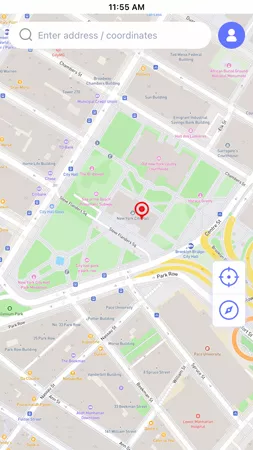
- Download and launch the AnyGo app on your phone, then select General Mode from the bottom of the screen.
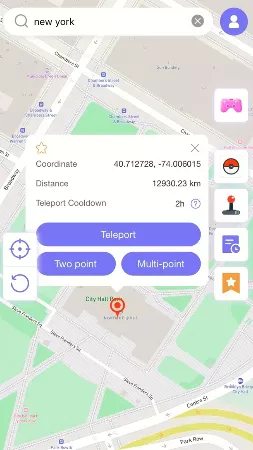
- Enter your target city or coordinates in the search bar, or tap any desired spot on the map. Tap Teleport.
- Your GPS will update to the target location immediately. Open Snapchat and check Snap Map. If your Bitmoji hasn’t moved yet, restart the app and it should catch up.

Part 6. FAQs about Snapchat Location
People ask about Snap Map all the time, usually right after spotting a friend somewhere odd. These three questions come up more than any others.
Q1. Why does Snapchat show my old location?
Usually it is the “While Using” setting. The map then freezes wherever you last opened Snapchat,
and roughly a day later your spot disappears from it. An aggressive battery saver or a weak signal can produce the same picture.
Q2. Does Snapchat update your location when the app is closed?
Depends. With “Always” access, Snap Map carries on updating in the background, and Live Location keeps running too. On “While Using,” your Bitmoji stays frozen until you open Snapchat again.
Q3. Does a VPN change your Snapchat location?
Nope. A VPN swaps your IP address, and that’s all. Snap Map reads your phone’s GPS, which a VPN doesn’t touch, so your Bitmoji won’t budge. Moving it takes a GPS location changer instead.
✅Learn More: How to Fix Snapchat Location Wrong on Android/iPhone?
Final Thoughts
Getting a clear answer to the question ‘How accurate is Snap location?’ mostly means looking at your own phone. Outdoors, with Precise Location switched on, Snapchat tends to place you within a few meters. Indoors, on approximate location, or with “While Using” set and the app closed, it drifts or falls behind, sometimes by hours. The good news is that none of this needs special tools. A couple of settings, a quick restart, and Snap Map is usually back on track.
If you’d like more say over where your Bitmoji appears, though, AnyGo Location Changer makes it easy to pick a spot or walk a route, and keep your real location to yourself. Try it now and take control of what Snap Map shows your friends.