
A 4-year-old Samsung Galaxy holding about 2,000 photos, several hundred contacts, and years of WhatsApp chats is a common starting point for a phone switch. iMobie AnyDroid often appears in that search, alongside free download links and an Android app. Pages promising free activation keys also appear, though iMobie provides genuine keys only after purchase.
Whether AnyDroid still fits that switch depends on its trial limits, licensing, and published update history, which ends in August 2024. iMobie’s pages explain these details, while iToolab WatsGo offers an alternative specifically for WhatsApp migration, a feature AnyDroid does not list.
Part 1. What Is iMobie AnyDroid and What Is It Used For?
iMobie AnyDroid, formerly AnyTrans for Android, is a file management and transfer tool for Android devices. It works with Windows and Mac computers and supports both wired and wireless connections. AnyDroid app offers 4 main functions listed below:

- Android File Management: Organizes files, manages apps in batches, and accesses SD card content.
- File Transfer: Transfers photos, videos, contacts, messages, and call logs between Android devices and computers.
- Phone Migration: Moves data between Android phones or from iPhone and iTunes/iCloud backups to Android using Android Mover.
- Wireless Sharing: Uses the Android app, Wi-Fi, and QR-code connections to transfer files without a USB cable.
Part 2. How to Download iMobie AnyDroid
iMobie provides the AnyDroid download on its product page, with separate options for the desktop program, Android app, and APK. The program supports Windows 7 or later, macOS 10.13 or later, and Android 5.0 or newer. To download and install the version you need, follow these steps:
Instructions. Click “Free Download” on iMobie’s AnyDroid page, run the installer, and connect the phone by USB. On the phone, open the same page and tap “Download Android App” to install the AnyDroid Android app.
Part 3. How to Transfer and Manage Android Data with AnyDroid
Once your phone is connected via USB or Wi-Fi, you can transfer files, migrate data from another device, or share content wirelessly. The following methods explain how to use each feature step by step:
Transfer Files Between Android and Computer
“Content to Computer” copies selected data categories to a chosen folder, while “Add Content to Device” transfers files back. Supported data includes contacts, messages, call logs, calendars, apps, music, photos, and movies. To transfer files using iMobie AnyDroid, follow these steps:
Step 1 Connect the phone and click “Content to Computer” on the main screen.

Step 2 Tick the categories, adjust the export path if needed, and click “Next.” Keep the phone connected until the copy ends, then click “View Files.”

Move Data from an Old Phone to Android
Moving data from the old Galaxy uses Android Mover, which iMobie excludes from the free trial. It transfers photos, music, contacts, messages, call logs, documents, and apps. For iPhone sources, iTunes is required on the computer. To migrate your files using AnyDroid over USB or Wi-Fi, follow these steps:
Step 1 Connect both phones via USB or Wi-Fi, then let AnyDroid detect them. Open “Android Mover” and choose “Android to Android,” or “iOS to Android” for an iPhone.

Step 2 Select the categories, leave “Skip Duplicates” checked so nothing copies twice, and click “Next.”

Share Files Wirelessly Using the AnyDroid App
The AnyDroid app connects devices over Wi-Fi instead of USB, eliminating the need for USB debugging or computer-side drivers. Both devices must use the same network, as iMobie’s FAQ identifies hotspot connections as a possible cause of failed QR scans. To connect your devices and share files wirelessly, follow these steps:
Instructions. Install the app, or click “No App Installed” in AnyDroid to get it. With both devices on the same Wi-Fi network, tap “Connect to Computer” and scan the QR code in AnyDroid. Once connected, select the files you want to transfer.

Part 4. AnyDroid Activation Key, Free Trial, and Licensing
AnyDroid offers a free trial with limited transfer capabilities, while a purchased license unlocks its full features. Before upgrading, check what the trial includes, how much a license costs, and how activation works. The following sections explain each:
Is iMobie AnyDroid Free to Use?
The AnyDroid free download installs a trial, not a free edition. iMobie limits each of the 12 data categories to 30 items within 3 days and restricts Android Mover, so transferring all 2,000 Galaxy photos requires a license. The table below compares the free trial, activated version, and license coverage:
How to Activate AnyDroid with a License Key
A genuine AnyDroid activation key arrives by email after your purchase from iMobie. Codes posted on forums or generated by key generators are not valid licenses issued to you. To activate your license key, follow these steps:
Step 1 Click “Activate” in AnyDroid’s upper-right corner, then press “Activate Now.”

Step 2 Paste the account and activation code from the email, stay online, and click “Activate.” If error 006 or 009 appears, reopen AnyDroid as an administrator and paste the code again.

Part 5. How to Fix If iMobie AnyDroid Is Not Working?
When AnyDroid stops detecting a phone, iMobie recommends checking USB debugging, the “Transferring media files” mode, installed drivers, and software updates. Its latest publicly listed build is version 7.5.2 from August 2024, with no newer release shown in iMobie’s update history.
Its published device list includes older models such as the Galaxy S8, although broader Android compatibility is advertised. For connection issues, troubleshooting remains the first option. However, iToolab WatsGo offers dedicated WhatsApp migration features that AnyDroid does not list among its supported transfer categories.
Why Choose iToolab WatsGo for WhatsApp Transfer?
For WhatsApp migration, AnyDroid users need a dedicated tool with updated compatibility information, since AnyDroid does not list WhatsApp among its supported data types. iToolab WatsGo manages WhatsApp backups through a Windows PC or Mac. It transfers WhatsApp and WhatsApp Business between Android and iPhone in both directions, including same-platform transfers.
iToolab lists Android 17 and iOS 27 compatibility, with WatsGo documentation updated in September 2026. For Galaxy phones, its Android-to-Android mode offers another option when Google Drive backup restoration fails. The WatsGo app for Android also transfers photos, videos, documents, SMS, and call logs between supported Android and iPhone devices without requiring a factory reset.
transfer WhatsApp between iPhone and Android
- Transfers GBWhatsApp chats to standard WhatsApp or another GBWhatsApp installation on supported Android devices.
- Lets users select supported WhatsApp data types while including text messages by default.
- Saves WhatsApp data locally on Windows or Mac, with free iPhone backup support included.
- Downloads WhatsApp backups from Google Drive and restores them to compatible Android or iPhone devices.
- Displays supported backup contents and allows selective restoration of WhatsApp messages and attachments.
iToolab warns that the transfer overwrites WhatsApp data on the receiving phone, so back it up first. To move your chats using this alternative to the AnyDroid Android app, follow these steps:
Step 1. Open WatsGo, select “WhatsApp Transfer > Start,” and connect both phones, allowing USB debugging on each when prompted.
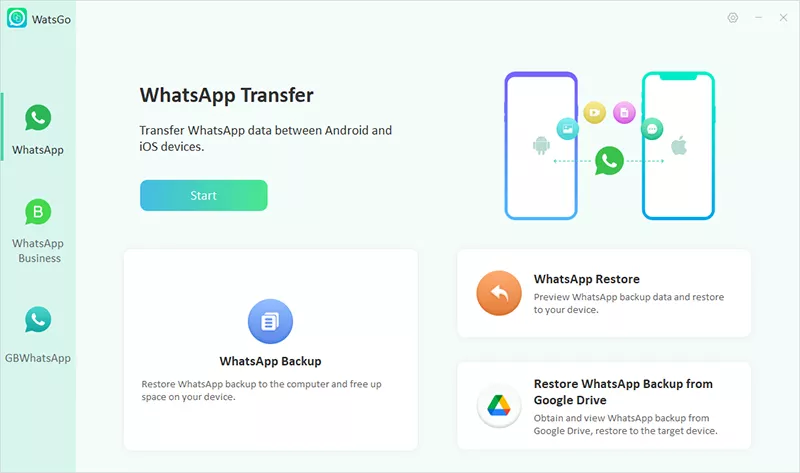
Step 2. Press “Transfer,” pick the data types to move, then choose “Continue.” Back up WhatsApp on the old phone, since the transfer cannot continue without it, and click “Continue.”
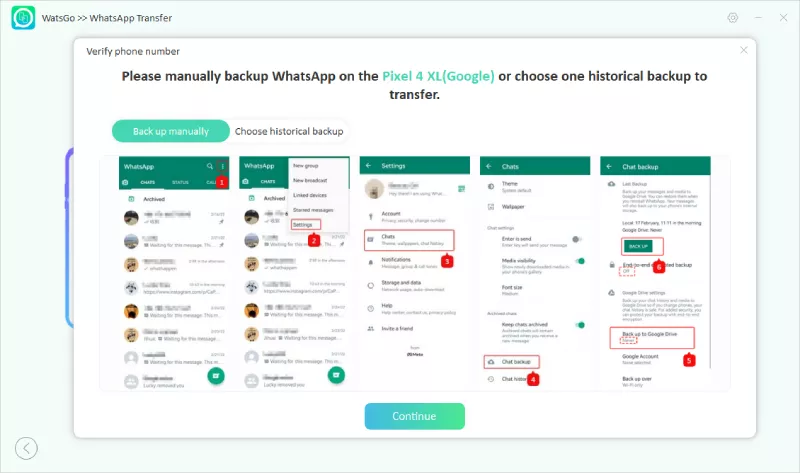
Step 3. Open WhatsApp on the new phone and verify the same number to access the transferred chats.

AnyDroid vs. WatsGo: Which One Is Better?
AnyDroid handles broader Android file management tasks, while WatsGo specializes in WhatsApp migration and cross-platform transfers. If you’re considering an AnyDroid download, the table below compares both tools based on transfer features, backup options, and device compatibility:
AnyDroid retains an edge in computer-based file management, but its latest published update dates to August 2024. WatsGo is the better choice for WhatsApp migration, offering broader OS compatibility, cross-platform transfers, and dedicated chat migration features that AnyDroid lacks.
Conclusion
iMobie AnyDroid still handles photos, contacts, and apps, but its free download caps each category at 30 items within 3 days. Genuine keys come only with a purchase, and the program’s updates have stalled. For old Galaxy WhatsApp chats and any move between Android and iPhone, iToolab WatsGo is a stronger alternative.
iToolab WatsGo – Safely back up your WhatsApp data
389,390,209 people have downloaded it