

Finder and the Apple Devices app restore complete iPhone backups rather than individual albums or chats. iMobie AnyTrans offers selective data management, making it useful for transferring photos, music, and WhatsApp chats between compatible iPhones.
iMobie released version 8.9.15 for Windows in September 2026 with iOS 27 crash fixes, and the Mac build followed in October. Trial limits, pricing, user ratings, and WhatsApp coverage shape the verdict. Learn where iToolab WatsGo supports more transfer directions and Business accounts.
Part 1. What Is iMobie AnyTrans and What Can It Do?
AnyTrans for iOS is iMobie’s desktop tool for transferring, backing up, restoring, and managing iPhone and iPad data. Before you move to setup, here are the key features worth knowing:

- iPhone and iPad File Management: AnyTrans exports photos by category and transfers music without erasing existing songs.
- AnyTrans iPhone to iPhone Transfer: Phone Switcher moves selected data from an old iPhone or Android phone to a new iPhone.
- iPhone Backup and Restore: Backup Manager supports selective and incremental backups, plus restoring data from available backups.
- iCloud and iTunes Data Management: iCloud Manager lets you manage and transfer iCloud data, while AnyTrans also provides tools for iTunes libraries and backups.
- AnyTrans WhatsApp Transfer and Backup: AnyTrans WhatsApp can move chats to an iPhone or back them up to a computer, and it also supports LINE and Viber.
Part 2. How to Download and Install AnyTrans for iOS
With these iMobie AnyTrans features covered, the next step is to install the Windows or Mac version and connect your iPhone. The software offers a free trial, while some transfer and restore features require a paid license.
AnyTrans Download for Windows PC
The AnyTrans for PC version supports 32-bit and 64-bit Windows 11, 10, 8, 7, and Vista, according to iMobie’s specifications. iMobie also lists iTunes and its mobile-device driver as requirements for iOS connections. Once you confirm your PC meets the system requirements, follow these steps to install AnyTrans and connect your iPhone:
Step 1 Visit the official AnyTrans download page and press the “Free Download” button for Windows.

Step 2 Plug in the iPhone, open AnyTrans, and tap “Trust” on the phone.
How to Download AnyTrans for Mac
The AnyTrans Mac build runs on macOS 10.13 through macOS 27. Apple notes that a Mac may ask you to allow the iPhone as an accessory. Follow these steps to install AnyTrans on your Mac and connect your iPhone:
Step 1 Open the official AnyTrans download page, press the “Free Download” button for MacBook, and follow the setup instructions.
Step 2 Connect the iPhone, click “Allow” on the Mac, and tap “Trust” on the iPhone.
AnyTrans App for iPhone vs. AnyTrans Desktop Software
The mobile AnyTrans app supports wireless file sharing and cloud-drive management. AnyTrans Desktop adds broader iPhone management features. The table below compares their key differences:
Part 3. How to Use AnyTrans for iPhone Data Transfer
Phone Switcher and WhatsApp transfers require a paid license, while file exports are available with trial limits. The following sections explain how to use these features.
How to Transfer Data from iPhone/Android to iPhone with AnyTrans
iMobie uses Phone Switcher for AnyTrans iPhone-to-iPhone migration, allowing users to select data categories before copying. Follow these steps to transfer your data:
Step 1 Connect both iPhones by USB, then open “Phone Switcher.” Choose “Phone to iPhone,” then “Migrate Now,” and click “Next.”

Step 2 Check each category, press “Next,” and click “OK” at “Transfer Completed.”

How to Transfer Files Between iPhone and Windows or Mac
In the AnyTrans Windows version, “Content to PC” exports music, photos, contacts, and messages, while “Add Content to Device” imports supported files. Access to app files is restricted on iOS 8.3 and later, although certain app-management functions remain available, according to iMobie. Follow these steps to export iPhone files to your computer:
Step 1 Connect your iPhone to the computer and select “Content to PC” in AnyTrans. Choose the data categories you want to export and set the destination folder.

Step 2 Click “Next” to begin exporting the selected files. Keep your iPhone connected throughout the process, then select “View Files” to access the exported data.

How to Transfer WhatsApp Chats with AnyTrans
AnyTrans WhatsApp transfers chats to an iPhone from Android or another iPhone and exports backups to HTML, according to iMobie. Android-bound chats require iMobie’s separate AppTrans, while WhatsApp Business support is not documented. To transfer WhatsApp chats between two iPhones, follow these steps:
Step 1 Connect your old phone and iPhone to your computer, then open “Social Messages Manager” in AnyTrans. Choose “WhatsApp to Device,” click “Transfer Now,” and select the source and target iPhones.

Step 2 Click “Next” and follow the on-screen instructions to prepare both phones. Keep the devices connected and wait until AnyTrans confirms the WhatsApp transfer is complete.

Part 4. iMobie AnyTrans Review: Pricing, Safety, and Limitations
Before selecting a paid plan, this iMobie AnyTrans review covers pricing, free trial limitations, safety, and major advantages and disadvantages to help you determine whether the software is worth using.
Is AnyTrans Free? Pricing and Free Trial Limitations
AnyTrans installs for free, but iMobie limits most trial transfers to 30 items within 3 days. Phone Switcher and restore features require a paid license, while screen mirroring, unlimited backups, and iCloud Content Manager remain free. October 2026 prices for AnyTrans for PC cover unlimited iOS devices, with 60-day refunds on all but the monthly plan, as shown:
- 1-Month Subscription: $35.99 per month, refundable within 7 days.
- 1-Year Subscription: $39.99 per year, renewing automatically.
- One-Time Purchase: $59.99 for lifetime use on one computer.
- Family Plan: $79.99 for lifetime use on five computers.
Is AnyTrans Safe and Reliable for iPhone Data?
AnyTrans installs from iMobie’s site, connects over USB, and saves backups locally. User feedback raises reliability concerns, with reported AnyTrans review ratings below 3 out of 5 on two platforms. The iPhone app averages 2.4 from 234 App Store ratings, amid complaints of crashes and dropped connections. An unclaimed Trustpilot profile shows 2.6 from 29 reviews, mixing honored refunds with slow support and failed restores.
Main Advantages and Disadvantages of AnyTrans
The table below highlights its main strengths, limitations, and practical implications:
Part 5. iMobie AnyTrans Not Working? Common Problems and Fixes
AnyTrans issues often involve device detection, security software, or license activation. iMobie’s FAQ covers common troubleshooting methods, while the table below highlights possible causes and recommended fixes:
Part 6. Best iMobie AnyTrans Alternative for WhatsApp Transfer: iToolab WatsGo iPhone Manager
AnyTrans offers a range of iPhone data management features, while iToolab WatsGo specializes in WhatsApp transfers and backups. The following sections highlight WatsGo’s additional capabilities and compare both tools:
Why Choose iToolab WatsGo as an AnyTrans Alternative?
iMobie’s own pages highlight 3 limitations in AnyTrans WhatsApp support. Moving iPhone chats to Android requires the separate AppTrans tool, WhatsApp Business support is not documented, and Google Drive backups only restore to an iPhone. iToolab WatsGo addresses all 3 limitations in one desktop program.
iToolab WatsGo – Safely back up your WhatsApp data
389,390,209 people have downloaded it

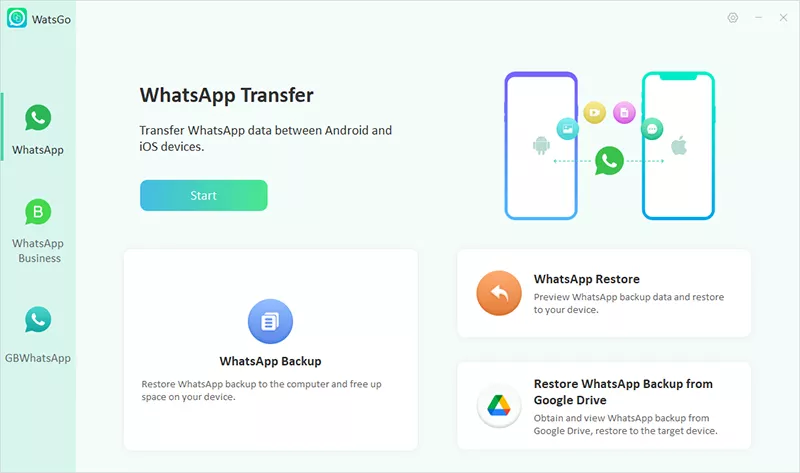
WatsGo supports iPhone-to-Android, Android-to-iPhone, and same-platform transfers for WhatsApp and WhatsApp Business. It also lets users preview and selectively restore iCloud backups without uninstalling WhatsApp. Google Drive backups can be restored to either Android or iPhone. Along with these options, iToolab lists over 20 transferable data types, compatibility with iOS 27 and Android 17, and free iPhone WhatsApp backups.
AnyTrans vs. WatsGo: Which Is Better for WhatsApp?
WatsGo offers more WhatsApp transfer options, while AnyTrans provides broader iPhone management features. The table below compares their capabilities, compatibility, and pricing:
For WhatsApp-specific tasks, iToolab WatsGo offers more flexibility, especially for Android transfers, Business accounts, and cloud backup restoration. These capabilities, covered in iToolab’s guide, make it a stronger AnyTrans alternative for WhatsApp management.
Conclusion
Once licensed, iMobie AnyTrans remains a useful, actively updated tool for managing iPhone photos, music, backups, and iCloud data. However, its WhatsApp transfer options are limited compared with iToolab WatsGo, which offers iPhone-to-Android transfers, WhatsApp Business support, and free iPhone WhatsApp backups.