
Accidentally deleted WhatsApp messages may include important conversations, personal memories, or valuable information you still need. Many iPhone users struggle to recover chats after accidental deletion, app reinstallation, or device upgrades. In various cases, deleted chats are still recoverable using backups or reliable tools.
Several approaches exist, but not every method guarantees successful message recovery under every situation encountered. Thus, this guide explains how to check deleted messages on WhatsApp on iPhone safely. You will discover proven methods that actually recover lost or deleted chats.
Part 1. Is There a Way to Read Deleted WhatsApp Messages on iPhone?
WhatsApp itself does not store a hidden copy of deleted messages anywhere. Yet, backups often retain those messages before permanent deletion occurs. iCloud backups and reliable third-party tools can help recover lost conversations easily.
WhatsApp itself confirms chat history can only be restored from existing iCloud backups. This is exactly how to check WhatsApp deleted messages on an iPhone without hassle. However, recovery success mostly depends on backup age, device settings, and chosen method. Most iPhone users overlook this native recovery option until messages completely disappear.
Part 2. How to Check Deleted Messages on WhatsApp on iPhone?
The two proven methods below explain how to check deleted messages on WhatsApp iPhone effectively. Follow either method below, starting with the fastest recovery option available:
Method 1. iToolab WatsGo [One-Click Solution to WhatsApp from iCloud]
Recovering deleted WhatsApp chats becomes much easier with tools like iToolab WatsGo. While learning how to check deleted messages in WhatsApp on an iPhone, this tool helps check chats even on iOS 26 devices. The program actually works by accessing the WhatsApp backups directly from iCloud storage. During usage, users can sign in to their cloud account and check any available backup file.
As you see your deleted messages from your backup file, WatsGo even enables you to restore them. Along with messages, it can recover 20+ data types, including images and videos. In addition, it offers a high recovery success rate without requiring a factory reset. This entire process keeps your current WhatsApp data completely safe and intact.
Restore WhatsApp Backup from iCloud Tool
- Offers full preview access before restoring any WhatsApp backup content onto devices.
- Enables selective restoration, letting you choose which WhatsApp data gets recovered.
- Scans your iCloud account to locate available WhatsApp backups within minutes.
- Allows previewing and restoring WhatsApp data from existing iTunes backup files.
- Offers one-click WhatsApp transfers between Android and iOS devices instantly and securely.
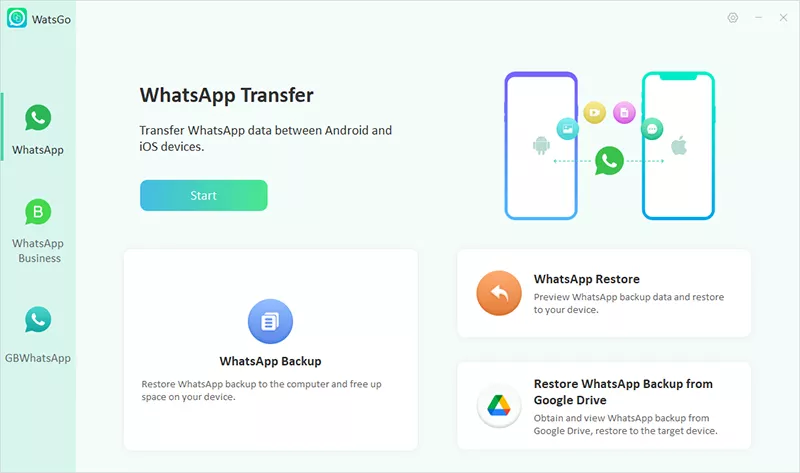
You can now take guidance from the steps to learn how to check deleted messages on WhatsApp on an iPhone via this tool:
Step 1 Access and Verify iCloud Account
Launch the tool to access the “WhatsApp” tab and choose “Restore WhatsApp from iCloud.” Afterward, enter your iCloud account and press “Sign In” to complete any required verification.
Step 2 Locate and Unlock WhatsApp Backup
Allow the software to search for available WhatsApp backups stored in the iCloud account. After a while, select the desired backup from the list, then enter the correct 64-digit encryption key to unlock and access its contents.

Step 3 Read and Save WhatsApp Data
As the backup is decrypted, browse the available WhatsApp messages directly within the program. If needed, choose your desired messages or chat and press “Export to Computer” to store the local copy on the computer.

Method 2. Restore Your iCloud Backup
Another option involves uninstalling the app and restoring your iCloud backup manually. This method also works well if you already have a recent backup containing the deleted messages. However, it replaces your current WhatsApp data, which may result in the loss of your latest messages and recent chats. Anyways, go through the given steps to find out how to check WhatsApp deleted messages on an iPhone:
Step 1 As you press the “WhatsApp” icon for a few seconds, tap the “Remove App” option. After that, opt for “Delete App” and then press “Delete” on the upcoming prompt.
Step 2 Now, access the “App Store” to search for “WhatsApp” and tap the “Download” icon.
Step 3 Upon running the newly installed app, tap “Agree & Continue” prior to entering the same phone number. As you head to the “Restore or Transfer Chats” screen, opt for the “Restore from Backup” option and complete the process.

Part 3. Are Deleted WhatsApp Messages Gone Forever?
No, deleted WhatsApp messages are not always gone forever. As explored, backups often retain copies even after messages disappear from chats. Moreover, Meta states that unbacked messages cannot be restored after deletion. Anyhow, you can now follow these simple tips to protect your data from now on:
- Enable Auto-Backup: Users should switch on automatic WhatsApp backups within their settings. This ensures recent messages stay recoverable if accidental deletion happens later.
- Backup Frequently: Set your backup frequency to daily instead of weekly intervals. Frequent backups reduce the risk of losing recent important conversations.
- Use Reliable Tools: Choose trusted recovery software like WatsGo for guaranteed results. Reliable tools increase your success rate during actual data recovery attempts.
- Avoid Overwriting Data: Stop using WhatsApp immediately after noticing any messages missing. Continued app usage risks overwriting backup files needed for successful recovery.
- Keep an iTunes or Finder Backup: Create regular encrypted iTunes or Finder backups on your computer. These backups provide another recovery option if an iCloud backup is unavailable or outdated.
Conclusion
In summary, a few quick methods are still available to help you read deleted WhatsApp messages. You have now learned how to check deleted messages on WhatsApp on an iPhone effectively. Both WatsGo and manual iCloud restoration offer reliable recovery options for users. However, the standard cloud restoration method reinstalls your app, removing current chats. Therefore, anyone needing guaranteed recovery should choose tools like iToolab WatsGo for safe restoration.
iToolab WatsGo – Safely back up your WhatsApp data
389,390,209 people have downloaded it