
“From Phone to Phone, Transfer as You Like” is the tagline behind iMobie PhoneTrans, a desktop tool for transferring data between Android and iPhone. Unlike Apple’s Move to iOS app, PhoneTrans works with already configured devices. This helps Pixel owners transfer data to an iPhone 17 after setup.
The PhoneTrans free download offers a trial limited to 5 items per data type, while WhatsApp transfers require a paid license. PhoneTrans supports WhatsApp transfers to iPhone, whereas iToolab WatsGo supports both directions. This guide covers PhoneTrans downloads, Android-to-iPhone transfers, and WhatsApp migration alternatives.
Part 1. Overview of iMobie PhoneTrans
According to iMobie, PhoneTrans supports 32+ iOS data types and 12 Android data types across its transfer, backup, restore, and app-migration features. The PhoneTrans app offers several transfer modes, each designed for different tasks and device combinations. The following table compares their functions and compatibility limits:
For cross-platform transfers, Phone Clone and Phone Merge support only same-platform devices. Therefore, a Pixel-to-iPhone switch requires Quick Transfer. According to iMobie’s version history, PhoneTrans version 5.4.1 introduced iOS 18 beta support in August 2024.
Part 2. How to Download iMobie PhoneTrans for Free
The iMobie PhoneTrans free download is available for Windows and macOS, allowing users to transfer, back up, and restore supported phone data. According to iMobie’s setup guide, PhoneTrans supports Windows 11, 10, 8, and 7 (64-bit), along with macOS 10.13 or later. Windows users may need iTunes and compatible Apple device drivers to connect an iPhone.
Note:
PhoneTrans is desktop software, not a mobile app. According to iMobie’s FAQ, it cannot be installed directly on an iPhone or iPad. Users must connect supported devices to a computer for transfers.
Is iMobie PhoneTrans Free?
PhoneTrans offers a free trial, but certain transfer and restore features require activation. The restrictions depend on the selected operation:
- Limited Trial Transfers: Quick Transfer and supported selective restores have trial restrictions, including a reported limit of 5 items per data type.
- Paid Features: Phone Clone, Phone Merge, App Transfer, and full restores from PhoneTrans backups require activation under the applicable license.
- Backup and Restore Options: Supports full and selective backups, plus compatible iTunes backup restores. Free trial availability depends on licensing restrictions.
According to iMobie’s pricing page, the Windows license costs $35.99 annually or $45.99 for lifetime access, with each plan covering 5 devices on one computer.
Guide to Download and Install PhoneTrans on Windows or Mac
The PhoneTrans download is available on iMobie’s official website. Follow these steps to download and install the software on your Windows PC or Mac:
Step 1 Open the iMobie PhoneTrans product page and click “Free Download.” On Windows, run the downloaded .exe installer. For Mac, open the .dmg file and launch the PhoneTrans installer.

Step 2 Follow the on-screen instructions and click “Install Now” when prompted. Once installed, launch PhoneTrans and connect your Android device or iPhone using a compatible USB cable. Approve any device permission prompts, then select the appropriate transfer, backup, or restore mode.
Part 3. How to Transfer Data from Android to iPhone Using PhoneTrans
PhoneTrans Android to iPhone transfer uses Quick Transfer to copy photos, music, videos, ringtones, documents, contacts, and calendars from the Pixel. According to iMobie, messages and call history cannot transfer directly through this mode. These require a compatible backup and full restore where supported. WhatsApp chats need the separate App Transfer feature and a paid license. Connect both devices and follow these steps:
Step 1 Open PhoneTrans, choose “Phone to Phone,” select “Quick Transfer,” and click “Start Transfer.”

Step 2 Connect the Android phone with USB debugging enabled, then connect the iPhone. Click “Switch” if the source and destination are reversed. Press “Transfer,” choose the data types, and click “Transfer Now” to begin copying.

Step 3 Keep both devices connected until the “Successfully transferred” message appears, then click “OK” to finish.

Part 4. PhoneTrans WhatsApp Transfer and Best Alternative
Transferring WhatsApp chats with PhoneTrans requires a paid license, a local Android backup, and additional setup. Before starting, review the supported transfer directions and the steps involved in moving your WhatsApp data:
Can PhoneTrans Transfer WhatsApp from Android to iPhone?
Yes, PhoneTrans WhatsApp transfer supports Android-to-iPhone migration through App Transfer, which requires an activated license. According to iMobie, PhoneTrans creates a local Android chat backup and uses an “Enhanced Version” of WhatsApp during the process. It also supports iPhone-to-iPhone transfers but cannot move WhatsApp chats to Android. Connect both devices to your computer and follow these steps:
Step 1 Select “App Transfer,” choose WhatsApp, click “Start Transfer,” and connect both phones with USB debugging on.

Step 2 Click “Transfer” and back up WhatsApp on the Android phone. Set Google Drive backups to “Never,” then click “Next” in PhoneTrans.

Step 3 Enable “Install via USB” on the Android phone, select the data to transfer, and click “Transfer Now.” Enter “1234” when prompted for the backup password.

Step 4 Sign in to WhatsApp on the iPhone, ensure at least one chat exists, and click “Continue” in PhoneTrans.

iToolab WatsGo: Best PhoneTrans Alternative for WhatsApp
While iMobie PhoneTrans includes WhatsApp transfers as a paid feature, it supports only iPhone or iPad destinations. For users switching between Android and iPhone, iToolab WatsGo offers greater flexibility. It transfers WhatsApp and WhatsApp Business data in both directions without requiring an iPhone factory reset for Android-to-iPhone migration.
Unlike PhoneTrans, WatsGo uses an end-to-end encrypted WhatsApp backup from Android and converts it into an iPhone-compatible format. PhoneTrans is better suited for general phone data transfers, including photos and contacts. Meanwhile, WatsGo focuses on preserving WhatsApp conversations, media, and business data across devices.
transfer WhatsApp between iPhone and Android
- Creates local WhatsApp backups on a computer for later restoration to compatible mobile devices.
- Restores supported WhatsApp data from compatible iCloud backups to an iPhone when needed.
- Transfers WhatsApp photos, videos, voice messages, documents, and other supported attachments alongside conversations.
- Allows users to preview supported WhatsApp backup content before selecting data for restoration.
- Supports restoring compatible WhatsApp backups to another device without relying on the original phone.
Guide to Transfer WhatsApp from Android to iPhone with WatsGo
Before transferring WhatsApp chats, connect both phones to your computer and disable Find My on the iPhone if prompted. Since iToolab warns that existing destination data can be overwritten, back up your iPhone first. Follow these steps to transfer WhatsApp from Android to iPhone using WatsGo as a PhoneTrans Android to iPhone alternative:
Step 1. Select “WhatsApp Transfer,” then click “Start” under WhatsApp. Enable USB debugging on the Android phone and tap “Trust” on the unlocked iPhone.
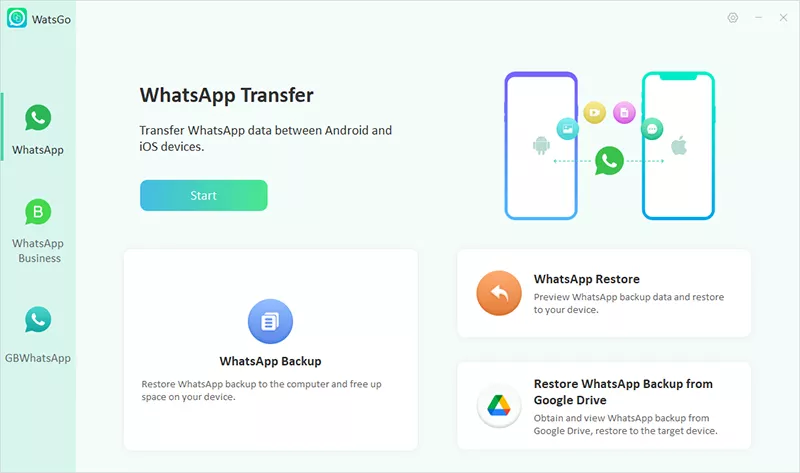
Step 2. Click “Backup” and enable WhatsApp’s end-to-end encrypted backup on Android. Save the backup password securely, then enter it in WatsGo when prompted.

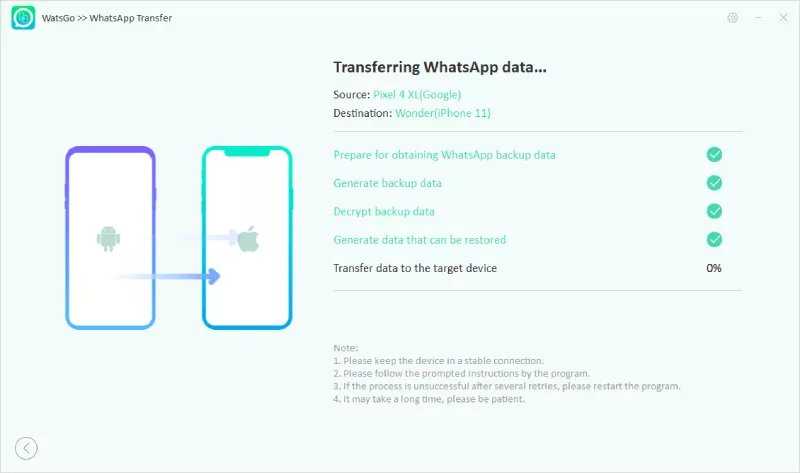
Step 3. WatsGo converts the Android backup into an iPhone-compatible format and restores the data. After the iPhone restarts, complete any required setup and reinstall WhatsApp if prompted.
FAQs for iMobie AnyTrans
1. Can PhoneTrans transfer data from iCloud or a Google account?
Yes, PhoneTrans can restore photos, notes, contacts, reminders, and calendars from iCloud. Google account restoration supports compatible photos, contacts, and calendars.
2. Can PhoneTrans restore data without access to the old phone?
Yes, PhoneTrans can restore supported data from existing PhoneTrans, iTunes, iCloud, or Google backups without the original phone. Some restores require activation.
3. Does PhoneTrans support transfers between phones and tablets?
Yes, PhoneTrans supports compatible iPhones, iPads, and Android devices, including tablets. Quick Transfer supports cross-platform transfers, while Clone and Merge require matching platforms.
4. Why is iMobie PhoneTrans not working?
Connection problems often involve USB drivers, outdated iTunes, disabled USB debugging, or unapproved Trust prompts. Newer iOS versions also have unconfirmed feature compatibility.
Conclusion
iMobie PhoneTrans transfers photos, music, contacts, and calendars to an already configured iPhone. Phone Restore also supports compatible iCloud and Google data. However, WhatsApp transfers require a paid license and additional Android setup, without supporting transfers back to Android. For users prioritizing WhatsApp history, iToolab WatsGo offers greater flexibility, supporting WhatsApp and WhatsApp Business transfers between Android and iPhone in both directions.
iToolab WatsGo – Safely back up your WhatsApp data
389,390,209 people have downloaded it