
Upgrading to a new phone is exciting, but transferring apps doesn’t always bring their data along. WhatsApp chats, game progress, and other app data can be left behind. iMobie AppTrans helps manage this process on Windows and Mac by transferring, backing up, and restoring supported apps and their data. It also supports APK and XAPK installations on Android and IPA installations on compatible iPhones.
However, AppTrans has limitations. Cross-platform transfers require a paid license, and its latest publicly documented update dates to 2022. If WhatsApp migration is your priority, iToolab WatsGo offers a dedicated alternative with WhatsApp Business support and listed iOS 27 compatibility.
Part 1. How to Download iMobie AppTrans for Free
Before downloading iMobie AppTrans, it’s important to understand what its free trial offers and which features require a paid license.
AppTrans Free Download for Windows and Mac
The AppTrans free download is available on iMobie’s official website for 64-bit Windows 7–11 and macOS 10.13 or later. According to the system requirements, it also requires 500 MB of free disk space and iTunes for iOS device connections. To download, install, and connect your phone to AppTrans, follow these steps:
Step 1 Visit the official AppTrans download page, click “Free Download,” and save the Windows or Mac installer.
Step 2 Run the installer, press “Install,” and launch AppTrans. Connect your phone via USB, then tap “Trust” on your iPhone or, if prompted, enable USB debugging on Android.
Is There an AppTrans APK for Android?
iMobie does not offer an official AppTrans APK because the software runs only on Windows and Mac, not directly on Android or iPhone. Instead, AppTrans lets you install APK and XAPK files on Android devices through a computer. Any AppTrans APK available from third-party websites is not an official iMobie release.
Is iMobie AppTrans Completely Free?
No, the AppTrans free trial supports basic app installation, backups, and certain transfers, but advanced features require a paid license. The available features differ between the free and paid versions, as shown in the table below:
Part 2. How to Use AppTrans for Android and iPhone Apps
The AppTrans app supports installing, transferring, backing up, and restoring apps on compatible Android and iOS devices. However, available functions vary by platform, app, and license. Let’s explore how to use its key features.
How to Install APK and XAPK Files on Android Using AppTrans
With AppTrans Android, you can install APK and XAPK files directly from your computer using the free trial. Make sure the files are compatible with your Android device, then follow these steps to install them:
Step 1 Open AppTrans, access the “App Install” feature, press “Install Now,” and connect the Android phone.

Step 2 Press “Add Files” or drag the APK or XAPK file into the window. Once “App Installation Succeeded” appears, click “OK.”

How to Transfer Apps and App Data Between iPhones
AppTrans lets you transfer apps between iPhones with or without their data or move app data separately. According to iMobie, the transfer keeps other content on the receiving iPhone intact. To transfer apps using iMobie AppTrans, follow these steps:
Step 1 Connect both iPhones to your computer, select “Transfer to Phone,” and click “Transfer Now.”

Step 2 Select the apps, choose whether each one moves with its data, and click “Next.”

Step 3 Leave both iPhones plugged in until “App Transfer Succeed” appears, then click “OK.”

How to Back Up and Restore Supported Apps with AppTrans
AppTrans lets you back up iPhone app data and Android WhatsApp data to your computer. However, restoring non-WhatsApp app data can overwrite the app’s existing data on the iPhone, as explained by iMobie. To back up and restore supported apps using the AppTrans app, follow these steps:
Step 1 Choose “App Backup,” click “Back Up Now,” and confirm the device and backup folder.

Step 2 Select the apps, click “Back Up Now” again, and enter the Apple ID password for an iPhone.

Step 3 To restore, open “App Restore,” choose “AppTrans Backup,” pick the app, connect the phone, and click “Restore.”

Part 3. How to Transfer WhatsApp with AppTrans
AppTrans supports transferring WhatsApp data between Android and iPhone with a paid license. According to iMobie, an AppTrans WhatsApp transfer includes messages, photos, videos, and audio attachments. It also merges WhatsApp chats with existing conversations on the receiving iPhone. However, restoring other app data can overwrite existing data. To transfer WhatsApp using iMobie AppTrans, follow these steps:
Step 1 Connect the Android phone and iPhone, access the “App Transfer” tab, and click “Transfer Now” for “Transfer to Phone.”
Step 2 Choose WhatsApp, click “Next,” and back up chats locally on Android with Google Drive backup set to “Never.”
Step 3 Enable “Install via USB” on Android and approve the prompts on both devices. Enter “1234” if prompted for the backup password. Make sure WhatsApp on the iPhone contains at least one chat, then click “Transfer Now.” Once the transfer finishes, click “OK.”
Part 4. iMobie AppTrans Not Working? Explore the Best Alternative
If AppTrans WhatsApp transfer fails or your phone isn’t detected, check USB debugging on Android, the “Trust” prompt on iPhone, and outdated USB or ADB drivers. iOS connections can also require iTunes, as explained in iMobie’s troubleshooting guide. AppTrans’s latest documented update, version 2.2.1, dates to September 2022. However, its specifications list newer iOS versions; compatibility remains difficult to verify.
For persistent WhatsApp migration issues, iToolab WatsGo offers a dedicated alternative for transferring, backing up, and restoring chats. It lists compatibility with iOS 27 and Android 17, making it suitable for newer devices. WatsGo supports WhatsApp Business, end-to-end encrypted Android backups, and cloud backup restoration. It also lets you restore Google Drive WhatsApp backups without connecting the original Android phone.
transfer WhatsApp between iPhone and Android
- Transfers WhatsApp chats to a new iPhone without requiring a factory reset before migration.
- Converts GBWhatsApp backups to standard WhatsApp or transfers them between compatible Android devices.
- Exports WhatsApp messages, photos, videos, stickers, and documents to a computer for offline access.
- Retrieves WhatsApp backups from iCloud, allowing users to preview and select conversations for restoration.
- Restores existing WatsGo or iTunes WhatsApp backups, with options to select individual data items.
How to Transfer WhatsApp from Android to iPhone with WatsGo
As the best alternative to AppTrans, iToolab WatsGo simplifies Android-to-iPhone WhatsApp transfers through these three steps:
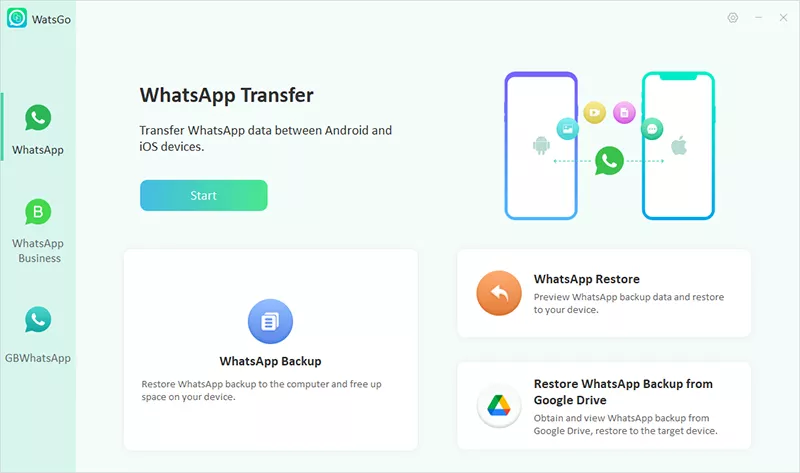
Step 1. Select “WhatsApp Transfer” and click “Start” under WhatsApp. Connect both phones, enable USB debugging on Android, and unlock the iPhone to tap “Trust.”
Step 2. Enable end-to-end encrypted backup in WhatsApp on Android and save a screenshot of the password. WatsGo uses this password for verification. Alternatively, select the unencrypted backup option under “Verify” and confirm your phone number.

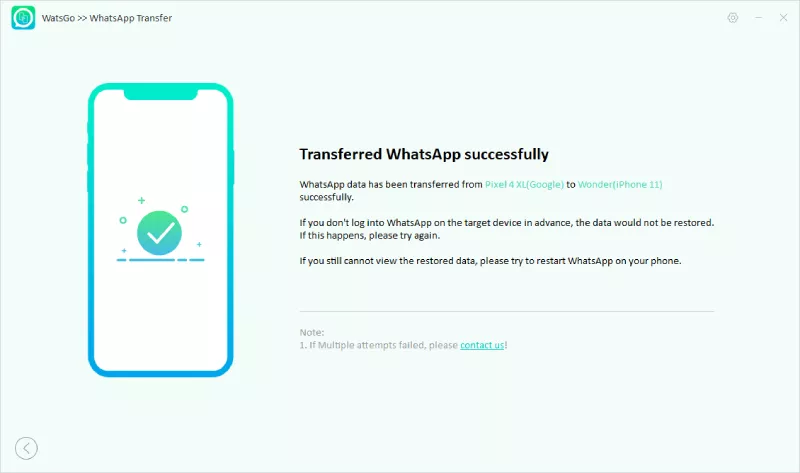
Step 3. WatsGo converts the Android backup into an iPhone-compatible format and transfers the WhatsApp chats to your iPhone. Once the process finishes, the iPhone restarts.
AppTrans vs. WatsGo: Which Should You Choose?
While iMobie AppTrans supports broader app management, WatsGo specializes in WhatsApp transfers, backups, and restoration. Compare their features and pricing below:
WatsGo is better suited for WhatsApp transfers, especially WhatsApp Business, encrypted Android backups, and Google Drive restoration without the original Android phone. Meanwhile, AppTrans is more suitable for installing app packages and transferring app data between iPhones, features WatsGo doesn’t offer.
Frequently Asked Questions for iMobie AppTrans
1. Does AppTrans require rooting Android or jailbreaking iPhone?
AppTrans requires neither rooting nor jailbreaking. However, Android devices need USB debugging enabled, while iPhones require a trusted computer connection and iTunes for device recognition.
2. Can AppTrans restore WhatsApp chats from a Google Drive backup?
Yes, the paid version restores Google Drive WhatsApp backups to iPhones. You must connect an Android phone signed into the same WhatsApp account to decrypt the backup before transferring chats.
3. Can AppTrans merge WhatsApp chats from different accounts?
Yes, AppTrans supports merging WhatsApp conversations from different accounts, including after changing phone numbers. Existing conversations remain intact, while transferred messages are added to the chat history.
Conclusion
iMobie AppTrans offers app installation, data transfers, backups, and WhatsApp chat merging across compatible devices. However, cross-platform transfers require a paid license, and its latest publicly documented update dates to 2022. For dedicated WhatsApp migration, iToolab WatsGo offers a more current alternative with WhatsApp Business support, encrypted Android backups, and Google Drive restoration.
iToolab WatsGo – Safely back up your WhatsApp data
389,390,209 people have downloaded it