

You press the Pokémon GO Plus button and wait. But nothing happens. No pairing. No spinning. That tiny delay can turn a simple catch into a frustrating wait. Sometimes the reason is obvious, like a drained battery or a temporary Bluetooth glitch. Other times, the problem lies in the app settings or your phone’s system. The good news is that most connection issues have clear fixes.
In this guide, we’ll look at the common reasons your Pokémon GO Plus is not connecting and walk you through simple and proven fixes to get it working again.

Part 1. Why Is My Pokémon GO Plus Not Connecting?
If you’re wondering why your Pokémon GO Plus is not connecting, the answer is usually straightforward. Below are the most common culprits behind Pokémon GO Plus pairing failures.
1. Low Battery or Hardware Trouble
The original Pokémon GO Plus uses a CR2032 battery and the Plus+ needs enough charge to stay active. If either device lacks proper power, Pokémon GO Plus connection drops may occur during use.
2. Nearby Bluetooth Interference
Crowded areas with multiple active Bluetooth devices create signal chaos. Thick walls or distance between your phone and the Plus can weaken the signal.
3. Outdated Pokémon GO App or Phone Software
Running an outdated Pokémon GO app or an older operating system version can break accessory support and introduce persistent sync bugs.
4. Previously Paired with Another Device
If the accessory was connected to another phone before, it may keep trying to communicate with that old device. This often makes the new connection fail or feel unstable.
5. Battery Saver Restrictions
Power-saving settings on your phone can quietly limit Bluetooth activity in the background. This means your phone may stop the connection before you play the game.
6. Incorrect In-Game Settings
Sometimes, the game itself does not have Pokémon GO Plus enabled within its settings, even though Bluetooth is on. This mismatch can make the accessory completely invisible inside the app.
7. Temporary Phone Bluetooth Glitch
Phones occasionally retain a bad Bluetooth session in memory. When this happens, the accessory looks fine but still refuses to connect until the phone’s Bluetooth stack is fully refreshed.
Part 2. 12 Quick Fixes for Pokémon GO Plus Not Connecting
Now let’s move from causes to fixes. Start with the simple fixes first, because many Pokémon GO Plus not connecting problems disappear after a quick app reset or simple settings check.
1. Fully Restart the Pokémon GO App
Close the app completely from your recent apps list. Wait ten seconds, then launch it again. This clears temporary glitches and refreshes the accessory detection system.
2. Reconnect Your Accessory Within Pokémon GO Settings
Open Pokémon GO’s settings and remove the accessory from the game’s paired list. Then pair it from scratch. This clears old connection data and gives the app a fresh chance to recognize the device properly.

3. Remove Nearby Interfering Bluetooth Devices
Nearby Bluetooth accessories around you can make the connection more unstable than it should be. Turn them off temporarily to create a cleaner wireless environment. A quieter spectrum often helps the Plus connect faster and respond more consistently.
4. Shut Down VPNs and Location Spoofing Apps
VPNs and virtual location tools can alter routing or background permissions in ways that disrupt the game’s normal operation. If any are running, close them fully and test the accessory again.
5. Disable Phone Battery Saving Modes
Power-saving modes on both iOS and Android can throttle Bluetooth activity in the background. Switching to normal power mode during gameplay usually gives Bluetooth a more stable path to work with.

6. Adjust Location Permissions (Android)
On Android devices, Pokémon GO relies heavily on accurate location access. Check that the game has the necessary permissions enabled. Restricted location access can affect device detection and smooth gameplay.
7. Install a New CR2032 Battery
Start by flipping open your Pokémon GO Plus and removing the drained CR2032 battery. Insert a new high-quality replacement and ensure it makes good contact. This quick change restores power to the accessory and fixes connection issues caused by a low battery.

8. Charge GO Plus+ for 30+ Minutes
The rechargeable GO Plus+ needs sufficient charge before it can behave normally. Plug it in for at least 30 minutes, then try pairing again.
9. Update Pokémon GO and Your Phone’s OS
Check for updates in your app store and your phone’s system settings. Newer versions often fix bugs, improve Bluetooth behavior, and reduce compatibility issues.
10. Clear the Bluetooth Cache (Android)
On Android, clearing the Bluetooth cache can wipe out stuck connection data. This is useful when your phone keeps remembering a broken session and refuses to start a clean accessory handshake.
11. Factory Reset Your Pokémon GO Plus
If prior steps haven’t worked, perform a factory reset on the accessory and pair it again from the beginning. This removes old phone links and clears strange pairing states that standard reconnect steps cannot resolve.
12. Test Pairing With Another Spare Phone
Try connecting your accessory to a second phone if you have one nearby. This simple test helps you determine whether the real issue is the accessory itself or your original phone’s Bluetooth setup.
Part 3. Pokémon GO Plus Still Not Connecting? Best Alternative Here🔥
Sometimes the accessory problem does not end after battery checks, resets, and Bluetooth fixes. That is where iToolab AnyGo comes in as a useful alternative.
AnyGo is a powerful GPS spoofing tool designed specifically for Pokémon GO players who want full control over their in-game location and movement without wrestling with finicky accessories. Whether your Pokémon GO Plus pairing keeps failing or you simply want a more efficient way to play, AnyGo offers a cleaner and more reliable way that works every time.
- Teleport to any location worldwide instantly with a single tap.
- Automatically catch Pokémon and spin PokéStops with the built-in virtual Pokémon GO Plus feature.
- Simulate natural walking routes between two or multiple points with adjustable speeds.
- No Failed to Detect Location Error 12.
- Scan nearby Pokémon, raids, and team resources globally, then teleport there directly.
- Run seamlessly on Windows, Mac, iOS, and Android devices.
- Fully support the latest iOS 27/Android 16.
How to Auto-Catch Pokémon Without Pokémon GO Plus
Step 1 Download and install the iToolab AnyGo app on your iPhone or Android. Tap the Poké Ball icon to activate Go Catcher mode.
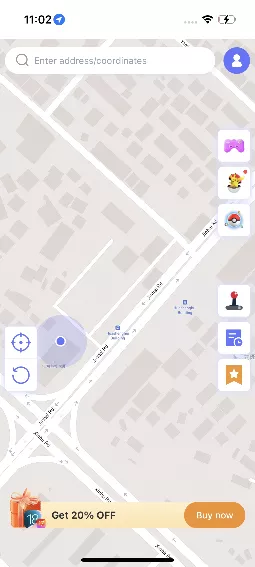
Step 2 Open the Pokémon GO app on your phone and enable the Pokémon GO Plus option in the game settings.

Step 3 Start walking with AnyGo’s two-point mode, multi-point mode, or use the joystick to simulate movement.

Step 4 The Go Catcher will automatically catch Pokémon and spin PokéStops as you walk.

Conclusion
When your Pokémon GO Plus is not connecting, working through the right fixes usually gets it back online. But if you’ve run through every solution and your Pokémon GO Plus still won’t pair reliably, it’s not a failure on your part; it’s simply a sign that hardware has its limits.
AnyGo Auto-catch Tool for Pokémon GO is a smarter, more dependable way to play Pokémon GO on your terms. It handles auto-catching, realistic movement, and location teleportation without any physical device limitations.
Give AnyGo a try today and experience the freedom of playing Pokémon GO exactly the way you want.