
Protecting WhatsApp chats matters when years of messages, media, and files sit on one iPhone. Therefore, users search for how to back up WhatsApp to iCloud because it is a verified and storage-safe method. Statista reports that WhatsApp reached 3 billion monthly active users worldwide in March 2025.
However, iCloud backup fails when storage, account settings, or network conditions are ignored. Therefore, Apple explains that users can review backups and remove unnecessary iCloud data. Thus, read until the end to learn how to back up and restore WhatsApp iCloud data without overwriting your current one.
Part 1: Is It Worth Backing Up WhatsApp to iCloud?
Backing up WhatsApp to iCloud is useful when chats hold work details, family media, or important records. Since iPhones can be replaced or reset unexpectedly, a recent backup supports safer recovery. An iCloud WhatsApp backup can bring messages and media back after reinstalling WhatsApp on the same number.
Still, iCloud should not be treated as a set-and-forget safety net. It needs enough storage, the correct Apple ID, and a steady connection. Checking these basics before every major phone change lowers avoidable data-loss risks.
Part 2: How to Back Up WhatsApp to iCloud?
Once iCloud and WhatsApp permissions are ready, the backup takes only a few taps. Follow the official WhatsApp path below to save chats safely before resetting or switching your iPhone:
Step 1 Open WhatsApp on your iPhone and tap “Profile” in the bottom-right menu. Then, choose “Chats” to access all conversation-related settings.

Step 2 Tap “Chat Backup” and check your last backup details carefully. Afterward, press “Back Up Now” to start saving WhatsApp data to iCloud. You can also set the frequency of your automatic backups and encrypt them if you want to.

Part 3: Why is WhatsApp Not Backing Up in iCloud?
Many iPhone users enable WhatsApp backup but still face unexpected iCloud upload failures. Even a small missed setting can stop users from trying to back up WhatsApp on iCloud. According to Backlinko’s 2026 WhatsApp statistics report, WhatsApp ranks among the most downloaded apps globally on both iOS and Android. Therefore, when such a widely used messaging app fails to sync, these common iCloud-related causes usually explain why:
- iCloud Drive Disabled: WhatsApp relies on iCloud Drive to create and store chat backups in the user’s iCloud account on an iPhone. When this service is off, the backup request cannot move forward successfully.
- WhatsApp iCloud Access Blocked: iCloud can be active even when WhatsApp is excluded from app permissions settings. This mismatch prevents chat data from reaching the user’s cloud storage space.
- Low iCloud Storage: WhatsApp backups often fail when iCloud storage is too low to hold the required chat data. Large videos, images, and documents make the backup size much bigger.
- iCloud Account Mismatch: WhatsApp links backups to the iCloud account active at the time of backup creation. A different account can prevent backup detection during later restore attempts.
- Outdated WhatsApp or iOS: Older app or system versions may create compatibility issues during backup uploads. Such version gaps can interrupt syncing between WhatsApp, iPhone, and iCloud.
Part 4: How to Restore WhatsApp Backup on iCloud?
Restoring an iCloud WhatsApp backup usually requires uninstalling and reinstalling WhatsApp first. However, this full-restore method gives users limited control over what returns. Even after learning how to back up WhatsApp on iCloud, users cannot open the backup like a normal file, preview selected chats beforehand, or export only specific media directly. Plus, the restore depends on the same phone number, Apple ID, iCloud access, and enough storage.
When these limits make recovery stressful, iToolab WatsGo offers a more flexible route. It helps users view available iCloud backup records, access recoverable WhatsApp data, and export selected items to a computer. Moreover, WatsGo supports WhatsApp backup handling on PC or Mac, which helps users keep another copy outside iCloud.
Restore WhatsApp Backup from iCloud Tool
- Review available iCloud backup details before exporting data, including account, time, and size.
- Keep labeled messages, call history, stickers, wallpaper, and status content during device migration.
- Export recovered WhatsApp items to your computer without overwriting the current iPhone data during recovery.
- Move GBWhatsApp content into standard WhatsApp when switching away from modified apps.
- Export over 40,000 messages and media items to a computer at once easily.
Guide to Restore WhatsApp Backup on iCloud Using iToolab WatsGo
Once the iCloud backup is ready, WatsGo lets users access it through its restore feature. Follow the steps below to view available iCloud backups and recover selected WhatsApp data safely:
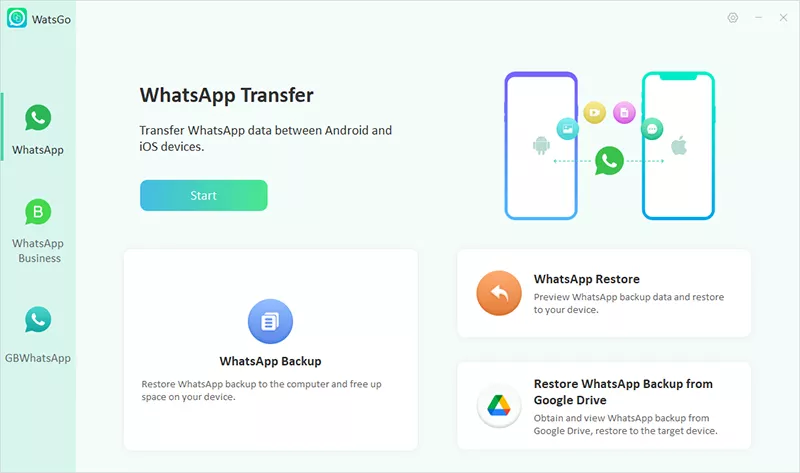
Step 1 Launch WatsGo and Choose iCloud Restore
Open WatsGo on your computer and access the “WhatsApp” section from the sidebar. Then, select “Restore WhatsApp from iCloud” from the main interface.
Step 2 Sign in to Your iCloud Account
Enter the Apple ID and password associated with your WhatsApp iCloud backup. Afterward, press “Sign in” and avoid syncing iCloud data during this process.

Step 3 Select the Required iCloud Backup
WatsGo will display available backups with account details, backup time, and file size. Choose the correct WhatsApp backup and press “Next” to continue.

Step 4 Preview and Export WhatsApp Data
Preview messages, images, stickers, audio, documents, and other available WhatsApp data. Then, select the required items and press “Export to Computer.”

Part 5: FAQs about iCloud WhatsApp Backup
1. How to back up WhatsApp on an iPhone if iCloud is full?
Free iCloud space first, since WhatsApp needs enough room to upload backups. Delete old device backups, remove large files, or upgrade your storage plan. Additionally, exclude videos from the WhatsApp backup to reduce the upload size significantly.
2. What will deleting WhatsApp data from iCloud do?
Deleting WhatsApp data from iCloud permanently removes the saved cloud backup copy. Your current iPhone chats usually remain if WhatsApp is still installed there. However, you cannot restore that deleted iCloud backup on another device later.
3. What Happens if I Uninstall WhatsApp without a Backup?
Uninstalling WhatsApp without backup can remove chats that are not saved anywhere safely and permanently. WhatsApp can restore history only when an iCloud backup already exists online. Therefore, check Chat Backup before completely deleting the app from your iPhone.
4. Is it bad if I Turn Off iCloud Backup?
Turning off iCloud Backup is not harmful, but it significantly reduces protection. New WhatsApp chats will stop saving automatically after the feature is disabled. Keep WatsGo or another backup method ready when iCloud remains disabled long term.
Conclusion
To conclude, properly configured iCloud settings keep WhatsApp chats safer during device changes, app reinstallations, and unexpected iPhone issues. Users should confirm storage, Apple ID, and WhatsApp permissions before every attempt to back up WhatsApp to iCloud.
If iCloud backup or restore is limited, iToolab WatsGo provides additional flexibility by letting you view backups, selectively export data, and restore supported WhatsApp content with greater control.
iToolab WatsGo – Safely back up your WhatsApp data
389,390,209 people have downloaded it