
Many iPhone users depend on iCloud because WhatsApp chats often contain personal proof. Still, they get confused when trying to restore WhatsApp from iCloud directly from Apple’s cloud dashboard. WhatsApp confirms iCloud backups restore through WhatsApp after reinstalling and verifying account details.
Moreover, DataReportal says 93.6% of online adults use chat apps monthly. So, losing WhatsApp access can affect memories, work records, and daily communication. This guide explains safe restore options and realistic download expectations when storage feels limited. Thus, read to the end before choosing any recovery or transfer method.
Part 1: Can I Download WhatsApp Backup from iCloud?
Yes, but not as a separate readable file from iCloud. To access the iCloud WhatsApp backup, users usually restore it inside WhatsApp after reinstalling. WhatsApp requires the same phone number and Apple ID for restoration. Apple only shows WhatsApp backup storage, not exportable chats or media.
Therefore, downloading means restoring data back into WhatsApp, not opening a backup folder. Users should confirm iCloud Drive, storage space, and backup date first. Encrypted backups may also require the saved password or 64-digit key.
Part 2: How to Restore WhatsApp Backup from iCloud without Uninstalling?
Apple does not let users browse WhatsApp iCloud backups like normal files. So, users asking how to restore WhatsApp backup on iCloud usually need another safe route. iToolab WatsGo helps by managing WhatsApp backup and restore tasks through a computer, especially when users want more control before restoring data to a phone.
Moreover, WatsGo is useful when iCloud restore feels risky, slow, or limited. Instead of depending only on WhatsApp’s reinstall-based restore flow, users can use it to create a computer backup, view available backup records, and restore supported WhatsApp data to any connected device. This makes it practical for users who want a clearer backup handling process.
Restore WhatsApp Backup from iCloud Tool
- Back up WhatsApp and WhatsApp Business data to a computer without cloud storage.
- Transfers WhatsApp data between iPhone and Android during device switching.
- Lets users preview supported WhatsApp backup content before restoring selected data.
- Restores WatsGo backups to supported iPhone or Android devices.
- Supports iTunes WhatsApp backup restoration when users need another restore source.
Guide to Access WhatsApp Backup on iCloud without Uninstalling
Since iCloud does not show WhatsApp backups as readable files, the guide below explains a safer way to manage and restore WhatsApp data without uninstalling:
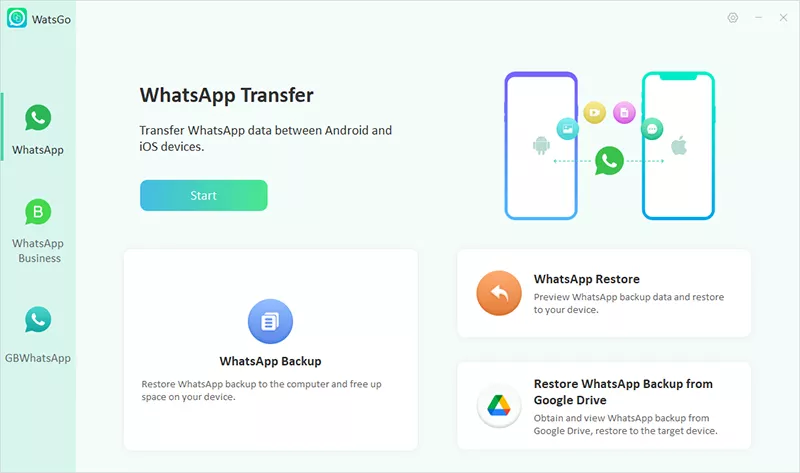
Step 1 Choose Restore from iCloud WhatsApp
Launch WatsGo and select the “WhatsApp” section from the left panel. Then, click “Restore WhatsApp from iCloud” on the main dashboard.
Step 2 Sign in to Your iCloud Account
Enter the Apple ID connected with your WhatsApp iCloud backup. Click “Sign in” after confirming the backup already exists on iCloud.

Step 3 Select the Required iCloud Backup
WatsGo will display available backups with account details, backup time, and size. Choose the correct WhatsApp backup from the list and click “Next.”

Step 4 Preview and Export WhatsApp Data
Check the recovered messages, images, videos, audio, documents, or other available data. Select the required items, then click “Export to Computer” to save them.

Part 3: How to Access iCloud WhatsApp Backup on iPhone?
On iPhone, users can restore WhatsApp backup from iCloud through WhatsApp’s built-in Chat Backup option. This official path connects WhatsApp with the backup stored in iCloud. However, the backup stays inside WhatsApp’s restore system, not as an open iCloud file. The steps below show the correct iPhone method to access the backup:
Step 1 In WhatsApp, tap the “Profile” tab at the bottom of the menu. Then, choose “Chats” and select “Chat Backup” to confirm if the backup exists.

Step 2 Now, long-press the WhatsApp icon and choose “Remove App” from the quick menu. Next, tap “Delete App” and confirm “Delete” to uninstall WhatsApp.

Step 3 Reinstall WhatsApp and open it again to tap “Agree & Continue” on the welcome screen. Afterward, allow the required permissions and press “Continue” to complete the access setup.

Step 4 Afterward, choose “Restore from Backup” when the restore screen appears after number verification. Then, tap “Restore,” wait for messages to restore, and press “Next.”

This official method works, but it has clear limits. It requires uninstalling WhatsApp, restoring the whole backup, and does not preview chat photos or documents before recovery. It also depends on the same Apple ID, phone number, and enough iPhone storage. However, for more control, opt for WatsGo to load iCloud WhatsApp backups, preview supported data, and export selected items to a computer.
Part 4: FAQs about iCloud WhatsApp Backup
1. Why won’t my WhatsApp download from iCloud?
WhatsApp may not download when iCloud Drive, storage, or permissions are unavailable. It can fail when phone numbers or Apple IDs differ during restore. A weak connection may also leave the restore stuck before completion, too unexpectedly.
2. Where is my WhatsApp backup stored on iCloud?
WhatsApp backups are stored in iCloud under the app’s managed backup data. They do not appear as normal files inside iCloud Drive folders anywhere. Users can usually review or delete them through iCloud storage settings on an iPhone.
3. Can I transfer my WhatsApp backup from iCloud to Google Drive?
WhatsApp currently does not provide direct iCloud-to-Google Drive backup conversion officially. You must move chats to Android before creating a Google backup there. Third-party tools may assist transfers, but official clouds remain separate backup systems.
4. Can I transfer WhatsApp from iCloud?
You can restore iCloud WhatsApp data to an iPhone through WhatsApp setup. For Android, restore on iPhone first, then use supported migration methods afterward. Directly moving an iCloud backup file is not officially supported by WhatsApp.
5. Can I retrieve a WhatsApp backup from iCloud?
Yes, reinstall WhatsApp and verify the same phone number and Apple ID. Afterward, choose Restore Chat History when WhatsApp detects that your iCloud backup was successful. Deleted, overwritten, or encrypted backups without keys may not be retrievable later.
Conclusion
In short, if restoring WhatsApp from iCloud is stuck, it’s usually a normal part of the process. As long as your account information matches, you can complete the restoration through WhatsApp. Before starting, check iCloud Drive, storage, phone number, and encryption details carefully. For users needing clearer access, preview, or computer export, iToolab WatsGo offers a practical and flexible solution for safer management.
iToolab WatsGo – Safely back up your WhatsApp data
389,390,209 people have downloaded it