

Your saved Home address in Google Maps affects your commute predictions, Google Assistant shortcuts, and daily route suggestions. Whether you’ve recently moved, are staying somewhere temporarily, or simply value your privacy, knowing changing your home address on Google Maps is essential.
This guide covers four reliable ways to update your home location on Google Maps.

Part 1. What “Home” Actually Means in Google Maps
Most people assume the Home label in Google Maps is just a shortcut, but it’s more than that.
When you save a Home address, Google Maps links it directly to your Google account. That means it follows you across every signed-in device automatically. Google Maps uses Home to calculate commute times, suggest routes, and send traffic alerts. Google Assistant also pulls from it when you say things like “navigate home” or “how long to get home.”
One thing worth noting: Your saved Home label is not your device’s GPS. Changing the label updates your account’s text address, but not the GPS coordinates your phone broadcasts. That distinction becomes crucial when you want to update your home location on Google Maps beyond just editing the label.
Part 2. How to Change Your Home Address on Google Maps (iPhone & Android)
Changing your home address directly in the Google Maps app is the most straightforward way for most users. Below you’ll find step‑by‑step instructions on iPhone and Android.
Change Your Home Address on Google Maps for iPhone:
- Open Google Maps and tap your profile picture at the top right.
- Go to Settings, scroll down to Edit home or work.
- Tap the three‑dot icon next to your current Home address.
- Select Edit home.
- Enter your new address, or tap Choose on map to drop a pin manually.
- Tap Finished to confirm.

The change syncs to your Google Account and usually appears on all devices within minutes. If it doesn’t update right away, force‑close and reopen Google Maps.
Change Your Home Address on Google Maps for Android:
- Open Google Maps and tap the You tab at the bottom.
- Tap the three‑dot icon next to Home.
- Select Edit home.
- Type your new address into the search field, or tap Set your current location to use your GPS position.
- Tap Save.

If you don’t see the “You” tab, your app may be outdated. Older builds use a different menu layout.
Part 3. How to Change Home on Google Maps (Desktop)
If you prefer working on a larger screen or don’t have your phone nearby, you can also learn how to change home address on Google Maps using a desktop computer.
Method 1. Official Desktop Steps
Changing your home address on a computer offers a larger screen and is often faster if you prefer typing precise addresses.
- Go to maps.google.com in any browser.
- Click Saved in the left‑side menu.
- Open the Labeled tab.
- Click the three‑dot menu next to Home.
- Select Edit home.
- Type your new address and confirm.

This method works well for updating a street address after a move or correcting a misplaced pin.
Method 2. Set a Fake Home Location on Google Maps
This is where the official method falls short.
Google’s built-in edit only changes the saved label, not the GPS signal your phone broadcasts. So when apps request your “near me” location, they still use your real GPS location, not the label you saved. That’s a major gap for privacy‑conscious users or those planning a move.
iToolab AnyGo is a GPS location changer that solves this at the device level. It lets you teleport your GPS coordinates to any address in the world, giving you a fake home location on Google Maps that replaces your real GPS.
- Instantly set any address as your device live GPS coordinate.
- Hide real address while staying visible on location-sharing tools.
- Control your location on Instagram, Twitter, Tinder and more.
- Support location spoofing for games like Pokemon GO.
- Run seamlessly on Windows, Mac, iOS, and Android devices.
- Fully support the latest iOS 26/Android 16.
Key Features for Google Maps Home Location
- 1. One-Click GPS Change
Pick any address and change your coordinate there with one click. Google Maps instantly shows that location as your current position. Street results, traffic, and local recommendations all shift to your virtual home area. - 2. Simulate Commute Routes
Walk, cycle, or drive along custom paths at adjustable speeds. Set a fake home address in your target area and test real traffic predictions on Google Maps before you move. - 3. Full Privacy From Real Home Tracking
Your saved home address is one of the most sensitive data points Google Maps holds. AnyGo stops tracking at the source by replacing your phone’s GPS signal. - 4. Work Across Multiple Apps
The location change applies not just inside Google Maps. Navigation, social, and dating apps all read the same spoofed GPS.
How to Use AnyGo to Set a Fake Home Location for Google Maps
Step 1 Download and install iToolab AnyGo on your Windows or Mac computer.

Step 2 Connect your iPhone or Android phone to your computer with a USB cable.
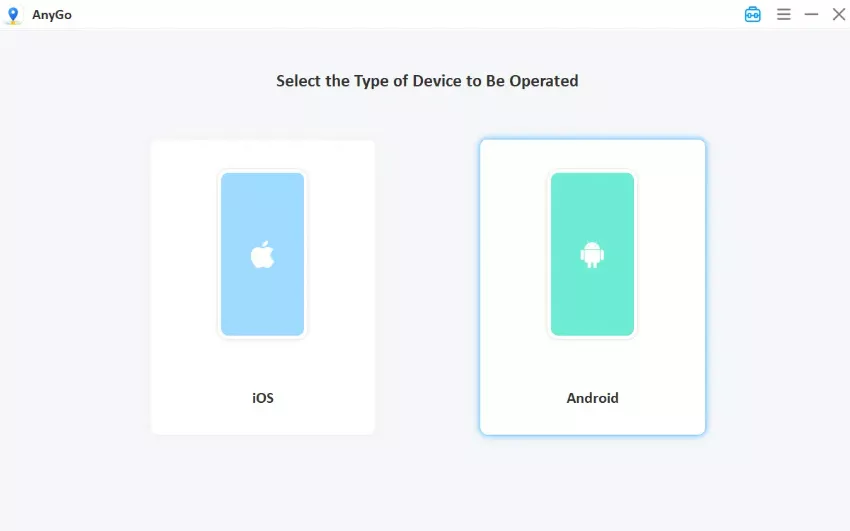
Step 3 Search for your target home address or drop a pin on the map. Click Go. Open Google Maps on your phone. You will now see search results, traffic, and local data centered on your chosen virtual home address, as if you were really there.

Part 4. How to Delete or Remove a Home Address
Sometimes you want to wipe the Home label entirely rather than replace it. A saved home address in your Google account is accessible to connected apps and syncs across all signed‑in devices, so deleting it is a smart privacy move.
On Android:
- Open Google Maps and tap You at the bottom.
- Tap the three-dot icon next to Home.
- Select Remove.
On iPhone:
- Open Google Maps and tap your profile picture.
- Go to Settings, then Edit home or work.
- Tap the three-dot icon next to Home and choose Remove.
On Desktop:
- Open Google Maps and click Saved.
- Open Labeled, then click the three-dot menu next to Home.
- Click Remove.
After removing it, Google Maps loses the ability to give you one-tap “navigate home” shortcuts until you add a new address.
Part 5. Why Google Maps Still Shows the Wrong Home Location
Updating your address but still being routed to the wrong place is frustrating, and it usually happens for a few clear reasons.
1. Label vs. GPS Mismatch
This is the most common misunderstanding. Google Maps does not use your saved Home label for “near me” searches or commute times, it reads your device’s live GPS signal. So if you updated the label but your GPS still points to your real address, the results won’t change.
2. Incomplete Road Data or Wrong Pin Placement
Google Maps sometimes mis‑geocodes an address, especially in newer developments or areas with sparse road data.
To fix this: search your address, tap Suggest an edit, then Fix an address, and drag the pin to the correct spot on the map. This sends a correction to Google’s team.
3. Cached App Data
Old cached data can make Google Maps seem stuck even after you successfully update your address.
On Android: Settings → Apps → Maps → Storage & Cache → Clear Cache.
On iOS: Force‑close Google Maps and restart your iPhone.
4. Wrong Google Account
If you’re signed into multiple Google accounts, your Home address update on one account won’t appear on a device signed into a different account. Check your active account from the profile icon in Google Maps.
Part 6. Frequently Asked Questions
Below you’ll find answers to the most common questions about updating and syncing your home address.
Q1. How long does it take for a home address change to show up on Google Maps?
The update is usually instant on the device you used. It syncs to other signed‑in devices within minutes. If it takes longer, force‑close and reopen Maps. A slow sync is often a cache issue, not a failed update.
Q2. Can I set multiple home addresses on one Google Maps account?
No. Google Maps only allows one Home and one Work label per account. If you split time between two locations, save the second address as a starred place or custom label under Saved places.
Q3. Will changing my home address on Google Maps sync to all my devices?
Yes, as long as all devices use the same Google account. The Home label is stored at the account level, so the update carries over to every signed‑in device. One exception: if Web & App Activity is turned off in your Google account settings, labeled places may not save consistently across sessions, causing the new address to appear missing on some devices.
Wrapping Up
Changing your home address on Google Maps is straightforward when you only need to edit the label. But if you need your device GPS to actually reflect a different location, that’s a different challenge.
AnyGo Location Changer solves it with one‑click Teleport: just pick any address on the map, and instantly set it as your fake home location on Google Maps.
Download AnyGo and give your Google Maps the home address you want, not just the one your GPS says.