

The perfect sofa appears in your Marketplace feed, except the pickup address is three hours away. You change the location and refresh yet the listings still show the wrong area. With your Facebook Marketplace location not working, finding something nearby can quickly become frustrating.
Before trying another search, it helps to check where the mismatch begins. Is Marketplace showing an old city, or is Facebook struggling to detect your current position? This guide walks you through the possible causes and practical fixes. You’ll also learn how to reset your search area and explore another location without guessing which settings to change.

Part 1. Why Is Facebook Marketplace Location Not Working or Showing the Wrong Location?
Before changing any settings, work out whether Marketplace saved the wrong city or can’t detect your current position. The fixes differ, so it helps to check the likely causes one at a time.
Location Permissions Disabled
Facebook needs location access to detect where you are automatically. If the app can’t use your GPS, it may keep showing an old or estimated area. Check your phone’s app permissions first, then review the search city inside Marketplace before trying anything else.

Corrupted Cache & App Data
Temporary files can sometimes cause an app to behave oddly. If Marketplace keeps loading the same location, clearing its cache is worth trying. However, don’t assume this alone will fix the problem. Check the selected search area again after reopening Facebook.

Facebook Marketplace In-App Glitch
A temporary glitch can stop a location change from updating properly. You might select a new city without seeing the listings refresh. Close Facebook completely and reopen it, then check Marketplace again. If the issue continues, compare the app with Marketplace in a browser.

Network & VPN Conflicts
Facebook uses connection information along with other signals to estimate your location. A VPN can make that information point somewhere else. Disconnect it temporarily, close Facebook, and reopen Marketplace. If the location still looks wrong, check the city saved in Marketplace.

Browser Geolocation Blocked
On a computer, your browser controls website location access separately from the Facebook app. If Facebook can’t use your location, Marketplace may not detect your position automatically. Check your browser’s site permissions and your computer’s location settings, then reload Marketplace and try again.

Part 2. Quick Fixes to Location Not Working on Facebook Marketplace
A few targeted checks can help you narrow down the problem. Begin with permissions, then test the remaining fixes individually before changing your Marketplace search area again.
Enable Device Location Access
On Android, open Settings > Apps > Facebook > Permissions > Location. Choose “Allow only while using the app” when you want Facebook to access your position. On iPhone, open Settings > Privacy & Security > Location Services > Facebook.
Select “While Using the App” and confirm Location Services is enabled. Reopen Marketplace afterward and review its selected city. Granting location access supports detection rather than replacing the search area you manually selected earlier.

Clear Facebook Cache
On Android, open Settings > Apps > Facebook > Storage & cache > Clear cache. Menu names can differ slightly depending on your phone. Choose cache rather than “Clear storage,” which removes the app’s stored data.
On iPhone, skip this Android-specific path and move to updating or reinstalling Facebook. After clearing temporary files, reopen Marketplace and check the selected city again. If it remains incorrect, change the search area manually instead of repeatedly clearing files.

Update or Reinstall Facebook
Open Google Play or the App Store and check Facebook’s page for an update. Install any available version, then reopen Marketplace and test the location selector. If the problem continues, consider deleting Facebook and downloading it again from the official store.
Before deleting anything, confirm that you know your password and can complete any login checks. After reinstalling, review location permissions and your search area again. Treat this as troubleshooting rather than a guaranteed fix.

Disable Third-Party VPNs
Temporarily disconnect your VPN, then close Facebook and open Marketplace again. Compare the displayed location before changing other settings on your phone. Facebook uses internet connection information alongside other signals when estimating where you are.
If nothing changes, review Marketplace’s selected city rather than repeatedly switching VPN servers. You can also compare Wi-Fi with mobile data to narrow the problem. Keep these tests separate so you can tell which change affects the results.

Log Out and Log Back In
Try a fresh sign-in if the earlier checks haven’t changed anything. First, confirm your password and access to any required verification method. Log out of Facebook, close the app, and open it again. After signing back in, visit Marketplace and review its location. Select your intended city again if it remains incorrect.

Part 3. How to Manually Change or Reset Your Location on Facebook Marketplace
If your main goal is browsing another city, change Marketplace’s search area directly. This avoids relying on automatic detection and lets you check the location you actually want before reviewing nearby listings.
How to Change Location on Facebook Marketplace in the App
Open Marketplace and use its location selector to choose your preferred search area. The selector’s placement may vary with your app layout.
- Open Facebook and tap Marketplace. If it isn’t visible, check the main menu.
- Tap the location displayed near the top of the Marketplace screen.
- Search for your intended city or ZIP code and select the matching result.
- Adjust the search radius if that option appears, then apply your selection.
- Review the displayed location and listing distances before contacting anyone about pickup.
Changing this browsing area doesn’t automatically change the pickup location on your existing listings. Facebook provides a separate location choice when creating a listing.
How to Change Location on Facebook Marketplace on Desktop
You can also select another search area through Facebook in your browser.
- Sign in to Facebook and open Marketplace from the navigation menu.
- Click the current location displayed within the Marketplace browsing controls.
- Enter a city, neighborhood, or ZIP code, or select a location on the map.
- Choose your preferred search radius if the interface offers that setting.
- Apply the change, then confirm that Marketplace displays your intended search area.
If the selection doesn’t update, reload the page and check it again. When using automatic detection instead, review Facebook’s location permission in your browser’s site settings.
Part 4. Change Facebook Marketplace Region Easily with iToolab AnyGo
Manually selecting a city is enough when you only want different Marketplace search results. Changing the phone’s GPS itself is a different job, and that is where a location changer comes in. iToolab AnyGo is a location changer for iPhone and Android. Instead of editing the city inside Facebook, it moves where your phone reports its position, so the new area follows you into other apps too.
However, Marketplace also uses saved settings and connection information, so GPS changes alone may not reset its results. Pair AnyGo with Marketplace’s location selector when you want both settings to point toward the same area.

- Change GPS location without jailbreaking iPhone or rooting Android.
- Simulate GPS movement along any custom path with joystick.
- Support Monster Hunter Now, Pikmin Bloom and other location-based apps.
- Run seamlessly on Windows, Mac, iOS, and Android devices.
- Fully support the latest iOS 27/Android 17.
Key Features of AnyGo
AnyGo provides several options for managing your device’s GPS location beyond Marketplace’s built-in search controls.
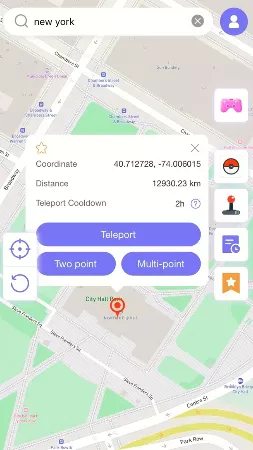
- ✔ Type a city, be there. Enter an address or coordinates, check the destination on the map, and confirm the jump.
- ✔ Set a route and a speed. Pick two points or several stops, and AnyGo moves along the line at whatever pace you choose.
- ✔ Not just for Marketplace. The same location change follows you into Instagram, WhatsApp, Snapchat, Tinder, and other apps that read your GPS.
How to Use iToolab AnyGo to Set Any Location for Marketplace
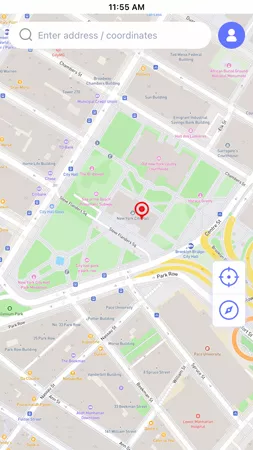
Follow these four steps to change your phone’s GPS location through AnyGo.
- Download the AnyGo app from iToolab’s official website and install it on your Android or iPhone.
- Open the app and enter the target city, neighborhood, or ZIP code where you want to browse listings.
- Tap Teleport to change your phone’s GPS location. Check the map before leaving the app.
- Open Facebook Marketplace and select the same area in its location settings. Compare the search results before contacting a seller.

Part 5. FAQs About Facebook Marketplace Location
A few questions cover most of the confusion around Marketplace locations.
Q1. Why does Marketplace still show my old city after I move?
Marketplace keeps the search city you last selected, and it does not always follow your phone right away. Open the location selector at the top of Marketplace, pick your new city manually, and give the feed a moment to refresh.
Q2. Does a VPN change what Marketplace shows me?
Partly. Facebook estimates your position from your connection among other signals, so a VPN server in another city can pull the estimate that way. The city saved inside Marketplace still decides the listings, though, so check the selector before blaming the VPN.
Q3. Why do listings still show as far away after I change my location?
The distance on a listing comes from where the seller set the pickup location, not from where you are. Changing your search area cannot pull a seller’s item closer; it only changes which listings appear in your feed.
Q4. Can I browse Marketplace in another country?
Yes. Set the location selector to the city you want and the feed follows it. Keep in mind that many items are local pickup only, so a listing from another country is not always something you can actually buy.
Final Thoughts
Wrong Marketplace results don’t always mean your phone’s GPS has stopped working. Start with the city saved inside Marketplace and adjust the search radius if needed. Then check location permissions, browser access, and your connection when automatic detection seems inaccurate. Clearing cache or reinstalling Facebook can be troubleshooting options rather than guaranteed fixes.
For browsing another city, the built-in location selector remains the simplest starting point. If you also want to change your phone’s GPS position, explore AnyGo Location Changer. Choose your destination, review your Marketplace settings, and use AnyGo’s location controls to align your phone with the area you want to explore.