

Playing Pokémon GO on a PC sounds simple. Install an emulator, add a modded app, and walk around with your keyboard. That is why many players pair PGSharp with MuMu Player. The setup can work, but it breaks often and puts your account at real risk. This guide covers the PGSharp MuMu Player setup, fixes for the most common errors, and a PC spoofer that works with a real phone instead.
Part 1. Can You Still Play Pokémon GO with PGSharp on MuMu Player?
Yes, it is technically possible. But it is less stable than it used to be. Scopely now runs Pokémon GO after buying Niantic’s games business in a $3.5 billion deal in 2025. Updates and security patches keep arriving, and each one can break a setup that worked the day before.
The combination works like this. MuMu Player is an Android emulator, which means it runs a virtual phone inside Windows. PGSharp is a modified version of Pokémon GO that you install on that virtual phone. It swaps the phone’s GPS check for a built-in joystick and teleport. On a PC, you can also map movement to your keyboard.

The standard Pokémon GO app from the Play Store does not run on MuMu Player at all. That is why PGSharp exists.
The build you choose matters. MuMu’s own installation guide asks for the 64-bit build V2.7.23.0, and PGSharp itself must be the ARM64 version. To check your build, open MuMu’s menu and click About Us. Stability still changes with almost every game update, so treat this guide as a snapshot and check MuMu’s page before you install.
Part 2. How to Set Up PGSharp on MuMu Player (Step-by-Step)
Setting up MuMu Player PGSharp takes about 20 minutes. Use a spare Pokémon GO account, not your main one. You will see why in Part 4.
- Prepare your PC: Turn on hardware virtualization (called VT) in your BIOS. Emulators run far better with it. Also keep at least 4 GB of RAM free for the emulator.
- Install the right MuMu build: Download the 64-bit version 2.7.23.0 from MuMu’s PGSharp installation guide. To check your version, open the menu and click About Us. If the number is different, uninstall and reinstall the correct build.
- Download PGSharp inside the emulator: Open the emulator’s browser and go to pgsharp.com. Under “Looking for other downloads,” choose “Download PGSharp for ARM64.” Install the file. Use only the official site, because fake APK files can carry malware.
- Open PGSharp and sign in: You can use Facebook, Google, or a Pokémon Trainer Club account. If Google login fails, close the game and reopen it a few times, then try again.
- Fix “Access blocked: authorisation error” if it appears: Install Chrome from the MuMu App Center. Open the emulator’s Settings, go to Default Apps, and set Browser App to Chrome. Then restart PGSharp.
- Start moving: Use the joystick for short walks or the teleport tool for long jumps. After a jump, wait out the cooldown before you catch or spin anything.


That last point deserves a note. Moving too fast or acting too early is the classic cause of a soft ban, where Pokémon flee instantly or PokéStops give no items.
PGSharp also offers a Virtual Go Plus feature, which sits behind its paid Standard license. Turn it on in PGSharp’s settings, then press the connect button in the upper right of the game. If it fails, restart the emulator and the game.
Part 3. PGSharp on MuMu Player Not Working? Common Issues and Fixes
Most problems fall into four groups. Start with the cheapest fix first.
Issue 1: Black Screen / Game Crashing on Startup
PGSharp MuMu Player crashing at launch is usually a resource or version problem. Virtualization may be off. The emulator may have too little RAM or too few CPU cores. Or you may be running the wrong build.

Fix:
- Confirm VT is enabled in your BIOS.
- Give the emulator at least 4 GB of RAM and several CPU cores in its settings.
- Check that you run the 64-bit build, version 2.7.23.0, and not MuMu Player 12.
- Delete PGSharp and reinstall the latest ARM64 file from the official site.
- Clear PGSharp’s cache and data, then restart.
If MuMu Player PGSharp is stuck on a loading screen, whether black or white, updating or reinstalling PGSharp usually clears it. An old APK is the most common reason.
Issue 2: “Device Not Supported” or “Unable to Authenticate”
These two errors look alike, but they are different problems.
“Unable to authenticate” is a login or network issue.
Fix: Check your internet connection, clear PGSharp’s data, and log in again. If it still fails, try another login method or another emulator.
“Device not supported” means the game thinks it is running in a virtual environment.

Fix: reinstall the correct MuMu build and a fresh PGSharp file. Be realistic, though. Sometimes this error has no fix on an emulator. A real phone is the only reliable way around it.
Issue 3: GPS Signal Not Found (Error 11) / Failed to Detect Location (Error 12)
Both errors mean the game cannot read a valid location.

Fix:
- Make sure PGSharp has location permission.
- Disable MuMu Player’s built-in virtual location feature in the emulator sidebar/settings so it does not conflict with PGSharp’s internal GPS.
- Check that your internet connection is stable.
- Fully close PGSharp and the game, then reopen them.
- Update PGSharp from the official site.
Issue 4: Constant Freezing or Lag
Lag almost always points to the emulator’s settings, not to PGSharp.
Fix:
- Raise the RAM and CPU core count in the emulator.
- Close other heavy programs, such as browsers with many tabs.
- Update your graphics drivers.
- Lower the in-game graphics settings.
- Install any PGSharp update that appears when you open the app.
If you tried every fix and nothing works, your settings may not be the problem. After a big game update, PGSharp often stops working until its developers release a new version. Waiting is sometimes the only fix.
✅ Learn More: [Fixed] PGSharp Stuck on Loading Screen: Tips and Solutions
Part 4. The Real Risk: Will PGSharp on MuMu Player Get You Banned?
Yes. The risk is exceptionally high when you pair an emulator with a modified client. No one outside the game’s developers knows the exact odds, but you stack two risks on one account.
The rules are clear. Pokémon GO’s Gameplay Fairness Policy lists “falsifying location (GPS location spoofing)” as cheating. It also names unauthorized access to the game client through third-party software.
Punishment comes in three strikes:
- Strike 1: A warning. For about 7 days, you may not be able to encounter rare wild Pokémon, receive EX Raid Passes, or trade and send Gifts.
- Strike 2: A suspension of about 30 days.
- Strike 3: A permanent ban.
Emulator Detection
The game can check whether it runs on a real phone. Emulators often fail those checks. The “device not supported” error from Part 3 is the visible result. The exact checks are not public, and they change, so a setup that passes today can fail after the next update.
Modified Client (Modded APK) Detection
PGSharp is a changed copy of the game. That is the kind of third-party software the policy describes. It also asks you to sign a real account into an unofficial app, which is a security risk on its own.
Your behavior matters too. Teleporting across the world and catching right away leaves a clear trail. Soft bans, like the fleeing Pokémon mentioned earlier, are often the first warning sign.
Be honest about the odds. No spoofing method can guarantee account safety. If you play this way anyway, never use an account you care about.
Part 5. The Safer Alternative: Spoof Pokémon GO from PC Without Modded APKs
iToolab AnyGo is a location changer for Pokémon GO, available on Windows, Mac, iPhone, and Android. It moves the location a real phone reports, so the official app stays on your device, unmodified. There is no emulator to configure and no APK to sideload.

- Change GPS location without jailbreaking iPhone or rooting Android.
- Simulate GPS movement along any custom path with joystick.
- Auto catch Pokémon and spin PokéStops with GO Catcher.
- Support Monster Hunter Now, Pikmin Bloom and other location-based apps.
- No Failed to Detect Location Error 12.
- Run seamlessly on Windows, Mac, iOS, and Android devices.
- Fully support the latest iOS 27/Android 17.
Key Features of AnyGo
AnyGo offers a set of tools that make your movement look less suspicious:
- One-Click Teleport: Search a place all over the world or paste coordinates and click Go. No emulator or modified app is involved.
- Natural Movement With Custom Speeds: Two-spot and multi-stop routes run from 3.6 to 100 km/h, with joystick, keyboard keys, and GPX import for finer control.
- Built-In Cooldown Timer: After a jump, the game expects you to wait before catching or spinning. AnyGo shows that countdown on screen.
- In-Game Resource Finder (Pokémon Radar): One tap scans for nearby Pokémon, raids, and resources, with CP, coordinates, and despawn times in the results.
- Go Catcher: AnyGo’s auto-catching tool. It catches Pokémon and spins PokéStops along your route, working as a virtual GO Plus.
How to Use AnyGo on a PC
Here is a step-by-step guide on using AnyGo.
The steps below use the Windows version as an example. You can also use AnyGo App directly on Android or iOS devices.
- Download AnyGo on your Windows or Mac computer.
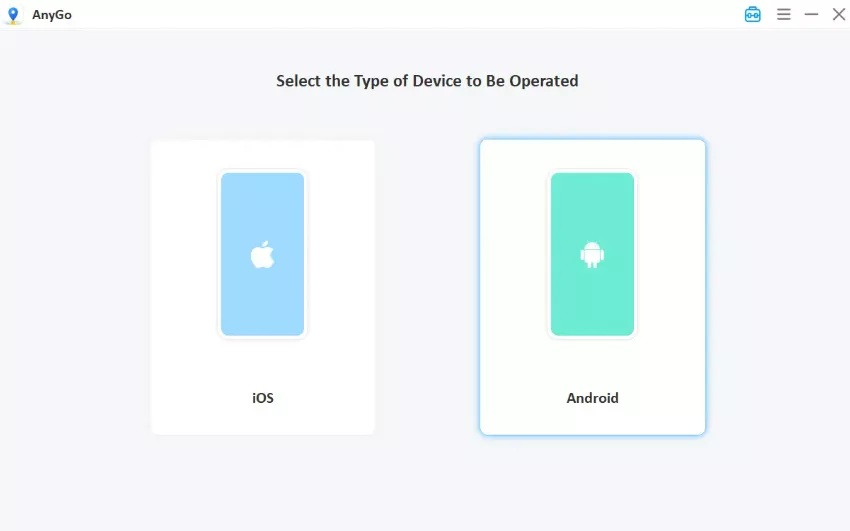
- Connect your iPhone or Android phone by USB and follow the prompts for your device type.
- Click the Teleport icon in the upper right, type a place name, click Search, and click Go. Open Pokémon GO on your phone and your new location appears.
- To walk instead, choose Two-spot route, pick a destination, set a speed, and click Go. Wait out the cooldown before you catch or spin after any teleport.



Final Thoughts
PGSharp MuMu Player works only when the build, settings, and game version line up, and it carries the highest ban risk of any setup. AnyGo Location Changer avoids the emulator and the modded APK, adds a cooldown timer, and works with the official app on your own phone. If you want a simpler PC option, download AnyGo and try it first.