

Ever had Google Maps put you in the wrong place? You’re on a street corner, yet the blue dot is blocks away, sending you down the wrong path. This common issue can easily ruin your trip.
Luckily, most location errors stem from simple causes and can be resolved in minutes. We’ll go over the common problems and 9 practical fixes.

Part 1. Why Is My Google Maps Location Wrong?
You may blame Google directly, but most location issues actually stem from your device. Below are the most common causes.
- Weak or Blocked GPS Signal: Tall buildings, walls and enclosed spaces can interfere with satellite signals. This urban canyon effect often leads to positioning errors, especially in crowded cities.
- Cache Corruption: Outdated or corrupted app cache can cause inaccurate positioning, resulting in noticeable location errors.
- Incorrect Device Settings: Improper location permissions or battery optimization can disable background GPS, making your location stop updating.
- IP Location Mismatch: When GPS signal is poor, Google Maps falls back to IP or Wi-Fi positioning. VPNs and proxies will cause a mismatch between your actual and displayed location.
- Outdated App or Map Data: An old Google Maps version may fail to sync with live data or the latest road information, triggering location glitches.
Part 2. 9 Proven Fixes for Google Maps Location Wrong
Don’t let location errors disrupt your travel. Try these 9 effective fixes to get your Google Maps back on track right away.
1. Check Location Permissions
Location access settings greatly affect positioning accuracy. Limited permissions often cause Google Maps to lose track of your location.
On iPhone: Go to Settings > Privacy & Security > Location Services > Google Maps, then select Always.

On Android: Go to Settings > Apps > Google Maps > Permissions > Location, then choose Allow all the time.

2. Calibrate Your Compass
Open Google Maps and tap the blue dot, then select Calibrate compass. Move your phone in a figure-8 pattern until the circle tightens. This works well if positioning keeps drifting while you’re moving.

3. Turn Off Battery Optimization
Battery saver functions often restrict GPS. On Android, go to Settings > Battery > Battery Optimization, find Google Maps and set it to Don’t optimize. iPhone users only need to turn off Low Power Mode during navigation.

4. Turn Off VPN or Proxy
VPNs and proxies create IP-GPS conflicts and lead to wrong positioning. Disable your VPN temporarily, then reopen Google Maps. This fix usually takes effect immediately.
5. Toggle Location Services Off and On
A quick reset helps re-establish signals. Turn off Location Services, wait 10 seconds, then turn it back on and relaunch the app. Your phone will recalculate your location from scratch.
6. Enable High Accuracy Mode and Wi-Fi/Bluetooth Scanning
On Android, head to Settings > Location and turn on Google Location Accuracy. Also enable Wi-Fi and Bluetooth scanning. These features boost positioning precision, especially indoors.
7. Clear Google Maps Cache and Data
On Android: Go to Settings > Apps > Google Maps > Storage & cache, then tap Clear Cache and Clear Data.

On iPhone: Reinstall the app directly, as iOS does not support manual cache clearing for single apps.
This removes outdated or corrupted data that may cause positioning issues.
8. Restart Your Device
Simple yet effective. A full restart refreshes GPS, network and stuck background processes. Try this first, it often resolves the issue instantly.
9. Update Google Maps to the Latest Version
Check for updates on App Store or Google Play. Official updates regularly fix location bugs. Newer app versions greatly reduce GPS drift on modern systems.
Part 3. How to Correct a Wrong Location on Google Maps with AnyGo
If you’ve tried all nine fixes and Google Maps still shows the wrong location, especially in areas with zero GPS signal, you need a direct way to set your correct position. That’s where iToolab AnyGo comes in.
As a professional location changer, it changes your device GPS and lets you pin your exact actual location on the map instantly. Beyond fixing errors, AnyGo allows you to set a custom location for testing, privacy, or access to geo-restricted content. With high positioning precision and stable performance, it stands out from ordinary location spoofing tools and is widely trusted for reliable location control.
- Pin your accurate coordinates to fix map positioning faults.
- Change GPS location on iPhone/Android in clicks.
- Set a fake location on social apps like Instagram, Twitter.
- Work well with other maps and navigation apps.
- Run seamlessly on Windows, Mac, iOS, and Android devices.
- Fully support the latest iOS 26/Android 16.
Core Advantages of AnyGo for Location Adjustment
- One-Click Teleport to Any Address
Enter any city, street address, or GPS coordinates and your device location will update instantly. Google Maps will fully display the corresponding local information and routes as if you were physically there. - Easy to Use Without Jailbreak or Root
No jailbreak or root is required to alter GPS data. The intuitive workflow lets you fix misplaced Google Maps spots rapidly. - Cross-Map Compatibility
Besides Google Maps, it works smoothly with most mainstream map and navigation apps. Modified GPS data takes effect across all supported mapping software at once.
How to Use AnyGo to Fix Your Google Maps Location
Step 1 Download and Install AnyGo app on your iPhone or Android.
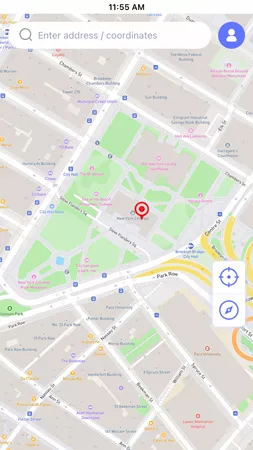
Step 2 Type your desired location or GPS coordinates in the search bar, and hit GO.
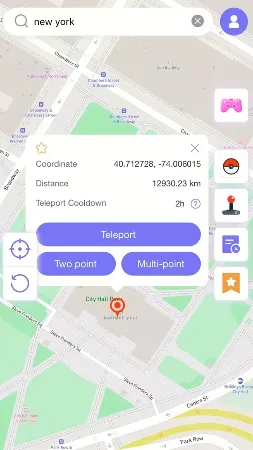
Step 3 iToolab AnyGo for iOS will ask you to configure VPN, click on “Configure VPN” to go on.

Step 4 Your Google Maps location will update immediately. Open Google Maps, your blue dot will show the new location.

The whole process takes less than two minutes. After setup, all apps on your phone will adopt the new GPS position, including Google Maps, navigation tools and social apps.
Get Your Blue Dot Back Where It Belongs
Most Google Maps location errors can be easily resolved. Start with simple fixes: verify location permissions, toggle Location Services, clear app cache, and disable battery optimization. These basic steps solve the majority of positioning issues.
If simple fixes don’t work, or if you want to set a custom location instead, iToolab AnyGo gives you full GPS control without modifying your device. It works perfectly with Google Maps, supporting one-click teleport and custom route simulation.
Download AnyGo now and put your blue dot exactly where you want it.