

Life360 is one of the most popular family safety apps today, with millions of families relying on it. However, a common and frustrating issue is Life360 not updating location, showing a frozen pin or an outdated position.
This article explains why Life360 location update issues happen, and provides 9 practical ways to fix them.

Part 1. Why Is Life360 Not Updating Location?
Before jumping into fixes, it is necessary to understand the root causes of Life360 not updating location. Most issues come from technical factors, though sometimes the reason is simply an altered phone setting.
Technical Reasons
- Poor network connection: Life360 requires a stable internet connection. Without it, the app cannot send your real-time location to your Circle.
- Background App Refresh disabled: When turned off, Life360 won’t run in the background, meaning your location only updates when the app is open on your screen.
- Battery-saving mode enabled: On both Android and iOS, low power mode restricts background app activity. Life360’s location updates are often blocked entirely in this mode.
- Location permission not set to “Always Allow”: Life360 cannot access your location unless you grant the proper permission. For accurate updates, you must set it to “Always Allow”.
- Outdated Life360 app version: Running an old version may introduce bugs, including location update failures. Updating the app often resolves these issues with included bug fixes.
- Weak or lost GPS signal: Life360 relies on your device’s GPS. In areas with weak GPS signals (e.g., inside large buildings), the app may fail to show your location correctly.
A Note on Altered Phone Settings
Sometimes, Life360 not updating location is not a technical glitch but a deliberate or accidental change to your phone settings. For example, someone may have manually stopped location sharing inside the Life360 app, disabled location services entirely, or set GPS access to “While Using the App” instead of “Always”. If a person in your Life360 Circle has a frozen location, check these settings as well.
Part 2. 9 Simple Solutions to Fix Life360 Location Not Updating💡
Here are 9 easy ways to fix Life360 failing to update your location. Try each of the following fixes in order. Most take less than two minutes.
1. Check Location & App Permissions
Life360 requires “Always” location access to provide real-time updates.
iPhone: Go to Settings > Privacy & Security > Location Services. Find Life360 and set it to Always. Also make sure Precise Location is turned ON.

Android: Go to Settings > Apps > Life360 > Permissions > Location. Select Allow all the time, and enable Use precise location if available.

2. Turn Off Battery Saver / Low Power Mode
Low Power Mode (iPhone) and Battery Saver (Android) restrict background activity, which can block Life360 from updating.
iPhone: Settings > Battery > Turn off Low Power Mode.

Android: Settings > Battery > Turn off Battery Saver or Power Saving Mode (exact name varies by phone manufacturer).
3. Check Your Network Connection
A weak connection often causes Life360 not updating location. Try switching between Wi-Fi and mobile data to see which works better. If reception is poor, move to a location with stronger signal. You can also toggle Airplane Mode on and off for a few seconds to reset your connection quickly.
4. Turn Off VPN or Proxy
VPNs and proxies change your IP address and can interfere with Life360’s location accuracy. To test, disable them:
iPhone: Settings > VPN > Turn off VPN.
Android: Settings > VPN > Disable any active VPN or proxy.
Then check if your location updates properly.
5. Enable Background App Refresh
This allows Life360 to run in the background and keep your location fresh.
iPhone: Settings > General > Background App Refresh > Ensure it is ON for Life360.

Android: Settings > Apps > Life360 > Battery > Select Unrestricted or No restrictions to allow background activity.
6. Edit In-App Settings Inside Life360
Open the Life360 app, tap your profile icon, and check for “Location Paused” status. If paused, resume sharing. Also verify you are in the correct Circle.
7. Clear Life360 Cache
Android: Go to Settings > Apps > Life360 > Storage → Tap Clear Cache.
iPhone: iOS doesn’t have a clear cache button for individual apps. Instead, uninstall and reinstall Life360 to clear stored data.
8. Restart the App/Device
Close Life360 completely and reopen it. If that doesn’t help, restart your phone. This clears temporary system glitches and often fixes location update lags immediately.
9. Update Life360 to the Latest Version
Open the App Store (iPhone) or Google Play Store (Android), search for Life360, and install any available updates. New versions frequently include bug fixes for location tracking issues.
Part 3. How to Make Life360 Location Not Update🔥
The previous part helped you fix location update issues so your Circle can see where you are. Now, let’s look at the opposite situation: how to intentionally stop Life360 from updating your real location, without notifying your Circle members. Below are two ways to do this. The first method is recommended for its reliability and privacy.
Method 1. Change Your Life360 Location Without Any Alerts
To make Life360 stop updating your real location without triggering any alerts, it is advisable to use a professional GPS location changer like iToolab AnyGo. Unlike simply blocking location access, AnyGo spoofs your location instead. Your Circle will still see a constantly active location, just not your real one. You will not trigger any notification and no “Location Paused” warning will be sent to your Circle.
- Teleport instantly to your target location worldwide.
- Compatible with Find My, Life360 and other social apps.
- Hide your real address while staying visible to others.
- Set custom fake locations to match your privacy needs.
- Run seamlessly on Windows, Mac, iOS, and Android devices.
- Fully support the latest iOS 26/Android 16.
Core Features of AnyGo
- One-click to Fake Location: Jump to any city or address worldwide with one click. Life360 will immediately display the new location, and your Circle will see it as your current position.
- Simulate Natural GPS Movement: Plan a custom route and let AnyGo move your GPS pin automatically. Adjust walking or driving speed to make movements look completely natural and undetectable.
- Virtual Joystick Control: Manually control your GPS position using the built‑in joystick. Rotate, move slowly, or stop at any time, giving you the ability to choose exactly what your Circle sees.
- Works with Life360 and Other Apps: Fully compatible with Life360, Snapchat, Instagram, Twitter, and location dating apps.
How to Use AnyGo to Change Your Life360 Location
Step 1 Download and install iToolab AnyGo app on your iPhone or Android.
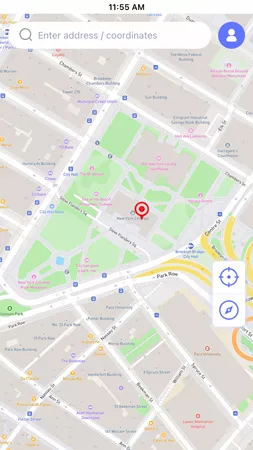
Step 2 Type the desired address or city into the search bar, then click Teleport.
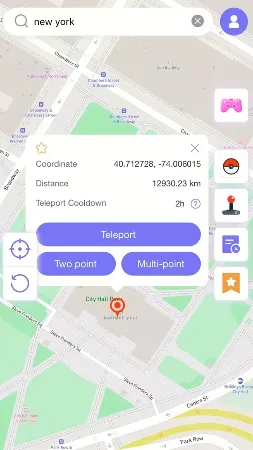
Step 3 iToolab AnyGo for iOS will ask you to configure VPN. Click on “Configure VPN” to go on.

Step 4 In seconds, the GPS of your device will be updated. Now open Life360, it will display the new fake location. No notifications or alerts will be sent to your Circle members.

Method 2. Common But Risky Methods
Some people try these two quick methods, but both are easily detectable by Circle members.
1. Turn on Airplane Mode
This disconnects your device from all networks. Life360 will show “No Network” or “Phone Off” to your Circle, which immediately raises suspicion.
2. Disable Location Permissions for Life360
If you turn off GPS access for Life360, the app triggers a visible “Location Paused” alert. Everyone in your Circle will see it instantly.
Both methods are obvious and defeat the purpose of stopping location updates discreetly. If your goal is privacy without alerts, Airplane Mode and permission changes are not feasible options.
Conclusion
Life360 not updating location can happen for many reasons: poor network signal, low battery mode, disabled background refresh, or someone manually stopping location sharing. For these common issues, this guide provides 9 simple fixes, no technical skills required.
However, if you want to keep your own whereabouts private without triggering any alerts to your Circle, AnyGo Location Changer for Life360 is the most reliable choice. It keeps your location active on Life360 while letting you decide exactly what your Circle sees, such as a fake location, a frozen pin, or a simulated route. Download AnyGo today and enjoy true location privacy, silently and safely.