

Imagine planning a surprise party, only to have the secret ruined by Life360 tracking your every move. Or think of a busy professional who just needs an undisturbed weekend, but feels trapped by constant location sharing within a Life360 Circle.
If you’re searching for how to leave a Life360 circle, that automatic “Someone left the circle” alert is a real concern. This guide will break down how to disconnect safely without anyone knowing.

Part 1. What Is a Life360 Circle?
A Life360 Circle is a private, invite-only digital group created within the app to keep members continuously connected. Think of it as a virtual safety network for families, close friends, or workplace teams. The moment you join an active Circle, your phone starts sharing your location.
Every member of that Circle can instantly see your exact location. The app catalogs your entire day into a location history timeline that others can monitor at any hour.
This high level of monitoring explains why so many people search for how to leave a circle on Life360.
Part 2. How to Leave a Life360 Circle and What Happens After
Disconnecting your device from a Life360 Circle is simple. However, leaving the network leaves a visible digital trace. The moment you hit the exit button, the app automatically sends a “Someone left the circle” alert to every other member.
There is no way to quietly sneak away using standard settings. You must be ready for the social consequences before you leave.
How to Leave A Life360 Circle for Both iPhone and Android
1. Open the Life360 app.
2. Tap the Circle Switcher at the top center and select the Circle you want to leave.

3. Tap the Settings gear icon (upper left).

4. Select Circle Management → Leave Circle.

5. Confirm by tapping Yes.
What Actually Happens When You Leave a Life360 Circle
When you decide to leave a group, Life360 strictly enforces its notification rule: all active members must be alerted immediately the moment someone exits.
The instant you tap to confirm your departure, a chain of automated actions occurs:
- Instant Push Notification: Every remaining member receives a system notification saying: “[Your Name] has left the Circle.” This message cannot be blocked or delayed.
- Icon Disappears: Your profile avatar vanishes from the shared map immediately. Future tracking stops, but your absence becomes obvious to anyone viewing the map.
- Name Removal: Your name is permanently erased from the member list, instantly shrinking the visible roster.
- History Erased: You lose access to location history, driving summaries, and others’ speed details. Your past digital footprint vanishes.
- Access Revoked: The shared map goes blank for you. Your permission token is deleted, so you’ll need a new invitation code from an admin to rejoin later.
Part 3. How to Leave a Life360 Circle Without Anyone Knowing💡
Exiting a Circle normally triggers an instant warning, which often leads to unwanted family conflict. But what if you could hide your real location to protect your privacy without anyone finding out? The most practical solution is to use iToolab AnyGo, a professional location changer that works smoothly with Life360.
Instead of actually leaving the Circle, AnyGo helps you safely spoof your GPS coordinates. Your family will only see the location you choose on their map, keeping your privacy intact without raising any suspicion.
- Stay in Life360 Circle while hiding your real location.
- Customize movement to make your walk look authentic.
- Import custom routes to farm known perfect-IV spawn paths.
- Shield your privacy while using social, map and dating apps.
- Run seamlessly on Windows, Mac, iOS, and Android devices.
- Fully support the latest iOS 26/Android 16.
What AnyGo Can Do for Your Life360 Privacy
- Fake GPS Location Without Leaving Your Circle
Teleport your location anywhere in the world with one click, without actually exiting the group. This way enables you to stay active in your Life360 Circle while controlling exactly what others see. - Hide Your Location, No Alerts
Change your real-time coordinates without triggering any automated notifications. Your Circle members will never know, and you can slip away completely undetected. - Simulate Realistic Movement
You can customize routes to mimic the movement pattern of walking, cycling, or driving. This prevents your location dot from appearing suspiciously frozen, making your virtual travels look perfectly genuine to anyone watching the map. - Work With All Location-Based Social Apps
AnyGo isn’t just for Life360. It seamlessly changes GPS coordinates across all your favorite apps, including WhatsApp, Snapchat, Twitter, Tinder, Facebook and more.
How to Use AnyGo to Hide Life360 Location
Step 1 Download and install iToolab AnyGo app on your iPhone or Android.
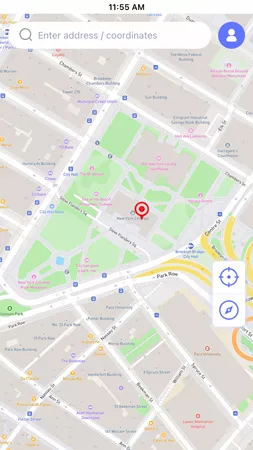
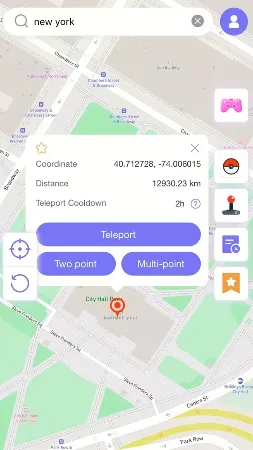
Step 2 Enter your desired location into the search bar on the map. Click Teleport to instantly update your GPS coordinates.
Step 3 Open Life360 on your phone. Your new virtual location will now display on the shared map. You’ll remain active in your Circle, but no notifications will be triggered, and your real location stays completely private.

Part 4. Life360 Location Hiding Tricks That Usually Don’t Work
When searching for how to leave a Life360 circle without them knowing, many users try quick built-in phone shortcuts. These tricks might seem like easy fixes, but they actually leave obvious digital clues that alert your Circle instantly.
Basic network adjustments often freeze your avatar in one spot, raising immediate suspicion and prompting concerned texts from family members.
1. Enabling Airplane Mode: This cuts all network data and GPS tracking. However, Life360 immediately shows a “No Network Connection” or “Phone Off” status next to your name, making it easy for Circle members to notice you’ve disconnected.
2. Disabling Location Permissions: If you revoke the app’s location access via your phone settings, Life360 triggers an explicit “Location Sharing Paused” or “Location Permissions Off” pop-up right on their map dashboard.
3. Turning on Low Power Mode / Battery Saver: This restricts background activity to save power. Instead of hiding you, it causes frequent location delays or shows you as “Offline,” making your tracking look suspicious.
4. Logging Out of Life360: This is the most obvious mistake. The moment you log out, your profile icon disappears from the shared map, sending an immediate red flag to everyone else in the Circle.
Conclusion
Bypassing Life360 using standard phone settings simply doesn’t work — it leaves obvious clues that immediately tip off your Circle members. If you truly want to know how to leave a Life360 circle without anyone knowing, AnyGo Location Changer is the ultimate solution.
This professional GPS spoofer changes your coordinates smoothly and securely without triggering any automated notifications. That means you can protect your personal space, and eliminate unwanted tracking stress.
Download AnyGo today and enjoy true location privacy without anyone ever finding out.