
Switching to a new Android phone always raises one big concern instantly. You want every WhatsApp chat, photo, and voice note moved safely across. Resourcera claims that users send over 150 billion messages every single day across WhatsApp’s global platform. Most users assume a cable is always required to complete this process.
However, you can transfer WhatsApp data from iPhone to Android without cable using native tools. Yet, wireless methods come with their own limitations that many users overlook completely. Therefore, knowing both options helps you choose the right approach before starting. This guide covers the wireless method, a reliable cable alternative, and everything in between.
Part 1. Can I transfer WhatsApp from iPhone to Android Without Cable?
Yes, you can absolutely move your WhatsApp chats without using any cable at all. US Mobile states that around 27% of U.S. iPhone users expressed openness to switching to Android in 2025. Therefore, WhatsApp includes a native wireless migration feature directly inside the app for all users.
This feature allows you to transfer WhatsApp from iPhone to Android without a cable using a QR code. Both devices connect over a stable Wi-Fi network to share your chat data wirelessly. Nonetheless, the official cloud-based process has strict platform and operating system restrictions.
It frequently slows down or drops completely if your wireless signal fluctuates slightly. Moreover, larger media attachments like lengthy videos can take hours to complete wirelessly. Therefore, a physical connection remains the most stable choice for bulk file migration.
Part 2. How to Transfer Data from iPhone to Android Wirelessly?
The official wireless migration tool allows you to move specific critical files. You can safely transfer your main account details, along with individual and group chats. Such direct Wi-Fi transmission also includes communities and layout settings. Nevertheless, you cannot sync your unique display name or personal status updates.
Furthermore, ensure your destination Android smartphone runs software version 6 or above. You must also maintain the exact same phone number on both mobile devices. Plus, both sending and receiving smartphones should have the latest version of WhatsApp. Anyhow, review these steps to learn how to transfer data from an iPhone to an Android wirelessly:
Step 1. To initiate, head to the “Profile” tab from the app’s main display. From there, access “Chats” and opt for the “Transfer Chat History” feature.

Step 2. On the subsequent screen, select the “Android” option and hit “Continue” to access the QR scanner.

Step 3. Moving forward, open the newly installed app on your new Android device and tap “Agree and Continue.” Afterward, enter the same phone number linked to your account and press “Next.” Complete the verification process by adhering to the visual instructions.

Step 4. Upon seeing the “Transfer Chat History” page on the new receiving device, tap “Continue.” Subsequently, use your iPhone to scan the QR code displayed on the Android phone. Go ahead and tap “Next” to begin transferring your chat history.

Part 3. How to Transfer WhatsApp Data from iPhone to Android with Cable?
While wireless options provide convenience, they often fail when moving heavy multimedia attachments. Network drops or strict platform limitations can easily interrupt your wireless file migration midway. Therefore, a secure wired connection remains the most reliable solution for bulk transfers. You should use a desktop utility such as iToolab WatsGo instead of trying to move WhatsApp from iPhone to Android without cable connections.
It transfers both standard messages and business accounts with a single click. Along with that, the system transfers data 3 times faster than ordinary cloud recovery features. While using this WhatsApp transfer tool, users can even select and migrate over 20 distinct data types, including attachments and media. Furthermore, you can safely move large chat databases without performing a factory reset.
Moves WhatsApp data from one operating system to another without restrictions.
- Fully supports the latest iOS 26 and Android 16 versions for an uninterrupted transfer experience.
- Achieves a massive 90% success rate compared to standard native wireless transfer utilities.
- Preserves all shared photographs and images inside your personal chat threads in original quality.
- Restores GBWhatsApp backup directly to standard WhatsApp on both Android and iPhone devices.
- Protect your personal data privacy entirely by avoiding any automated collection of user information.
Guide to Transfer WhatsApp Data from iPhone to Android with Cable
Using this tool requires no technical expertise and completes your transfer within minutes. Follow these straightforward steps below to move your WhatsApp data between phones with a cable:
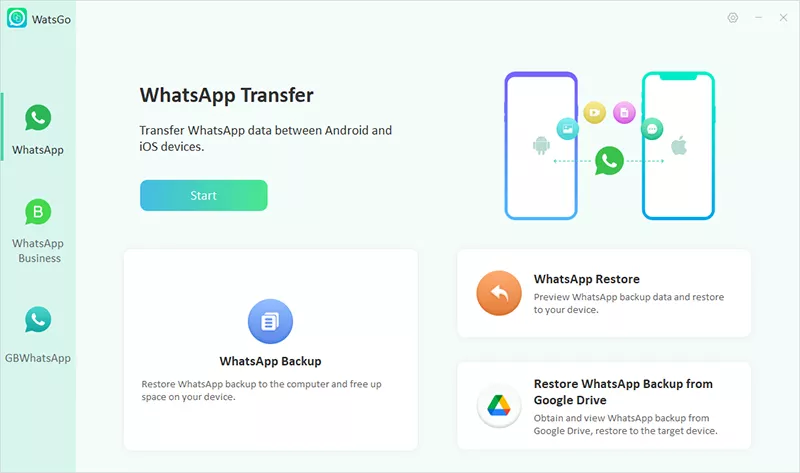
Step 1. Run the Program and Begin the Transfer Process
As you navigate to the “WhatsApp” tab, click the “Start” button to move further.
Step 2. Attach Both Devices and Configure Transfer
Subsequently, connect your old and new smartphones to the PC using compatible cables. Once the tool recognizes both devices, verify that the correct phones are assigned as the “Source” and “Destination.” After confirmation, you need to press the “Transfer” button.

Step 3. Select WhatsApp Content and Create a Backup
Moving forward, choose the types of WhatsApp data you wish to migrate and press “Continue.” Then, back up WhatsApp data on your sending smartphone so the software can prepare the transfer package automatically.

Step 4. Transfer Chats and Media to Android
After entering and verifying your phone number, the program will initiate moving your conversations and media files to your Android. When the transfer is complete, restart the smartphone and check whether all your WhatsApp data has been restored properly.

Part 4. Should You Transfer WhatsApp With or Without a Cable?
Choosing the right migration path determines your overall data safety and transmission speed. Many users attempt to transfer WhatsApp from iPhone to Android without using cable methods first. Nevertheless, wireless options suffer from frequent network disconnects and slow processing speeds. Heavy media attachments like long videos often fail to migrate completely over wireless connections.
In contrast, a physical wired connection provides total stability and faster data processing. Therefore, experts usually recommend utilizing the wired method for large database transfers. To cater to this need, you can download and try tools like iToolab WatsGo to experience error-free migration. Such types of programs guarantee that none of your precious memories are left behind.
Conclusion
In summary, migrating WhatsApp chats between platforms requires choosing the most suitable method. Many users successfully transfer WhatsApp data from iPhone to Android without a cable. Still, wireless transfers may encounter limitations or unexpected interruptions.
Wired methods generally provide greater stability when handling larger chat histories. That’s why knowing both approaches helps protect conversations and important account information. When reliability matters most, programs such as iToolab WatsGo offer a practical alternative solution.
iToolab WatsGo – Safely back up your WhatsApp data
389,390,209 people have downloaded it