

A fresh IP address can help when your connection feels slow or when you need extra privacy online. On iPhone, changing your IP is straightforward once you know the available options.
In this guide, we’ll explain what an IP address is, how to change your IP address on iPhone, and when a GPS tool becomes the right option for location-based apps. Let’s get started and explore the safest ways to change your iPhone’s IP address.

Part 1. What Is an IP Address on iPhone?
An IP address is like a digital home address for your iPhone. It’s how the network identifies your device. Without it, your phone couldn’t send requests or receive data from apps, browsers, and services.
There are two main types of IP addresses on iPhone: private and public. A private IP is used within your local Wi‑Fi network, while your internet service provider assigns a public IP. The private address stays internal, but the public one is what websites and external services can detect.
IP Address vs. GPS Location: What’s the Difference
IP address and GPS location are two different systems that show where a device is. An IP address gives a general online location based on your internet connection. GPS is more accurate because it uses satellite signals to pinpoint your exact physical position on the map.
An IP change can refresh your network connection, but it cannot rewrite your GPS location. Apps that rely on live map data, such as navigation, dating apps, or AR games, still read your actual physical position, so changing your IP alone won’t hide where your phone really is.
Part 2. How to Change Your IP Address on iPhone
Now that the difference between IP and GPS is clear, it’s time to explore the practical ways to change your IP address on iPhone. Your iPhone can get a new IP in several ways, depending on whether you’re using Wi-Fi or cellular data.
1. Set a Static Local IP (Wi-Fi only)
If you need a fixed address within your home or office network, setting a static local IP gives you full control. Go to your iPhone’s Wi‑Fi settings, tap the connected network, then choose the Manual IP option, and enter the details required by your router. This is ideal when you need a stable local IP for specific internal services.
2. Renew DHCP Lease to Get a New Local IP
Renewing the DHCP lease is the easiest route if you want a fresh local IP without manual input. Go to Settings > Wi‑Fi, tap the info icon next to your current network, scroll down, and select Renew Lease. Confirm the change if prompted. Your router will often assign a new local IP to your iPhone upon reconnection.

3. Toggle Airplane Mode to Refresh Cellular IP
For a quick cellular IP refresh, Airplane Mode is your best bet. Enable Airplane Mode, wait a few seconds, and turn it off. Your iPhone will reconnect to the mobile network from scratch, and in many cases, this reassigns a different public IP address.

4. Switch Wi-Fi Networks for a New Public IP
Moving from one Wi‑Fi network to another usually changes your public IP, because each network has its own internet connection. Your device stays the same, but the network path shifts. It’s a practical option when you want a fresh internet identity without extra setup.
5. Use a VPN to Change Your Public IP
A VPN remains one of the most popular ways to change your public IP on iPhone instantly. Once activated and connected to a server, your traffic routes through that location first. Websites and online services see the VPN server’s IP, instead of your original one.
Note: While a VPN effectively masks your IP address, it does not alter your iPhone’s GPS position. If you open a map, dating app, or AR game, your physical location remains unchanged. For those scenarios, IP changes won’t work.

6. Reset iPhone Network Settings
When Wi‑Fi keeps disconnecting or your network settings feel corrupted, resetting network settings can help. It clears saved Wi‑Fi networks, VPN profiles, and other connection data from your iPhone. After the reset, you’ll need to reconnect to Wi‑Fi and set things up again.
Part 3. How to Change Your Location on iPhone🔥
Changing your IP address can help with network privacy, but it won’t affect the GPS location that many apps rely on. If you also need to change where your iPhone appears on the map, iToolab AnyGo offers a straightforward, no-jailbreak solution.
As a reliable location changer, it allows you to set a virtual location instantly, making it ideal for AR games, social apps, and privacy management.
- Teleport your iPhone to any global address or GPS coordinate instantly with a single tap.
- Simulate natural walking, cycling, or driving routes between multiple stops with adjustable speed.
- Spoof your GPS across social platforms, dating apps, navigation tools, and AR games.
- Change location without modifying your iPhone’s operating system.
- Run seamlessly on Windows, Mac, iOS, and Android devices.
- Fully support the latest iOS 27/Android 16.
How to Change Location on iPhone with AnyGo
Changing your GPS location with AnyGo is quick and straightforward. Follow these three steps to change your iPhone’s virtual position:
Step 1 Download and install the AnyGo app on your iPhone.
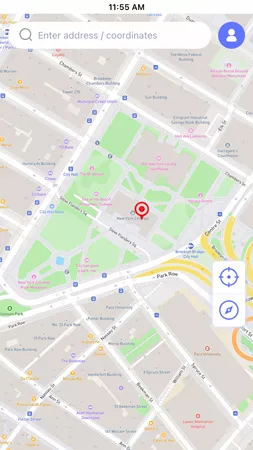
Step 2 Enter the target location in the search box and hit Teleport.
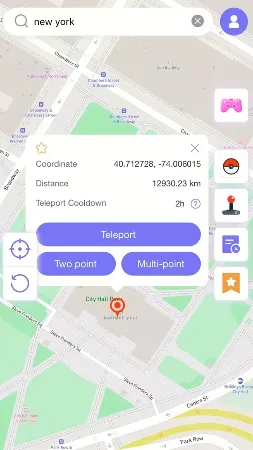
Step 3 Your iPhone’s GPS location will update instantly. Open any app on your iPhone, and you’ll see your device positioned exactly at your new spot.

Summary
As we’ve covered, there are several easy ways to change your IP address on iPhone, and each one serves a different purpose. Some are useful for local network changes, while others provide a new public-facing connection.
However, none of these IP-level changes can alter your physical GPS coordinates. AnyGo Location Changer fills the gap. It gives you direct, safe control over your iPhone’s virtual position, without modifying your device’s system. If you need to move your map pin rather than just mask your network, AnyGo is the reliable solution to try.
Try AnyGo today and see how easily you can change your iPhone location.