

A wrong address on DoorDash can derail an entire dinner rush. Drivers circle the block unable to find your kitchen, customers call about orders marked as delivered across town, and every missed pickup drains your revenue. Whether the cause is a business relocation, a new storefront launch, or a simple mapping glitch, the fix starts with updating your location settings.
This guide walks through how to change restaurant location on DoorDash step by step, whether you are an owner updating a storefront, a customer fixing a delivery address, or a Dasher switching to a new zone.

Part 1. What Is DoorDash?
DoorDash is a major food delivery platform connecting local eateries with nearby customers. The service pairs physical storefronts with independent delivery drivers, known as Dashers, who handle order pickups and drop-offs. Restaurant owners manage their presence through the DoorDash Merchant Portal, where menu details, store settings, and physical location coordinates all live under one dashboard.
Keeping your store address accurate inside that dashboard is essential. Precise location data ensures Dashers pull up to the correct kitchen door every time, preventing cold meals, missed pickups, and lost revenue. When your address is wrong, everything downstream breaks: drivers get lost, customers get frustrated, and orders get delayed. Here is how to change restaurant location on DoorDash the right way, no matter which side of the order you are on.

Part 2. How to Change Restaurant Location on DoorDash (For Restaurant Owners)
Whether you are fixing a tiny typo or managing a massive commercial move, here is how to change your restaurant’s location on DoorDash smoothly.
Method 1: Self-Service Updates via the Merchant Portal (Minor Address Fixes)
If you just need to correct an address typo or nudge a misaligned pin, you can handle it yourself right in the dashboard.
- Access the portal. Open a desktop browser, navigate to merchant.doordash.com, log in with your admin credentials, and open your main store profile.
- Locate your settings. Scroll down the left-hand sidebar menu until you find the Settings tab, click it, and open the Store Settings view.
- Enter the new address. Scroll down to the address block, click the Edit button next to Address, start typing your updated street details, and select the correct match from the dropdown.
- Save your changes. Click the “Save” button at the bottom of the page to push the update live instantly.

Method 2: Contacting Support for Major Store Relocations
When you are moving the entire kitchen across town or setting up shop in a brand-new neighborhood, a simple self-service edit will not work. Because major moves alter tax rules and delivery boundaries, you will need manual assistance.
- Open a help ticket. Log into the Merchant Portal, click the Help tab in your sidebar, and start a support case.
- Submit your details. Choose the request category for updating store information, and provide your store ID, old address, and exact new location.
- Upload your paperwork. Attach your updated local health permits and business licenses directly to the support thread.
- Wait for approval. Once compliance agents verify your documentation, they will manually update your map coordinates and adjust your delivery radius for you.
Part 3. How to Change Your Delivery Address on DoorDash (For Customers)
Updating your drop-off location on DoorDash takes just a few quick taps, whether you prefer using the mobile app or your desktop browser.
1. Change via the DoorDash App
1. Tap the address banner. Open the DoorDash app on iOS or Android and tap your current street address displayed at the top of the home screen.
2. Add or select an address. Type your new street address into the search bar, or select a saved location from your account list.

3. Specify delivery details. Add specific drop-off details, such as an apartment or suite number, entry codes, and drop-off instructions for your Dasher.
4. Confirm and save. Tap “Save” or “Done” at the bottom. Your app will automatically display nearby restaurants available for your updated delivery location.

2. Change via the DoorDash Website
1. Open the address selector. Navigate to doordash.com on your computer browser, log in, and click the address bar at the top of the homepage.

2. Enter your new location. Type your full street address, city, and zip code into the search box, then click the matching suggestion from the dropdown.
3. Refine drop-off info. Choose your delivery preference, such as “Hand it to me” or “Leave at my door”, and input any necessary suite or gate access numbers.

4. Save your active address. Click “Save” to apply the changes. The website will immediately refresh to display available menus for your new spot.
Part 4. How to Change Your Starting Point on DoorDash (For Dashers)
Drivers often move between neighboring cities or vacation spots to capture higher earnings during peak delivery hours. Here is how to update your starting point inside the Dasher app so you can start receiving local food orders right away.
1. Update via Settings
- Open the app. Launch the Dasher app on your phone and make sure you are currently signed out of any active delivery shifts.
- View the map. Navigate to the home map screen to view highlighted delivery zones near your present GPS location.
- Select a new zone. Tap a red or busy delivery area on the map where you want to work, then select “Dash Now” or “Dash Along the Way”.
- Confirm the location change. Tap “Change” or “Okay” on the pop-up prompt confirming you wish to update your starting point to the new zone.

📌Limitations to Keep in Mind
While updating your starting point is generally quick, one restriction matters most: you must be physically located near or inside the target zone. DoorDash uses geofencing to prevent remote zone changes, so if you are not close enough, the app will not let you switch. This means every scouting trip costs time and gas before you know if a zone is even worth working.

Changing Your GPS Location with iToolab AnyGo🔥
The good news is that you don’t have to burn gas to find out if a zone is worth working. iToolab AnyGo is a GPS location changer that works on both your phone and computer, letting you jump to any delivery zone on the map and preview the area before you commit to the drive. You can check which restaurants are active, see if a zone shows red on the Dasher map, and pick the busiest area for your shift.
Landing in a zone with plenty of orders and fewer competing Dashers means more deliveries per hour, and that translates directly into higher earnings.
- Teleport instantly to preview multiple delivery zones.
- Compare hot‑spot areas & select high‑income working zones.
- Modify GPS location without jailbreak or rooting your phone.
- Change iPhone location in official apps with Native Mode.
- Preview delivery zones for Uber Eats & most delivery platforms.
- Run seamlessly on Windows, Mac, iOS, and Android devices.
- Fully support the latest iOS 27/Android 17.
How to Use iToolab AnyGo to Preview Delivery Zones
Step 1 Download and launch AnyGo app on your iPhone or Android device, then select General Mode from the main interface.
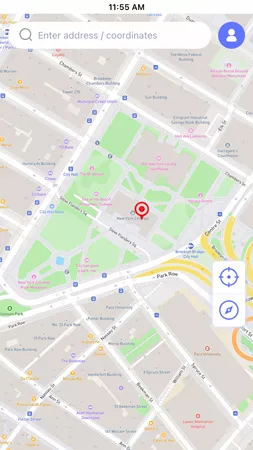
Step 2 Enter the target delivery zone address or coordinates, then click “Search” to find the location.
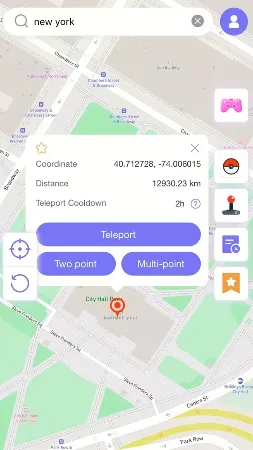
Step 3 Confirm the location update, then open the Dasher app to preview zone activity, restaurant listings, and driver density in the area.

Part 5. FAQs about How to Change Restaurant Location on DoorDash
Many users still run into common questions when adjusting their addresses or fixing location errors. Here are straightforward answers to help you navigate location settings effortlessly.
Q1. Can I change my DoorDash delivery address after placing an order?
Yes, but only if the new location is within the restaurant’s active delivery radius. Open your active order tracker in the app, tap “Help”, and select the “Change Addresses” tab.
Q2. Why is my DoorDash location wrong?
Common causes include disabled location permissions, weak Wi-Fi, outdated cached app data, or an incorrect pin drop on the map.
Q3. Can I use a VPN to change my DoorDash location?
No. DoorDash relies on your phone’s GPS coordinates, not just your IP address, to determine your delivery zone. A VPN cannot bypass this, and using one during active orders may trigger fraud detection and put your account at risk.
Q4. How long does it take for a DoorDash location change to take effect?
Customer address updates are instant. Restaurant owner self-service edits also go live immediately, while major relocations handled by Support typically take 24 to 72 hours. Either way, knowing how to change your restaurant location on DoorDash in advance saves you from downtime during a busy weekend.
Q5: Can I add a suite number to my restaurant address myself?
No. The DoorDash Merchant Portal’s self-service address tool does not support suite numbers. Contact Merchant Support through the Help tab and they will add it for you.
Conclusion
Learning how to change restaurant location on DoorDash doesn’t have to be a headache. Whether you are a customer fixing an address mistake, a restaurant owner updating a storefront, or a Dasher switching busy zones, knowing the right steps keeps every order running smoothly — and your customers happy. For everyday ordering, sticking to the built-in app settings is all you need.
But if you are a Dasher who wants to scout new zones before committing your time and gas, AnyGo Location Changer lets you preview delivery areas and plan your routes right from your screen. Keep your details accurate, double-check your active zones, and you’ll keep every order running smoothly from start to finish. Try iToolab AnyGo today and start scouting your next profitable delivery zone!