

Selecting a team early in Pokémon GO can feel like a big decision, but what happens if you pick the wrong one at level 5, or all your friends play another color? All is not lost. The game’s developer introduced a way to switch teams back in 2019, and it is still available today.
This guide covers how to change teams in Pokémon GO, what the switch costs, and what happens to your Gyms and Pokémon afterward. It also tackles the problem many players face after making the change: finding few local Gyms and PokéStops for their new team.

Part 1. Can I Switch Teams on Pokémon GO?
Yes, team changes are possible in Pokémon GO. The feature was introduced in 2019, and changing teams requires a Team Medallion. The Team Medallion costs 1,000 PokéCoins and can only be bought once every 365 days.
Before you decide, here’s a quick refresher on the three teams:
- Team Mystic (Blue), led by Blanche, values calm analysis and long-term strategy.
- Team Valor (Red), led by Candela, values strength and aggressive Gym battles.
- Team Instinct (Yellow), led by Spark, values intuition and quick decision-making.

None of the three teams determines the Pokémon in your Pokédex, your level-up speed, or the rewards you obtain. The only differences concern Gym control, raid coordination, and the group you are playing with.
Part 2. Does It Matter Which Team You Join in Pokémon GO?
Not in a mechanical sense anyway. The three teams do not determine which Pokémon you can catch or which raids you can participate in. However, your team matters when interacting with Gyms and coordinating with other players. It is the social aspects that matter more than the competition.
If friends or family are already involved with a specific team, joining that team makes it easier to do cooperative raids or exchange gifts. If the Gyms in your area are all of one specific color, picking either of the other two colors allows you to bypass competing with others to build up the necessary PokéCoins.

Part 3. How to Change Teams in Pokémon GO
There are two ways to handle a team change: buy a Team Medallion in the game, or reach out to Pokémon GO Support if something went wrong with your original selection. Here is how to change teams in Pokémon GO step by step.
💡Method 1. Change Teams Using the Team Medallion
This is the fastest option, and it works for any trainer regardless of level or account age. All you need is 1,000 PokéCoins.
Step 1. Make sure you have at least 1,000 PokéCoins in your account, either purchased or earned from defending Gyms.
Step 2. Open the Main Menu (the Poké Ball icon), then tap Shop.
Step 3. Scroll to the Upgrades section and purchase the Team Medallion.

Step 4. Open the Medallion from your Item Bag, choose one of the two remaining teams, and confirm your selection.

💡Method 2. Contact Pokémon GO Support for Account-Specific Issues
If something went wrong with your original team selection or a Team Medallion purchase, you can contact Pokémon GO Support through the Help Center. Keep in mind that support does not advertise a free team change. The standard way to switch teams is still to purchase and use a Team Medallion.
Part 4. What Happens If You Use a Team Medallion in Pokémon GO?
Switching teams changes less than most players expect. Here’s exactly what carries over and what doesn’t once you confirm the swap.
🎯Gym defenders: If you have Pokémon defending Gyms when you change teams, remote Berry feeding will be disabled. Once your Pokémon have been defeated or if you go to a Gym, they will go back to your storage. You will not earn PokéCoins by protecting Gyms.
🎯PokéCoins: PokéCoins in your account remain yours. If you decide to change teams again after the year-long waiting period, you will need to buy another Team Medallion once it’s available.
🎯Pokémon: Your collection of Pokémon, levels, Buddy progress, or items will remain untouched by your team switch. Your team badge and the Gyms you can visit will change.
Part 5. How to Explore Gyms and PokéStops After Changing Teams🔥
Switching teams does not fix everything. If you live somewhere with only a few Gyms and PokéStops, or the nearest ones are a long walk away, your new team color will not put more Gyms on the map. That is a location problem, not a team problem.
To keep exploring beyond your neighborhood, many trainers use iToolab AnyGo, a GPS location changer that works on both your phone and computer. It sets your position to any city on the map, so Gyms and PokéStops friendly to your new team are always within reach.
- Teleport instantly to dense Gym & PokéStop hot‑zones.
- Create multi‑spot walking routes across rival‑territory areas.
- Enable auto‑catch & auto‑spin to farm supplies hands‑free.
- Change iPhone location in official apps with Native Mode.
- Speed‑up your daily gym routine with POGO Assistant.
- Run seamlessly on Windows, Mac, iOS, and Android devices.
- Fully support the latest iOS 27/Android 17.
What AnyGo Offers for Your New Team’s Gyms
- One-Click Teleport: Jump straight to any Gym or PokéStop cluster of your new team, no matter how far it sits from your real location. Claim defender slots in Gym-dense areas and start rebuilding your daily PokéCoin income.
- Two-Spot and Multi-Spot Routes: Draw a walking path through the Gyms and PokéStops of your new team’s territory and set a natural speed. Your avatar moves from stop to stop while you spin discs and check Gym slots along the way.
- Go Catcher (Auto Catch and Auto Spin): The built-in GO Catcher catches wild Pokémon and spins nearby PokéStops automatically. Every auto-spin keeps your item bag stocked while you focus on finding open Gym slots for your new team.
How to Use AnyGo to Reach More Gyms and PokéStops
Step 1 Download and install iToolab AnyGo on your Windows or Mac computer. Launch AnyGo and select General Mode.

Step 2 Connect your iPhone or Android phone to your computer with a USB cable.
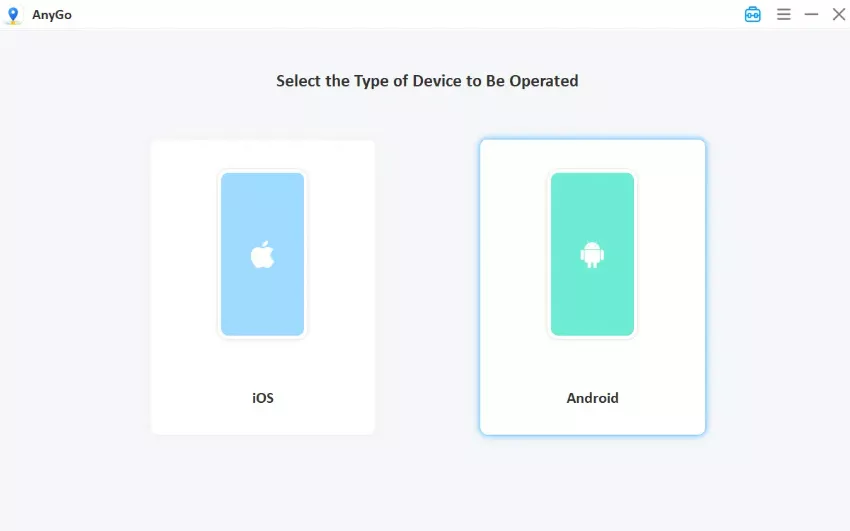
Step 3 Search for a city where your new team controls plenty of Gyms, then click “Go.” Your phone now reports that location, and Gyms and PokéStops across the city load onto your map.

Step 4 Set a multi-spot route between Gyms and PokéStops, pick a walking speed, and start moving. Spin every stop you pass and claim Gym slots for your new team along the way.

Part 6. FAQs about Changing Teams in Pokémon GO
Here are quick answers to the questions trainers ask most often about switching teams.
Q1: How to Join a Team in Pokémon GO?
Once you reach level 5, tap any Gym on the map. The three team leaders will appear and introduce their teams. Follow the on-screen prompts, pick the team you like, and confirm your choice.
Q2: Will I Lose My Friend List Progress?
No, team switching will not impact the Friends list, Friendship levels, or gift history. All of this remains the same.
Q3: Can I Switch Back to My Original Team Immediately After Using the Medallion?
No. After you use one Team Medallion, you will be committed to your team for 365 days before you can purchase and use another Team Medallion.
Q4: Can I Use the Team Medallion on a New Account?
Yes. Any account that has already chosen a team can buy and use a Team Medallion, as long as it has 1,000 PokéCoins and has not used a Medallion in the past 365 days. There is no extra waiting period for new accounts.
Conclusion
Changing teams in Pokémon GO comes down to the Team Medallion. For 1,000 PokéCoins you can pick a new color, then wait 365 days before switching again. Your Pokémon, items, level, and Friend list all stay exactly the same. The only real difference is which Gyms you defend and who you raid with. If your original selection went wrong somehow, Pokémon GO Support is the place to ask.
If your new team has few Gyms or PokéStops nearby, AnyGo Location Changer for Pokémon can put the whole map within reach. Teleport to Gym-dense cities, plan walking routes through PokéStop clusters, and rebuild your PokéCoin income on your own schedule. Try iToolab AnyGo today and take your new team to the top of every Gym! It is the easiest way to enjoy the game after you change teams in Pokémon GO.