

You open Facebook Dating, excited to see who’s nearby. But something feels off. Profiles from a city you left years ago, or your own location is pinned somewhere you’ve never been. This is the Facebook Dating location mismatch error, and it’s more common than you think.
Irrelevant matches, missed connections, and wasted swipes quickly follow. In this guide, you’ll learn exactly what causes the problem and 5 practical ways to fix it.

Part 1. Why is My Facebook Dating Showing Location Mismatch?
You need to figure out the root causes first before fixing Facebook Dating location errors. Below are the most common reasons behind this problem:
- Disabled Location Permission: Facebook Dating needs full GPS access to detect your real-time location. The app fails to refresh your current position once location access is restricted or denied.
- VPN & Proxy Interference: This is one of the top triggers. A VPN changes your IP-based location while your GPS shows your actual spot. Such inconsistency leads to obvious location mismatch on Facebook Dating.
- Weak GPS Signal: Indoor spaces and remote rural areas usually cause unstable GPS reception, making your phone report wrong positioning information.
- Outdated App Version: Old Facebook app versions contain inherent bugs that block normal location synchronization.
- Temporary System or App Glitches: Sudden app crashes and corrupted cached data can also mess up your shown location randomly.
- Old Profile Address: If you’ve moved to a new place but haven’t updated your Facebook profile’s “Current City” or “Hometown”, the app might still associate you with your old area.
Once you confirm the exact cause, you can pick targeted fixes easily. Keep reading to solve this issue step by step.
Part 2. How to Fix Facebook Dating Location Mismatch
Below are 5 effective fixes to solve Facebook Dating location mismatch issues. Try them in order until your location displays correctly.
Fix 1: Manually Update Location Inside Facebook Dating
This is the most straightforward fix. You can manually set your dating location without relying on GPS signals.
- Launch the Facebook app on your mobile device.
- Tap the heart icon to enter Facebook Dating.
- Head to your Dating Profile and select Dating Location.
- Tap Update Your Location and follow on-screen prompts to confirm your current city.
- Your dating profile location will refresh immediately after confirmation.

Note: Facebook restricts location changes to once every 7 days, so confirm your target location carefully first.
This method works well for outdated location info. Skip to the next solution if the error stems from technical glitches.
Fix 2: Verify and Turn On Location Permissions
Facebook Dating fails to fetch accurate GPS data without proper location access, which leads to wrong displayed locations. Grant full location access with the steps below.
For iPhone:
- Open Settings, scroll down and tap Facebook.
- Select Location, then choose While Using the App.
- Enable Precise Location.

For Android:
- Go to Settings > Apps > Facebook.
- Tap Permissions > Location.
- Select Allow only while using the app (or Allow all the time if you prefer) and turn on Precise Location.

Relaunch Facebook Dating after adjusting settings to check if the problem is resolved.
Fix 3: Clear Facebook App Cache
Corrupted and outdated cached data often blocks the app from loading fresh GPS positioning data, triggering location errors.
For Android:
- Navigate to Settings > Apps > Facebook.
- Tap Storage > Clear Cache.
- Restart Facebook and open Facebook Dating to check results.
For iPhone:
iOS has no direct cache-clearing option. Use this alternative:
- Go to Settings > General > iPhone Storage > Facebook.
- Tap Offload App.
- Reinstall Facebook from the App Store.
This operation cleans up junk files without deleting your account data. Reconfirm location permissions afterward to eliminate the location mismatch error.
Fix 4: Turn Off VPN or Proxy Services
VPN is a major cause of location conflicts. It alters your IP-based geographic address while your GPS shows your real position, creating obvious location inconsistency detected by Facebook Dating.
How to fix:
- Fully disconnect all running VPN applications.
- Check system network settings to ensure no active VPN profiles remain on your phone.
- Restart Facebook Dating and check your displayed location.
Once VPN interference is removed, the app can accurately read your real GPS location normally.
Fix 5: Restart App and Your Device
Temporary system bugs and unstable GPS connections can be fixed with a simple reboot.
- Completely close Facebook and remove it from background apps.
- Power off your phone, wait 30–60 seconds, then turn it back on.
- Open Facebook Dating again.
If none of the above conventional methods work, you need to try a more reliable alternative solution.
Part 3. How to Change Your Location on Facebook Dating Without Moving
Standard troubleshooting methods may fail to resolve persistent location mismatch errors. You may face repeated location resets, or simply want to browse matches in other cities freely. In this case, a reliable GPS location changer is exactly what you need.
iToolab AnyGo is a professional location spoofer to set your desired GPS location anywhere in the world with zero physical movement. It directly adjusts real device GPS coordinate with one click, effectively stabilizing your displayed position and permanently getting rid of recurring Facebook Dating location mismatch issues.
- Spoof your position to unlock dating matches worldwide.
- Hide your real address while staying visible to others.
- Simulate natural GPS movement to keep your spoof undetectable.
- Shield your privacy while using dating, social, and map app.
- Run smoothly on Windows, Mac, iOS, and Android devices.
- Fully support the latest iOS 26/Android 16.
Core Advantages of iToolab AnyGo for Facebook Dating
- Fix Location Mismatch Errors: Force Facebook Dating to lock your virtual location, completely bypassing the GPS vs. Primary Location conflict. This permanently stops the app from displaying the mismatch.
- Freely Switch Dating Zones to Expand Matches: Easily shift your dating location to any city or district you prefer. You can view local singles in target areas and be seen by them, just like you were physically there.
- Protect Real Location Privacy: Fully shield your real location from being detected. You enjoy flexible location changes while staying away from unnecessary privacy exposure.
- Wide Compatibility with All Dating Platforms: This tool works perfectly with Facebook Dating, Tinder , Bumble, Hinge, Grindr and other popular dating apps. One single tool satisfies all your location adjustment demands across different dating platforms.
- No Device Modification Needed, Safe & Easy: It features simple operation, no jailbreak for iOS and no root access for Android required.
Step-by-Step: How to Use iToolab AnyGo for Facebook Dating
Step 1 Download and Install iToolab AnyGo app on your iPhone or Android.
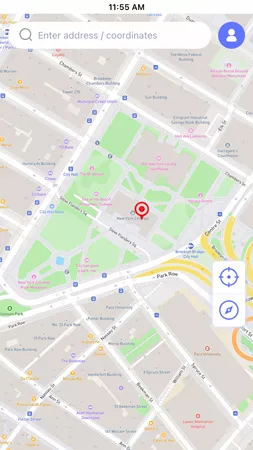
Step 2 Enter any city, specific address or exact GPS coordinates in the search box. Then, hit the Teleport button.
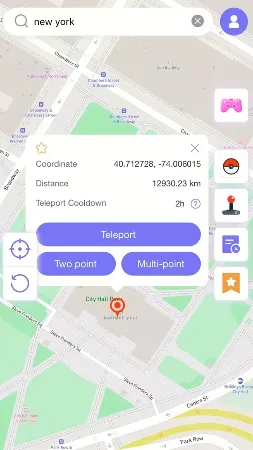
Step 3 iToolab AnyGo for iOS will ask you to configure VPN, click on “Configure VPN” to go on.

Step 4 AnyGo will instantly switch your device GPS to the newly set position. Open the Facebook app and enter Facebook Dating. You will see the customized location displayed normally. Then, you can start browsing and matching freely.

Conclusion
Location mismatch issues can be frustrating, but they are completely fixable. If basic troubleshooting doesn’t work, or you simply want the freedom to explore matches in different cities, iToolab AnyGo is the solution you need.
AnyGo eliminates GPS conflicts, lets you browse profiles anywhere with ease, and works smoothly with Facebook Dating and most other dating apps. Whether you want to connect with people in a city you’re planning to move to or simply expand your dating pool, AnyGo removes all location barriers.
Download and try iToolab AnyGo for free right now and start matching on your own.