

You’re trying to share your real-time location with a family member via Find My or Messages, but they keep seeing “No Location Found”, or an old location hours ago.
Your iPhone only shows vague error messages with no clear explanations. In this guide, I’ll show you how to solve these issues quickly.

Part 1. Why is Location Sharing Not Working on iPhone?
Before troubleshooting, we need to identify the exact error message first. Here are the most common causes for iPhone location sharing failures:
🔔“No Location Found”
This error usually stems from technical faults instead of incorrect settings. The main causes include:
- Airplane Mode is enabled, blocking your iPhone from sending and receiving location data.
- No Wi-Fi or cellular network connection, so GPS data cannot sync properly.
- The other person’s device is powered off or out of signal range.
🔔“Location Not Available”
This generally points to permission issues rather than network problems:
- The contact has refused to share their location with you.
- Location Services is turned off on their iPhone.
- You have been removed from their location sharing list.
🔔“Location Expired”
This prompt appears in Messages when active location sharing ends. Possible reasons:
- The contact manually stopped sharing their location after a set period (e.g., 1 hour).
- You have been blocked on iMessage.
- A software glitch abruptly terminated the sharing session.
🔔“Share Location Unavailable”
Mostly seen in the Find My app, this error relates to account and sync issues:
- iCloud fails to sync data normally.
- Weak or no internet connection.
- Location Services is disabled on your iPhone.
- Your iOS version is outdated and contains known bugs.
Now that you have figured out the root cause, let’s move on to the solutions.
Part 2. How to Fix Location Sharing Not Working on iPhone
Fixing location sharing issues on your iPhone is simple. Below are 11 effective solutions to resolve the problem quickly.
Fix 1. Turn On Share My Location
This setting is often overlooked and should be checked first when location sharing fails. Head to Settings > Apple ID > Find My and turn on Share My Location. Disabling this option blocks others from seeing your location, no matter how other settings are configured.

Fix 2. Check Location Services
Location Services must be enabled on your iPhone for location features to work properly.
- Go to Settings > Privacy & Security > Location Services.
- Ensure the main Location Services toggle is turned on.
- Scroll down and set relevant apps to While Using or Always.

When disabled, your iPhone will stop sending location data to all apps.
Fix 3. Adjust Permissions for Find My and Messages
Individual apps require separate location permissions even if system Location Services is active.
- Go to Settings > Privacy & Security > Location Services.
- Locate Find My and set its permission to While Using the App.
- Find Messages and set its permission to While Using the App.

Location sharing will fail if either app is set to Never.
Fix 4. Sign into iCloud and Turn On Find My
Find My relies entirely on your iCloud account to share locations.
- Open Settings and tap your Apple ID.
- Confirm you are signed into the correct iCloud account.
- Go to Find My > Find My iPhone and enable it.
- Toggle on Send Last Location as well.

You cannot use iPhone location sharing if you are signed out of iCloud.
Fix 5. Check Screen Time Restrictions
Screen Time restrictions may block geolocation features, even on non-family devices. Navigate to Settings > Screen Time > Content & Privacy Restrictions > Location Services and set it to Allow. Many parents enable these limits by mistake, often triggering location sharing problems on kids’ iPhones.

Fix 6. Reset Date and Time
Incorrect date and time can disrupt Apple server authentication and break location sharing. Go to Settings > General > Date & Time and enable Set Automatically to fix related iCloud and location errors.
Fix 7. Resume Paused iCloud Data Sync
If iCloud sync is paused or frozen, your location data will fail to refresh, leading to inaccurate or outdated location information.
- Go to Settings > [Your Name] > iCloud.
- Scroll down to check for a sync paused alert.
- Tap Resume Data Sync if the option appears.
iOS updates often pause background iCloud sync automatically, so this fix works well after you upgrade your system.
Fix 8. Troubleshoot Internet Connection
A stable network is required for location sharing. Test Wi-Fi and cellular data, verify connectivity with a webpage, and restart your router if needed. Poor connection leads to slow or frozen location updates.
Fix 9. Sign Out and Re-sign In to Your Apple ID
Corrupted Apple ID sessions cause iCloud sync and location sharing errors. Simply sign out of your Apple ID, wait 30 seconds, then log back in and re-enable related location features. This refreshes your account and fixes persistent glitches.
Fix 10. Restart your iPhone
A quick restart clears temporary system bugs. Power off your iPhone, wait at least 30 seconds, then turn it back on.
Fix 11. Install the Latest iOS Version
Outdated iOS often has bugs affecting location features. Head to Software Update to download and install available updates, then double-check your location settings. Apple regularly releases patches to fix known location issues.
Part 3. How to Share a Fake Location on Your iPhone
The 11 fixes above solve technical glitches that stop location sharing from working. But fixing the problem is only half the story. What if you want to share a custom location instead of your real one? Apple’s built-in settings only let you turn sharing on or off. You cannot select a specific location to share. That’s where iToolab AnyGo shines.
iToolab AnyGo is a reliable, jailbreak-free location changer. It helps you customize exactly what GPS coordinates your device sends to Find My, Messages, Life360, and more.
- Teleport instantly to your target location worldwide.
- Sync modified GPS across Find My, Life360 and other social apps.
- Hide real address while staying visible on location-sharing tools.
- Work well with location-based apps and AR games.
- Run seamlessly on Windows, Mac, iOS, and Android devices.
- Fully support the latest iOS 26.
What AnyGo Can Do for You
- Set your GPS to any spot: Share locations on your own terms with one tap. Find My and Messages will show exactly what you choose, not where you really are.
- Hide your actual location on Find My: Share different location pins with family and friends to keep your real whereabouts private while staying connected.
- Create natural location movement: Simulate realistic walking or driving routes for life360 and Messages, so your location never looks suspiciously frozen.
- Works with all location-sharing apps: Fully compatible with Find My, Messages, life360, Google Maps, and more across both iOS and other platforms.
How to Use AnyGo to Control Your iPhone Location
Step 1 Download and Install AnyGo app on your iPhone.
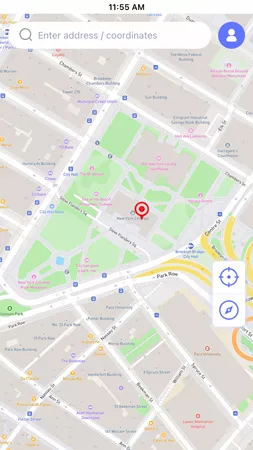
Step 2 Enter your desired location (a city, street address, or GPS coordinates), then hit “Teleport”.
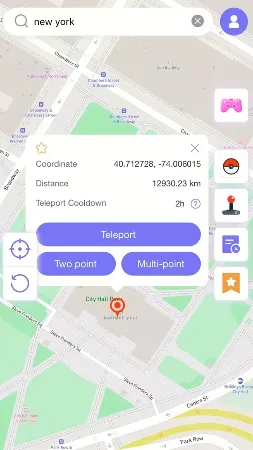
Step 3 iToolab AnyGo for iOS will ask you to configure VPN, click on “Configure VPN” to go on.

Step 4 In seconds, the GPS of your device will be updated. Open Find My, Messages, or other location-based app. Your iPhone will now display the new location.

Conclusion
iPhone location sharing issues usually stem from setting conflicts, incorrect permissions or minor software glitches, and the 11 fixes above resolve them all.
Once basic problems are fixed, you may want to customize your location sharing to your preference. For this need, iToolab AnyGo is an ideal choice. This jailbreak-free tool allows you to change your iPhone GPS to any location effortlessly, so you can keep your real whereabouts private. It’s not merely about fixing errors; it is about making it work exactly how you want.