

You may want more control over your privacy, especially when using Find My. If you’re wondering how to freeze location on Find My iPhone, you’re likely trying to remain visible to your contacts while keeping your real location private.
While Apple offers built-in options, they are limited and often make changes noticeable. This guide shows you simple workarounds and a more advanced solution to help you effectively hide your location in Find My.

Part 1. Can You Freeze Your Location on Find My iPhone?
Yes, but not in the way most people expect. When you search for how to freeze your location on Find My iPhone, you’re usually trying to keep your location fixed in one spot while still using your phone normally.
Apple doesn’t offer a true “freeze location” feature. Your location updates automatically whenever your iPhone is connected to the internet and Location Services are turned on. Because of this, you can’t fully freeze your location using only built-in settings.
What you can do is to stop sharing your location or pause updates temporarily. However, these actions often show visible changes, like “Location Sharing Off”. That’s why many users look for more seamless methods that don’t interrupt normal usage or raise suspicion.
Part 2: Workable Methods to Freeze Location on Find My iPhone
You can test native iPhone settings prior to employing advanced tools. These are ways to know how to freeze location on Find My iPhone without turning it off, but each has its own compromises.
Method 1: Turn On Airplane Mode
Turning Airplane Mode allows you to cut off all communication networks, which effectively halts the system of location updates.
Steps:
- Open Control Center
- Tap the Airplane Mode icon

This will freeze your last point of location, however it will also turn off calls, messages and internet connectivity.
Method 2: Disconnect from the Network
Switching off Wi‑Fi and cell data stops your device from updating its location.
Steps:
- Go to Settings
- Turn off Wi‑Fi and Cellular Data

This is the same technique as Airplane Mode but with greater control of connectivity.
Method 3: Disable Location Services
You can also disable Location Services to block location access completely.
Steps:
- Open Settings
- Go to Privacy & Security
- Tap Location Services and turn it off

This can be effective but this might alert others that sharing location is turned off.
Method 4: Turn Off “Share My Location” in Find My
This instantly stops your location from being shared with others.
Steps:
- Open Find My app
- Tap “Me”
- Turn off Share My Location

This is a simple solution for visibility control, particularly when testing how to hide location on Find My.
Method 5: Power Off Your iPhone
Powering off your iPhone pauses all location updates entirely.
Steps:
- Press and hold the power button
- Slide to power off

Your last location will remain visible, which may appear as if your location is frozen.
Method 6: Sign Out of Your Apple ID
Signing out disconnects your device from Find My services.
Steps:
- Go to Settings
- Tap your Apple ID
- Scroll down and tap Sign Out

This is a more radical approach and can influence other services on your device.
Although these techniques can assist you in knowing how to make your location stay in one spot on iPhone, they are not flawless. The majority of them either interrupt usual phone use or make it obvious that location sharing was switched off.
If you want to discover how to freeze location on Find My iPhone without them knowing, built‑in options are insufficient. More smart tools are offered here to provide a better solution.
Part 3: The Best Way to Pause Location on Find My iPhone Without Disabling It
Third-party tools also provide complete control without interfering with the functionality of your device, as long as you want something smoother and more private.
iToolab AnyGo is an effective application that will assist you in becoming more precise with the location of your device. In contrast to native tools, it enables you to spoof location without disabling fundamental services.
This is why it is so special:
- No Jailbreak Required – AnyGo is safe and easy to use; you do not have to make any changes to your device.
- One-Click Location Lock – It lets you instantly set your location to a fixed point, solving the problem of how to freeze Find My iPhone in one spot.
- Undetectable Design – The tool is designed to minimize detection, helping you freeze location on Find My iPhone without them knowing. Its realistic movement simulation (walking, biking, or driving at adjustable speeds) makes your location changes appear natural, not instantaneous.
- Smooth Movement Simulation – You may make it look like it is moving or remain at one place, depending on what you require.
- Change GPS location on iPhone/iPad in clicks (No Jailbreak).
- Fake Pokemon Go GPS on Android and iOS devices.
- Simulate GPS movement along any custom path with joystick.
- One‑click teleport to any city or address worldwide.
- Built‑in cooldown timer to avoid detection and soft bans.
- Control GPS on up to 15 devices simultaneously.
How to Use AnyGo to Freeze Location on Find My iPhone
AnyGo is an easy-to-use and effective tool, even if you have not used location tools before.
Step 1 Download and Install AnyGo on your iPhone.
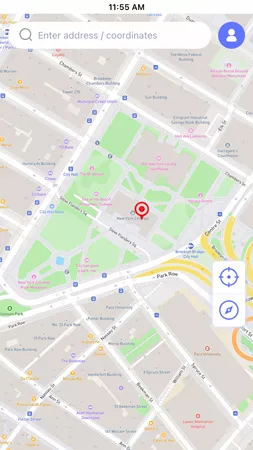
Step 2 Open the map interface, select the place that you would like to set and hit “Teleport”.
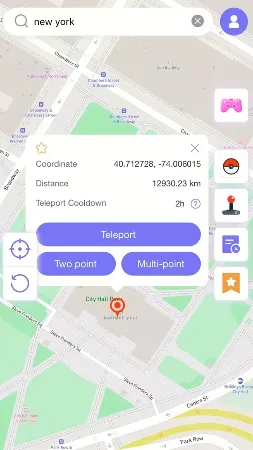
Step 3 iToolab AnyGo for iOS will ask you to configure VPN, click on “Configure VPN” to go on.

Step 4 In seconds, the GPS of your device will be updated. This enables you to regulate how to fake your location on Find My without disrupting your phone use.

Conclusion
Learning how to freeze location on Find My iPhone can contribute to gaining control over your privacy, yet there are obvious constraints to built‑in means. Although alternatives such as Airplane Mode or turning off location services may be helpful in stopping the updates, they are normally visible and interrupt normal operation.
To achieve a smoother experience, applications such as Find My Location Changer AnyGo can give you a good solution. They allow you to control your location without turning off your device or alerting others, making it easier to manage how to hide location on Find My or even how to pause your location on Find My iPhone effectively.
If you need a convenient and adaptable way of controlling your location, a combination of simple practices with high‑tech solutions will produce the desired outcomes.