

Instagram’s location tools got a serious upgrade in the past year. Between the Friend Map rollout in August 2025 and live DM location sharing, there are now at least four distinct ways to share where you are, each working differently depending on your goal.
Whether you want to tag a cafe in a post, drop a pin in a DM, or keep your exact coordinates completely private, this guide covers all of it.

How to Add Location on Instagram Posts and Stories
Adding a location tag to a post is the oldest trick in the Instagram book, and it still works better than most people think. Posts with a location tag get 79% more engagement — more reach, more profile visits, even foot traffic for local businesses. Knowing how to share location on Instagram at the post level is a baseline skill in 2026.
For Feed Posts:
Open Instagram and tap the plus icon to start a post. Select your photo or video, apply edits, then tap “Next” to get to the caption screen. You will see an “Add location” field below the caption box. Tap it, type the name of the place, and select it from the dropdown. Hit “Share,” and the tag appears above your caption.

The location is clickable. Anyone who taps it sees every public post tagged at that spot.
For Stories:
Start a Story from the camera icon or swipe right from your feed. After capturing or uploading your content, tap the sticker icon at the top of the screen. Select the “Location” sticker, search for your spot, and place it anywhere on the frame. Resize it if needed. Share your Story as usual.
Stories with location stickers can appear in public location feeds, which means people who do not follow you can discover your content just by browsing that area. This is how to share your current location on Instagram in a passive, public-facing way that works for creators and businesses alike.
One thing people keep missing: if you want a custom business location on Instagram, you cannot create it inside the app. You must first create the location on Facebook using its “Check In” feature. Once that syncs across Meta’s system, it becomes a taggable spot on Instagram within a few hours.
Sharing location on Instagram Android follows the same path as iOS — the interface is virtually identical on both platforms for posts and stories.
If you tag posts frequently but don’t want Instagram to read your actual GPS, iToolab AnyGo is worth knowing about. It changes the location your phone reports to any app — including Instagram — without jailbreaking your iPhone or rooting your Android. You pick a spot on the map, hit start, and every location-based feature on your device reads the new coordinates instead.
How to Send Live Location in Instagram DMs
This is the feature that genuinely surprised people when it rolled out. Instagram users can now share live location with friends within a direct messages window, either in a one-on-one conversation or in a group chat. Learning how to share a live location on Instagram is simpler than most people expect.
Here is how to do it step by step:
- Open Instagram and go to your DMs (the paper plane icon at the top right of your feed).
- Open the conversation you want to share your location in.
- Tap the + icon on the left side of the message bar.
- Select Location from the menu.
- Tap Continue when prompted to enable device location access.
- Select Share your live location.
Your live location will be sent in the chat. The recipient can track your movement for 1 hour. After that, it expires automatically and cannot be forwarded to other chats. Only people already in that conversation can see it.
There is a visible indicator at the top of the chat letting you know your location is currently active, so you will not accidentally forget it is running.
If you want to share a pinned location instead of a live one (a restaurant you are meeting at, for example), follow the same steps but use the search bar to find the place and tap it. That sends a static pin.

Sharing live location on Instagram is now more natural than copying a Google Maps link. The only real limitation is that it works in DMs only, not on public content.
How to Turn Off Location Sharing on Instagram
Instagram’s location tools are opt-in by default. But the number of people who turn things on and then forget about them is significant. Here is how to turn off location share on Instagram across all the different ways it can be active.
1. Turning off the Friend Map:
Go to your DM inbox and tap the Map icon at the top. Once inside the map view, tap the Settings gear icon. Select Location sharing and set it to No One. This stops your location from appearing on anyone else’s map.
You can also reach it through your profile: tap your profile photo, go to Settings, select Story, live, and location, then tap Location sharing and adjust from there. How to not share location on Instagram via the Friend Map is genuinely one of the first things worth learning when the feature appears on your account.

2. Revoking app-level location access:
Open your phone’s Settings app. Find Instagram in your app list. Tap Location and switch it to Never. This completes the process of turning off location sharing on Instagram at the system level, stopping GPS access regardless of in-app settings.
3. Removing location tags from existing posts:
Go to the post, tap the three-dot menu at the top right, select Edit, delete the location, and tap “Done.” The tag disappears from that post immediately.
Turning off location share on Instagram involves three independent levers: phone-level GPS permission, the Friend Map sharing setting, and individual post tags. If privacy matters, check all three. They do not control each other.
Can You Share a Fake Location on Instagram Safely
There are practical reasons to control what location Instagram sees. Creators testing geo-targeted content in a different market, travelers who prefer not to broadcast real-time whereabouts, businesses doing local SEO research — the use cases are legitimate. Knowing how to share your current location on Instagram while maintaining control over what you actually reveal is increasingly relevant.
One tool built for this is iToolab AnyGo , a location changer that lets you set a custom GPS location on your iPhone or Android without jailbreaking or rooting the device.
- Change GPS location on iPhone/iPad in clicks (No Jailbreak).
- Fake Pokemon Go GPS on Android and iOS devices.
- Simulate GPS movement along any custom path with joystick.
- Collect and import popular GPX route files for next use.
- Works well with location-based social apps and AR games.
- Fully support the latest iOS 26/Android 16.
Here is what makes it relevant for Instagram specifically:
One-Click Spoofing
Pick a spot on the map, click “Start,” and your phone’s GPS updates immediately. Any app using location data, including Instagram, reads the new coordinates. This is how to share a location on Instagram from a city you are not physically in.
No Jailbreak / Root Required
Most location-spoofing methods for iOS/Android require compromising device security. AnyGo works without that, which is a meaningful difference for anyone who does not want to break app functionality or void a warranty.
Simulate Movement
If you want your location to appear as if you are walking or driving somewhere, AnyGo has route simulation. Set start and end points, pick a speed, and it moves along the path. This is useful for testing how live location looks to a chat recipient before using the feature in a real meetup situation.
Anti-Detection Design
AnyGo is built to avoid triggering the location inconsistency flags that apps use to detect spoofing. AnyGo makes your fake location look real by moving it smoothly instead of jumping instantly, and adds tiny random shifts to copy how a real GPS signal behaves — so apps are less likely to catch you.
For creators doing market research — say you want to see how Instagram discovery works for your niche in Nairobi or Dubai — AnyGo lets you set that location, tag posts from there, and observe the results without booking a flight. Sharing live location on Instagram from a testing perspective becomes a real workflow tool rather than a workaround.
How to Use iToolab AnyGo to Spoof Your GPS Location
Step 1. Getting Started
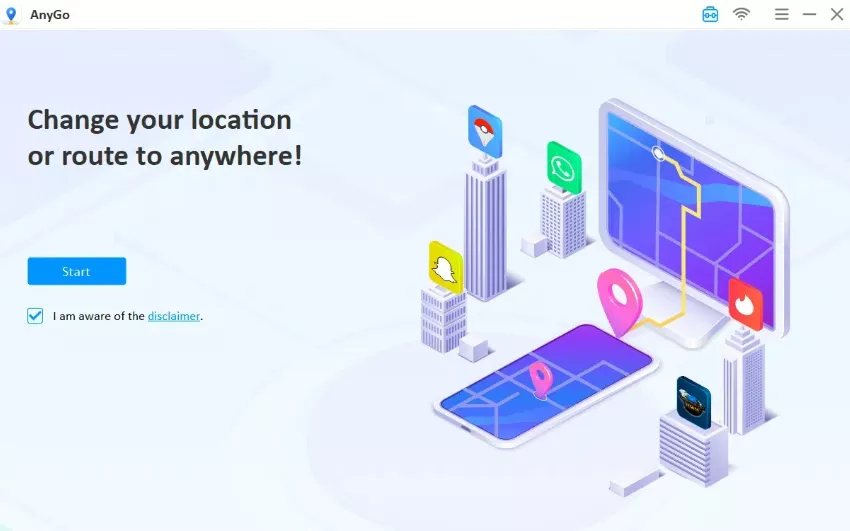
Install AnyGo on your PC or Mac, then connect your smartphone via USB cable. Once the initial setup is complete, future sessions can typically run over Wi-Fi instead.
Step 2. Device Setup
Android: Navigate to your device settings and enable Developer Options along with USB Debugging. You’ll also need to assign “AnyGo” as your mock location app under the developer settings menu. (AnyGo will show you the process to do it when you install the app for the first time).
iOS: No jailbreak needed. Simply trust the computer connection when your iPhone prompts you to do so.

Step 3. Changing Your Location
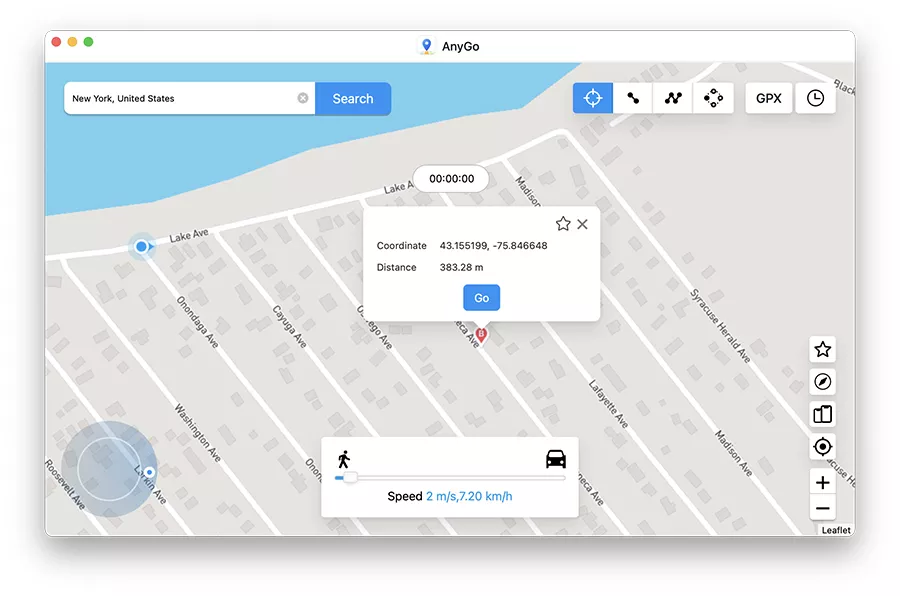
Open the AnyGo interface and in the search bar, type a place name or paste in exact coordinates — or simply drag the map pin to wherever you want to land. Click the Teleport Mode icon. Hit Go, and your device’s GPS will switch to that location instantly. Any app using location data, including Instagram, reads the new coordinates. This is how to share a location on Instagram from a city you are not physically in.
iToolab AnyGo is the app for anyone who wants location control without losing Instagram features. The Friend Map, live location in DMs, and post tagging — all still work, just on the coordinates you choose. It requires no system modifications and takes under two minutes to set up.
Extra Features Worth Knowing
- Route Simulation: Two-Point and Multi-Point modes let you mimic walking or driving between points, with full control over movement speed.
- GPX Route Import: Already have a saved route? Drop in a GPX file a GPX file, and AnyGo will follow it precisely.
- Multi-Device Support: Managing several devices at once? AnyGo handles them all from a single dashboard.
Ready to Take Control of Your Instagram Location?
Instagram now has more location tools than most users realize: post and story tags, DM live sharing, the Friend Map, and privacy controls for each. The basics take five minutes to learn. The nuance is in knowing which tool fits which situation.
Sharing a location on Instagram depends on context. Live DM location for coordinating meetups. Story sticker for public content tied to a place. Friend Map for ongoing visibility with close contacts. Sharing your current location on Instagram accurately — or selectively — is now a real decision, not a default.
The Friend Map is new enough that most users have not explored all its settings. Spend ten minutes in there and adjust it to your comfort level. And if you are managing location for a brand or testing geo-targeted content across markets, download AnyGo’s free trial and see how much more precision it adds to your workflow.
For anyone who wants location control without opting out of Instagram’s features entirely, iToolab AnyGo sits in a useful middle ground. You stay visible on the Friend Map, you share live location in DMs, you tag posts — you just choose what coordinates the app actually sees. It runs on iOS 26 and Android 16, works without touching your device’s system security, and takes about two minutes to set up.