

Imagine talking to a friend on the phone, and he casually mentions your exact location, which you never shared with him. Sounds uncomfortable, right? That’s because the app’s map feature might share your live location with others.
If you value your privacy, here’s exactly how to turn off Instagram Map quickly.

Part 1. What Is Instagram Map
The Instagram Map is a built-in feature (also known as the friends’ map) that allows others to view your current location.
When enabled, your profile appears as a dot on a map visible to your mutual followers. Based on GPS, it updates immediately when you start using the app.
The risks are serious: your daily activities and visited places can be exposed, and someone could deduce your home or work address. Even worse, if your account falls into the wrong hands or is followed by someone you don’t trust, your personal safety may be at risk.
That’s why learning how to turn off location on Instagram Map is essential for protecting your privacy.
Part 2. How to Turn Off Instagram Map Feature
There are two ways to control your location privacy on Instagram. First, you can disable the Instagram Map feature within the app. Then, for maximum privacy, you can completely block Instagram’s access to your GPS location. When combined, these two methods give you the best protection.
How to Turn Off Instagram Map (In-App)
This setting removes your dot from the friends’ map entirely, making your location invisible to others.
1. Launch the Instagram app. Tap your profile photo in the bottom right corner.
2. Tap the map icon (looks like a location pin) near your profile, or find the map from the Explore tab.
3. Once the map opens, tap the Settings icon in the top right corner.
4. Turn off Share Your Location (or tap Pause Location Sharing, depending on your app version).
5. Confirm when prompted. Your location will no longer appear on the Friends Map.

That’s it. You’re now off the map. Your dot will no longer be visible to others.
How to Completely Disable Instagram Location Access (System Level)
Even after turning off the in-app map, Instagram might still access your GPS, for example, when you add location tags to stories or posts. To fully deny Instagram access to your location, you need to disable location permissions at the system level.
Disable Location Permission for Instagram on iOS:
1. Open the Settings app.
2. Scroll down and tap Privacy & Security.
3. Tap Location Services.
4. Find Instagram in the app list and tap it.
5. Under Allow Location Access, select Never.

After this, Instagram will not be able to use your GPS location at all, even when you’re not actively using the app.
Disable Location Permission for Instagram on Android:
1. Open the Settings app on your Android device.
2. Tap Apps (or App Manager depending on your device).
3. Scroll to find Instagram and tap it.
4. Tap Permissions, then tap Location.
5. Select Deny or Don’t allow.

Instagram will no longer have access to your real-time GPS.
Part 3. How to Add a Fake Location on Instagram Map
Turning off your map is effective, but you lose some useful features. No location tags on your posts. No nearby place discovery. Limited map functionality when you actually want to use it.
If you’re looking to stay active on Instagram Map without revealing your real location, there’s a better solution than simply turning off Instagram Map location. Instead of disabling location completely, you can set a fake GPS location using iToolab AnyGo, a powerful GPS location changer that teleports you to anywhere in the world.
With AnyGo, when you open Instagram Map, it will show a different location than your actual one. That way, nobody knows where you really are, but you still get to use all of Instagram’s features while keeping your privacy intact.
- Instantly shift your virtual position to any global city.
- Hide real address while staying visible on location-sharing tools.
- Set custom fake locations to match your privacy needs.
- Simulate natural GPS movement to keep your spoof undetectable.
- Run seamlessly on Windows, Mac, iOS, and Android devices.
- Fully support the latest iOS 26/Android 16.
What AnyGo Can Do for You
- Teleport Instantly to Anywhere
With one click, you can teleport to any location in the world. Instagram Map will then display your fake selected location instead of your real one, so no one can track your actual whereabouts. - Simulate GPS Movement on Custom Paths
Set a route on the map, and AnyGo will automatically move your GPS along that path. You can control the speed, change direction, and simulate natural movement without leaving your home. - Hide Your Real Location Completely
AnyGo masks your GPS signal at the system level. Instagram Map only reads the fake coordinates you set, allowing you to enjoy full location privacy without losing any app features. - Works with All Location-Based Apps
AnyGo isn’t limited to Instagram. It also works with WhatsApp, Snapchat, Life360, dating apps like Tinder and Bumble, and location-based games. Manage all your location privacy in one tool.
Steps to Fake Location on Instagram Map with AnyGo
Instead of following how to turn off Instagram Map, you can use AnyGo to set a fake location in just three simple steps:
Step 1 Download and install iToolab AnyGo app on your iPhone or Android.
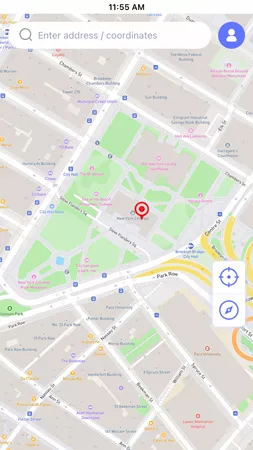
Step 2 Choose a target location on the map, then click Teleport.
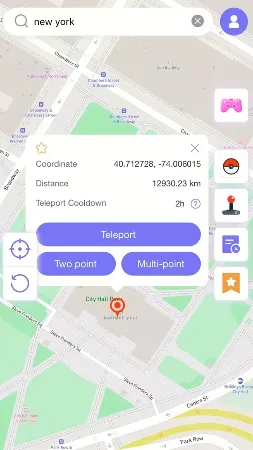
Step 3 Your GPS will instantly change to that location. Open Instagram, and you can now share a fake location on the map, without exposing where you really are.

Conclusion
Your location is private. Unfortunately, the Instagram Map can share it with people you never intended to see it. The simplest solution is to learn how to turn off Instagram Map, both within the app and by disabling GPS access at the system level.
But if you still want to use Instagram’s location features without revealing where you really are, AnyGo Location Changer is the best choice. It lets you stay on the map while showing any location you choose, not where Instagram thinks you are. You stay private, and you keep full functionality.