

A new job or an office move changes your daily route, but Google Maps can keep pointing at the address you saved months ago. Directions start from the wrong place, commute estimates drift, and nearby suggestions stop making sense.
There are actually two different locations involved, and this guide covers both. One is the Work address saved in your Google Account, which you can edit on iPhone, Android, or a computer. The other is the live GPS position your phone reports, which is a separate setting and needs a different approach. Below you’ll find the steps for each platform, what to check when the old address keeps showing up, and how to handle the live GPS side.

Part 1. How to Change Work Location on Google Maps on iPhone
iPhone has no system-level Google Account menu, so the fastest route is through your Google account. The Work address is stored in your Google Account, so one edit updates it everywhere you’re signed in. If your Maps version does not show the option below, the browser route to your Google Account does the same job.

Follow these simple steps to replace the old address:
- Open your Google Account: Visit myaccount.google.com on your iPhone and sign in to the account connected with Google Maps.
- Go to Personal info: Tap Personal info and scroll until you find your saved address details.
- Select Work address: Tap your current Work address to open its editing options.
- Enter your new workplace: Type the new office address and choose the correct location from Google’s suggestions.
- Save the change: Tap Save to update the address across supported Google services.
- Check Google Maps: Open Maps and search for “Work” to confirm your new workplace appears correctly.
Part 2. How to Change Your Work Location on Google Maps on Android
Android gives you one extra route: the Google Account menu in your phone’s Settings, so you can update the address without opening Maps. If you have more than one Google Account on the phone, check which one is selected before you save, because the address belongs to the account, not the device.

- Open Android Settings: Launch the Settings app on your phone and scroll to the Google section.
- Choose your Google Account: Tap your profile and select Manage your Google Account to access saved personal details.
- Open Personal info: Select Personal info, then look for the section containing your saved addresses.
- Select Work address: Tap your current Work address to edit or replace the existing location.
- Enter the new workplace: Type your new office address and choose the correct match from Google’s suggestions.
- Save and confirm: Tap Save, then open Google Maps and search “Work” to check the updated location.
Part 3. Change Work Location on Google Maps on a Computer
On a computer you can edit the address in Google Maps itself or in your Google Account settings. Both update the same saved address, so use whichever page you already have open.

Here’s the easiest way to make that change:
- Check your account: Sign in to your Google Account and confirm the active profile matches the one you use in Maps.
- Find your address settings: Open Personal info from the account menu and scroll until you reach the saved address section.
- Replace the old location: Click Work address and replace the existing entry with your new workplace or office address.
- Confirm the suggestion: Review Google’s suggested match carefully, especially when nearby businesses or buildings share similar names or street numbers.
- Save the update: Save the change and reopen Google Maps to verify that Work now points to the correct place.
Part 4. How to Fake a Different Work Location for Privacy🔥
Your saved Work address and your phone’s live GPS location are two separate things, so editing the address does nothing for the blue dot, location sharing, or Maps Timeline. Some situations call for the second one: you may not want every app that reads your location to know exactly where you are, or you may need to see how a location-based feature behaves somewhere else.
iToolab AnyGo is a location changer that changes the GPS position your phone reports, and it covers the live-location part. You can set your device to another address, city, or set of coordinates, and Google Maps, along with other apps that read device location, picks up the new position. It does not edit anything in your Google Account, so your saved Home and Work addresses stay exactly as they are.
- Change GPS location without jailbreaking iPhone or rooting Android.
- Simulate GPS movement along any custom path with joystick.
- Newly released Native Mode: spoof iOS location without modded apps for all LBS apps safely.
- Auto catch Pokémon and spin PokéStops using Go Catcher.
- Change GPS location across Google Maps, WhatsApp, Life360, and other location-based apps.
- Run seamlessly on Windows, Mac, iOS, and Android devices.
- Fully support the latest iOS 27/Android 17.
How to Fake Your Work Location in Google Maps with AnyGo
Step 1 Download and install iToolab AnyGo on your Windows or Mac computer. Launch AnyGo and select General Mode.

Step 2 Connect your iPhone or Android phone to your computer with a USB cable.
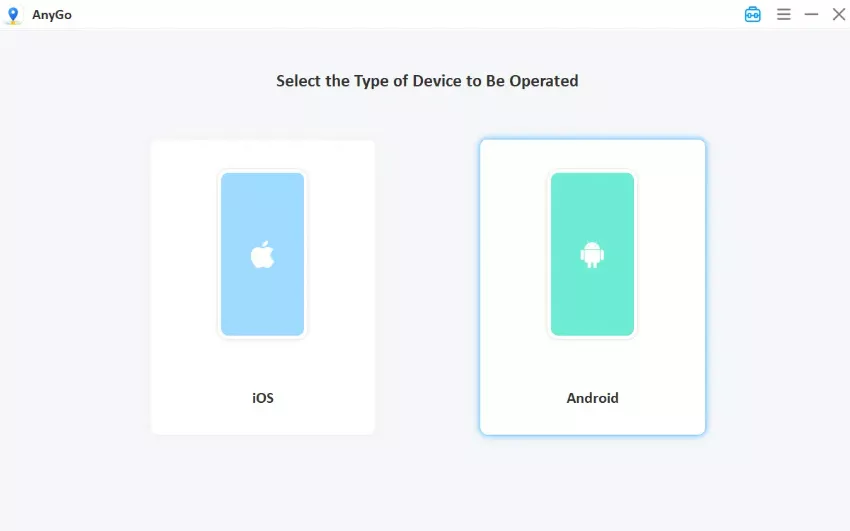
Step 3 Enter target locations or precise coordinates in the search box, and hit GO. Your location will update instantly. Then, open Google Maps and check the blue dot.

Part 5. FAQs About Changing Work Location on Google Maps
Changing a Work address seems simple, but a few details can still cause confusion. These quick answers cover some common questions about changing, using, and managing your Work address in Google Maps.
Q1. Can You Have Multiple Work Locations Saved in Google Maps?
Google provides one dedicated Work address in your Google Account. However, you can privately label additional offices or frequently visited workplaces in Google Maps and find them quickly when needed.
Q2. Does Changing Your Work Location Affect Google Search Results?
It can influence location-based personalization because Google may use Home and Work addresses for nearby results and directions. However, your current device location and other account settings can also affect results.
Q3. Can You Change Your Work Location Without Signing Into a Google Account?
You can search for any workplace without signing in. However, saving or changing the dedicated Work address requires access to the Google Account storing that address for future directions.
Q4. How Do You Delete Your Work Address From Google Maps?
Open your Google Account, choose Personal info, then select Work address and remove it. Once deleted, Google won’t keep that location as your designated Work address across supported Google services.
Conclusion
Keeping your Work address current keeps directions, commute estimates, and nearby suggestions pointed at the right place. Google stores that address in your account, so one edit on iPhone, Android, or a computer syncs everywhere you’re signed in.
Your live GPS position is a separate setting. When you want the location your phone reports to be somewhere else, AnyGo Location Changer handles that part without touching anything saved in your Google Account. Download it and set your first location.