

You open Pokemon GO as usual, but the map never loads. Instead, a “Failed to Authenticate” message stops the login before gameplay starts. It is frustrating, especially on an account that worked fine yesterday. In most cases, the error points to a temporary login, server, or network problem rather than a ban.
The cause decides the fix. Server trouble clears on its own, while a wrong login method or an outdated app keeps the message coming back. The guide below walks through the checks in order, from quick connection tests to deeper app fixes, so you can sign in again without touching settings you do not need to change.

Part 1. Why Does Pokemon GO Fail to Authenticate?
A “Failed to Authenticate” notification means Pokémon GO could not verify your login and complete the sign-in process. The message does not automatically signal a ban because several temporary account, network, and device issues can trigger it.

Before changing important settings, consider these common causes first:
- Incorrect account information: A wrong password, or signing in with another linked account, can stop verification. Check which login method you normally use before changing anything.
- Pokémon GO server interruption: Temporary service problems block authentication on their own. When that happens, waiting works better than changing settings.
- Weak or interrupted internet: Authentication needs a stable connection from start to finish. Weak Wi-Fi or patchy mobile data can break it before the login completes.
- Old app or system software: An outdated app version or operating system can cause compatibility problems during sign-in.
- Problematic cache or app files: Damaged temporary files can stop the app from starting. On Android, clearing the cache removes them without deleting your progress.
- Wrong date or time on your device: Pokémon GO’s login runs over secure connections that depend on your device clock. If the date or time drifts, that check can fail. Set the date, time, and time zone to update automatically, then sign in again.
How long the error lasts depends on its cause. Server or network trouble usually clears within minutes. Incorrect account details, outdated software, or damaged app data keep the message on screen, so work through the fixes in order instead of tapping Sign in over and over.
Part 2. 7 Quick Fixes for Pokemon GO Failed to Authenticate
A failed login does not always require complicated troubleshooting. Begin with basic connection and app checks, then move on to more advanced fixes if Pokemon GO still refuses to authenticate properly.
Fix 1. Check Pokemon GO Server Status
Before changing anything on your phone, check whether the game itself is having trouble. Server trouble blocks authentication even when your login details are correct, so look at Pokemon GO’s official social accounts and in-game news for service notices, or ask another player nearby whether they can sign in. If the outage is widespread, wait it out: your device cannot fix a problem on Pokemon GO’s side.

Fix 2. Force Close and Restart Pokémon GO
A frozen login session can persist while the app stays open, and fully closing it forces a fresh authentication attempt. On Android, open Settings > Apps > Pokemon GO > Force Stop. On iPhone, open the app switcher and swipe Pokemon GO away. Wait a few seconds, then reopen the app and choose the same login provider. This clears temporary session problems without affecting your progress.

Fix 3. Check Your Internet Connection and Disable VPN
Authentication fails when your connection drops mid-login. Test whether other apps load, then switch between Wi-Fi and mobile data. If you use a VPN, turn it off first, since it can interfere with the authentication service. Once the connection is stable, force close Pokémon GO and sign in again.

Fix 4. Restart Your iPhone or Android Device
Background processes and stuck connections can block authentication. Power your device off and on, reconnect to a reliable network, and give it a moment to finish loading. Then open Pokémon GO and sign in as usual.

Fix 5. Clear Pokémon GO Cache or Reinstall the App
Damaged app files can block startup. On Android, clear Pokémon GO’s cache first, which does not remove your progress. On iPhone, delete and reinstall the app instead. Your Pokémon and progress stay with your account either way, so sign in with your usual provider once setup finishes.

Fix 6. Update Pokémon GO and Your Phone’s OS
Older app or system versions can interfere with login. Check Google Play or the App Store for a Pokémon GO update, then install any pending system update over Wi-Fi. Restart if prompted, open the game once updates finish, and sign in again.

Fix 7. Refresh Your Google Connection on Android
If the earlier fixes do not work, refresh how Google connects to Pokémon GO. Open your Google account’s connected apps page, select Pokémon GO, and remove its access, then sign in with Google again to restore the link.
If that still fails, remove the Google account from Settings > Accounts and add it back. Your local Google data, such as mail and contacts, disappears until syncing finishes, so treat this as a last step.
Part 3. Locked Out by an Unsafe Spoofer? AnyGo Is the Safer Way Back In
Some sign-in trouble starts with location rather than login. If Pokémon GO also shows Error 11 (GPS signal not found) or Error 12 (Failed to detect location), your phone is not reporting a location the game accepts, and the app can stall before the map appears. That is a separate problem from a wrong password or an account action.
iToolab AnyGo runs on Windows, Mac, iPhone, and Android and gives your device one steady location to report, so those GPS errors stop interrupting your session. It will not fix a wrong password, a server outage, or a suspended account. Try it after the checks in Part 2, when the location errors are the part that keeps showing up.
- Change iPhone location in official apps with Native Mode.
- Prevent Error 11 & Error 12, stabilize GPS location before login.
- Change GPS location without jailbreaking iPhone or rooting Android.
- Track safe teleport waiting time with built-in cooldown timer.
- Auto catch Pokémon and spin PokéStops using GO Catcher.
- Access IV Preview, Quick Catch, Auto-Raid, and more via iOS POGO Assistant.
- Support Monster Hunter Now, Pikmin Bloom and other location-based apps.
How to Use AnyGo to Fix Location Errors
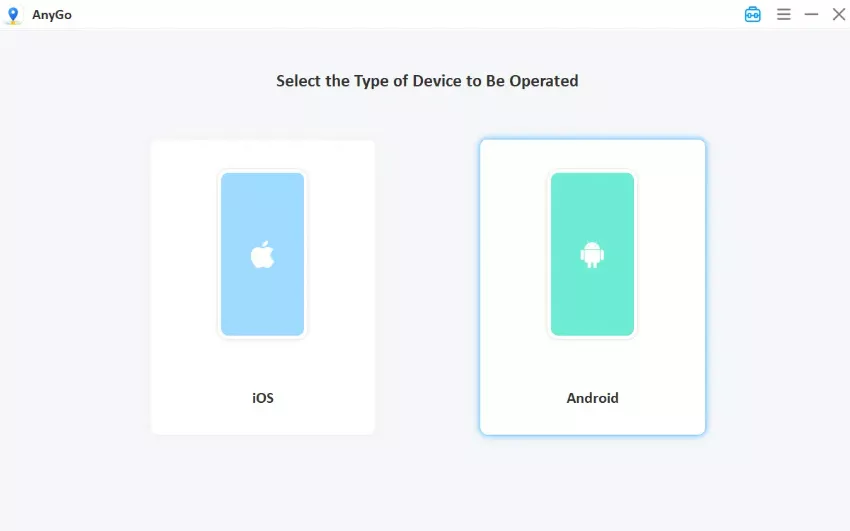
Step 1 Download and install iToolab AnyGo on your Windows or Mac computer. Launch AnyGo and select General Mode.

Step 2 Connect your iPhone or Android phone to your computer with a USB cable.
Step 3 Select Teleport Mode, then type a destination, address, or coordinates into the search box. Click Go. Your location will update instantly. Then reopen Pokémon GO and check whether the Error 11 or Error 12 message clears.

Part 4. How to Keep Your Pokémon GO Account Safe and Secure

Regaining access fixes your immediate problem. Better account habits can reduce future credential issues and confusing login failures.
1. Keep Your Login Credentials Private
Never share your password, login token, or browser cookie. Treat Google login tokens like passwords, since they can provide account access. If something looks suspicious, change your provider password right away.
2. Stick With Your Correct Login Method
Remember which provider connects to your Pokémon GO account. Signing in with another Google, Apple, Facebook, or Pokémon Trainer Central account can make your progress look missing. After you recover access, link a second provider as a backup.
3. Avoid Unnecessary Sudden Location Changes
If you use location-changing software, do not treat rapid long-distance jumps casually. iToolab AnyGo’s built-in cooldown timer shows the recommended wait after a teleport, so you can plan the next move instead of guessing.
4. Don’t Share Your Pokémon GO Account
Another login could change your connected providers or expose account information. Keep access limited to your own devices. If an unfamiliar login appears, remove it and change your provider password promptly.
Part 5. FAQs About Pokémon GO Failed to Authenticate
Still not sure whether this error touches your account or your progress? These answers cover the questions players ask most.
Q1. Is “Failed to Authenticate” the Same as Being Banned?
No, not on its own. Login and map errors are usually technical. If the game takes action on an account, it shows a specific suspension or termination message instead. A terminated account can get stuck in a login loop, so if the error stays on every network and device for more than a day, ask support to check your account status.
Q2. Will I Lose My Pokémon If I Reinstall the App?
No, reinstalling Pokémon GO won’t erase your Pokémon or progress. Your game data stays linked to your account, so signing back in with the same login method restores everything normally.
Q3. Can a VPN Cause Pokémon GO Authentication Issues?
Yes, a VPN can sometimes contribute to authentication problems. Pokémon Support recommends disabling an active VPN while troubleshooting this specific login error.
Q4. What Should I Do If Nothing Works?
Note your device model, OS version, and login method, then contact Pokémon GO support through the in-app settings or the help center. They can check account and server-side logs that are not visible to you.
Summary
Seeing Pokémon GO failed to authenticate doesn’t always mean something serious happened. Temporary server trouble, weak internet, a wrong device clock, or incorrect login details can interrupt authentication. Work through each fix carefully before changing important account settings. Clearing cache, reinstalling Pokémon GO, or refreshing Google login may solve deeper problems.
If Error 11 or Error 12 keeps showing up alongside the login message, deal with the location side too. iToolab AnyGo lets you set one steady spot on the device you play on, so those GPS errors stop blocking your session. Pick the mode that matches your setup, then sign in again once the location settles.