

When you scroll through Facebook, a sponsored ad pops up showing a store just two blocks from your current location. Facebook knows where you are, more accurately than you think.
Disabling Facebook location tracking cannot be done with a single click. You need to adjust system permissions, in-app location history and location data linked to past posts. This tutorial walks you through every step.

Part 1. Can People See My Location on Facebook?
Your precise GPS coordinates won’t show publicly on your profile, yet your location leaks in numerous hidden spots.
Location data is attached to place-tagged posts, check-ins and Facebook Marketplace shares. A 2025 research rated Facebook the top privacy-intrusive app among over 5,000 mobile apps. It gathers 32 out of 35 available data categories, 25 of which tie directly to personal user identities.
Contacts enabled with Nearby Friends can view your real-time approximate location. Beyond visibility risks, Facebook also leverages your location data. It merges GPS and IP information to deliver targeted ads and regional content, and according to a Washington Post report, the platform collects over 90 unique data points for each user on average.
Part 2. How to Turn Off Location Settings on Facebook
This is the primary and most critical step to stop location tracking.
1. Disable Facebook Location on iPhone
Launch iPhone Settings. Scroll down to Privacy & Security and open Location Services. Locate Facebook from the app list and enter its settings. Set location permission to Never.
This blocks Facebook’s GPS access at system level, so the app cannot fetch your location even while running. You may also switch off Precise Location if you only wish to grant vague location access.

2. Disable Facebook Location on Android
Follow this path: Settings > Apps > Facebook > Permissions > Location > Don’t Allow.
Facebook once collected location data silently in the background. Recent updates let users turn off persistent background tracking. Note that full location restriction will disable nearby search and photo location tagging functions.
Select Don’t Allow to revoke all GPS authority. Avoid choosing Allow only while using the app if you pursue complete privacy, as it still enables tracking whenever you open the application.

Part 3. How to Turn Off Location Services on Facebook
Device system permissions restrict GPS access, yet Facebook runs independent built-in location controls. You also need to disable these internal settings.
1. Inside Facebook Mobile App
Launch Facebook and tap the hamburger menu icon. It sits at the top right on Android and bottom right on iPhone. Navigate to Settings & Privacy > Settings > Location. Two key options are available here:
- Location History: Switch it off to halt the app from recording your visited spots.
- Background Location: Disable this option to stop background location tracking.

Most users overlook this step after adjusting device permissions. Both settings must stay disabled.
2. Facebook Desktop Version
Location functions are restricted on web browsers, while privacy management remains accessible. Sign into your account, click the profile avatar at the upper right, then head to Settings & Privacy > Settings > Privacy. Check location-related access rights under Your Facebook Information.
There is no direct Location History switch in desktop version, but you can view and erase historical location records via Activity Log.

Part 4. How to Turn Off Location Sharing on Facebook
This part focuses on clearing location traces left on your profile and published posts.
1. Remove Location Tags From Existing Posts
Open posts attached with location markers. Tap the three-dot icon, select Edit Post and delete the location tag, then save changes. Apply the same operation to all tagged posts and photos.
Mass old check-ins take time to process. Handle recent entries first, then go through earlier content.

2. Erase Historical Location Data
Access Activity Log in the Facebook app. Tap Filter and pick Location History. Hit Delete all location history and confirm the action.

This deletes all accumulated location records. These records won’t vanish automatically after disabling permissions, so complete this step right away.
Part 5. How Do You Hide Where You’re Located on Facebook?
Turning off location services prevents Facebook from accessing your real GPS. But it also disables useful features like Marketplace listings, Dating matches, and local event suggestions.
What if you could keep all those features working while showing Facebook a completely different location?
That’s where iToolab AnyGo delivers practical solutions. AnyGo is a trusted location changer that enables you to customize any virtual location on your device. Facebook will see your chosen spot instead of your real address, so you stay private without losing functionality.
- Spoof your GPS to keep your home address private on Facebook.
- Hide your real whereabouts while staying visible to friends.
- Fix Facebook Dating location mismatch easily.
- Set custom fake locations to match your privacy needs.
- Work well with location-based social apps and AR games.
- Fully support the latest iOS 26/Android 16.
Core Benefits of AnyGo for Facebook Users
- Protect your real residence on Facebook Dating: Facebook Dating matches you based on distance. Instead of turning off location (which breaks matching), you can set a virtual location in another city with AnyGo. Your real neighborhood stays private while you still see potential matches.
- Secure your privacy when browsing local content: You can preview destination-based events and ads without revealing your real spot. Set your virtual position to the target city first, and Facebook will identify you as a local user there.
- One-click location change for all your apps: AnyGo works across all apps, not just Facebook. A single setup applies your virtual location to WhatsApp, Snapchat, Tinder, Twitter and more.
How to Fake Location on Facebook with AnyGo
Step 1 Download and Install AnyGo app on your iPhone.
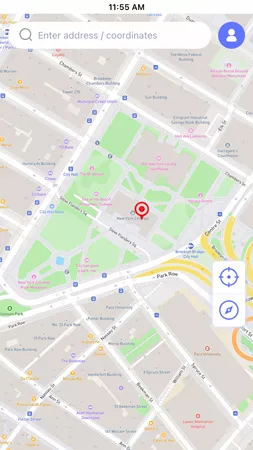
Step 2 Enter your target city or address in the search box. Hit Teleport and confirm the location change.
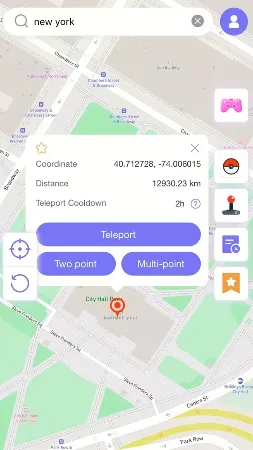
Step 3 iToolab AnyGo for iOS will ask you to configure VPN, click on “Configure VPN” to go on.

Step 4 In seconds, your device will now report this custom GPS position to all apps, including Facebook.

Why This All Matters More Now
Facebook isn’t just showing you ads — it’s building a detailed map of where you go, who you meet, and what you do. That data can be leaked, sold, or used against you.
Turning off Facebook location tracking is a good start. But for complete control, hiding your real spot while still using Facebook normally, iToolab AnyGo is the simplest option. It helps you customize displayed location in seconds and safeguard personal privacy with minimal effort.
Download AnyGo now and see Facebook exactly how you want without sharing where you actually are.