

You open Pokémon GO after a busy day, expecting your steps to count toward egg hatching and weekly rewards. But when you check the game, nothing has changed. Your egg progress is still stuck, and the rewards you hoped to earn seem no closer than before. That can quickly take the fun out of playing.
Adventure Sync is designed to avoid this by tracking your movement in the background, even when the app is closed. But you may have trouble turning on Adventure Sync in Pokémon GO or keeping it working properly. Let’s learn how to fix those problems and start tracking your progress the right way again.

Part 1: What Is Adventure Sync in Pokémon GO?
Adventure Sync helps Pokémon GO record your movement without leaving the app running all the time. Once it is set up, the game pulls distance data from your phone’s health or fitness system and adds it to your progress. In simple terms, your everyday steps can still count toward eggs, Buddy Candy and weekly reward goals.
Here are the main benefits you unlock once Adventure Sync is active.
- It tracks distance in the background, which saves battery compared to leaving the game open.
- It helps hatch eggs while you go through your normal routine.
- It counts your walking distance toward Buddy Candy progress.
- It makes weekly reward goals easier to reach during work, errands, or short walks.
- It keeps your weekly reward goals on track even during busy days.
Part 2: How to Turn On Adventure Sync in Pokémon GO
Turning on Adventure Sync is quick and straightforward. You go into the game settings, flip the toggle and allow access to your phone’s health data. The process is similar on both Android and iPhone, though each connects to a different health service.
How to Turn On Adventure Sync in Pokémon GO Android
Here’s exactly how to turn it on for your Android phone:
1. Open Pokémon GO, tap the main menu and open Settings. Scroll until you see Adventure Sync. If it’s off, tap to enable it.
2. When Android asks for physical activity and fitness permissions, grant all of them. If you deny one by mistake, the feature may appear enabled but won’t track your distance correctly.
3. Open Google Fit and make sure it’s installed, active, and recording your movement on the same Google account you use for Pokémon GO.
4. Go to your phone settings and allow location access and background activity permissions for Pokémon GO.
5. Close Pokémon GO and reopen it. This refresh helps the game recognize the new settings.

How to Turn On Adventure Sync in Pokémon GO iPhone
On iPhone, the steps are just as easy. The main difference is that Pokémon GO usually depends on Apple Health and motion access.
1. Open Pokémon GO, enter Settings and find Adventure Sync. Tap to begin setup.
2. When your iPhone asks whether Pokémon GO can read fitness or motion data from Apple Health, tap Allow so distance can sync from your daily movement.
3. Go to iPhone Settings and make sure motion tracking is enabled under Motion & Fitness. If this is blocked, your steps may never reach the game.
4. Open your iPhone app settings for Pokémon GO and confirm location access is enabled. Restricted permissions can interrupt background syncing.
5. Close the app fully and reopen it. Then walk a short distance and check whether your distance starts updating.

Part 3: Can’t Go Outdoors? Here’s How to Still Get Adventure Sync Rewards💡
You don’t always have time to head outside for a walk. Some days bring long shifts, heavy rain, or simple safety concerns that keep you indoors. Still, that does not mean your Pokémon GO progress has to stall. This is where a location tool like iToolab AnyGo can help.
AnyGo gives you more control over location and movement, so you can manage walking distance more flexibly. Instead of waiting for the perfect day, you can keep your Adventure Sync on track and make steady progress on eggs, Buddy Candy, and weekly rewards.
- Create or import custom GPX paths to simulate daily outdoor walking trails.
- Simulate steady natural movement to ensure reliable Adventure Sync distance.
- Built-in joystick lets you adjust moving directions in real time freely.
- Fully compatible with authentic Pokémon GO app.
- Run seamlessly on Windows, Mac, iOS, and Android devices.
- Manage up to 15 devices for multiple accounts.
Here’s how AnyGo can help:
- Custom Route Planning: Create your own walking path manually or import GPX route files to mimic your daily movement.
- Natural Movement Simulation: The tool moves along your route at a natural pace instead of teleporting, so your distance is more likely to count.
- Egg-Hatching Support: The walking distance you accumulate helps hatch eggs and earn Buddy progress, even when you stay indoors.
- Joystick Control: Adjust your walking direction in real time with a built-in joystick, so you can control your path as you go.
How to Use AnyGo to Simulate Walking for Adventure Sync Distance
To use AnyGo to simulate walking distance for Adventure Sync, set up the route first and then let the movement run at a natural pace.
Step 1 Download and install iToolab AnyGo on your Mac or Windows.

Step 2 Connect your iPhone or Android to the computer with a USB cable.
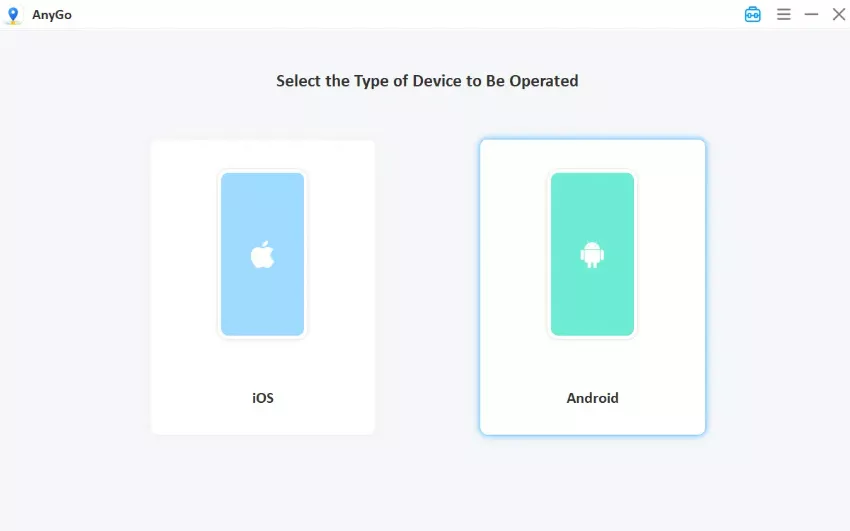
Step 3 Select Two-Spot or Multi-Spot mode, then choose your start and end points on the map to set the route. Adjust the walking speed and click Go.

Step 4 Open Pokémon GO. Your avatar will start walking along the route, and your Adventure Sync distance will begin updating.
Part 4: Why Pokémon GO Adventure Sync Is Not Working
Even when everything is set up correctly, Pokémon GO Adventure Sync Not Working problems can still pop up. If your steps stop counting or the feature stops working, here are the most common causes and how to fix them.
- Adventure Sync keeps turning off.
This can happen after an update or if the app resets in the background. Open Pokémon GO settings and toggle it back on. A quick phone restart usually prevents it from happening again. - Required permissions are missing.
Without motion or health permission, the game has nothing to track. Check your Android or iPhone permissions and allow access for movement and location data. - Pokémon GO needs an update.
Outdated versions often cause strange sync behavior. Install the latest version from the app store and restart the game before testing again. - Battery restrictions are blocking sync.
Phones sometimes pause background activity to save power. Turn off battery optimization for Pokémon GO so it can keep recording your steps. - Date and time settings are incorrect.
Adventure Sync depends on accurate time information from your phone. Switch your date and time to automatic mode and check if syncing resumes. - The health app is disconnected.
Pokémon GO needs a connection to your health app to read step data. Whether you’re using Google Fit or Apple Health, try disconnecting and reconnecting it from inside the game settings. This usually restores distance tracking.
Conclusion
Once Adventure Sync is turned on, Pokémon GO becomes much easier to enjoy during a normal day. Your steps can count even while the app stays closed, which helps with eggs, Buddy progress and weekly goals.
Most Adventure Sync problems come from small setting issues, not the game itself. A quick check of permissions and background tracking usually gets things back on track.
And if you want more control over movement, route simulation and location handling, iToolab AnyGo gives you a practical way to manage your progress more smoothly. Try it now and keep your Adventure Sync progress moving, even on the days you stay indoors.