

It’s midnight, and a limited-time global event is about to kick off. It’s the worst possible moment for iMyFone AnyTo not working to strike. One second you’re warping across the map toward a rare spawn; the next, the screen freezes solid, or your mock location refuses to stick. There goes your entire night.
Staring at a frozen interface while friends clear out local raids is painfully frustrating. When these glitches halt your progress mid-event, finding a reliable fix fast is the only way to get back out there. Below are the most common reasons AnyTo breaks down, seven fixes that actually work, and a dependable backup plan if nothing else helps.

Part 1. Why Is iMyFone AnyTo Not Working?
Stuck trying to get your GPS spoofing to work? If iMyFone AnyTo not working glitches or sudden connection drops keep interrupting your session, a few common culprits are usually behind them.
📍Location Resets to Real Location: Ever notice your avatar suddenly jumping back to your actual street? Background OS processes often override fake GPS coordinates, or the local app cache fails to refresh and clear out old data properly.
📍Map Not Showing / Blank Screen: Staring at a completely empty grid? That usually points to a sketchy internet connection, an outdated app version, or a sudden hiccup fetching essential tile data from the remote server APIs.

📍Crashes on iOS 18 or later: Apps shutting down out of nowhere or throwing stubborn iMyFone AnyTo iOS 18 not working errors? Apple’s tight security architecture often clashes with missing configuration profiles or outdated desktop drivers.
📍Connection Issues (iOS/Android): A loose USB cord, an ignored trust prompt on your phone screen, or missing system drivers can instantly sever the communication link between your mobile device and computer.
📍Pokémon GO Error 12: Running into an iMyFone AnyTo error 12 pop-up? The game is signaling that it has detected active mock location settings or an unverified coordinate mismatch, typically occurring when location spoofing tools aren’t properly masked from the game’s anti-cheat detection.

📍Service Unavailable in Some Regions: Regional network locks, aggressive firewalls, or rogue proxy settings can block data packets outright, cutting off the software’s access to specific global map regions.
Part 2. 7 Fixes for iMyFone AnyTo Not Working
Stuck with a frozen map or a stubborn connection error? Knowing how to fix iMyFone AnyTo quickly gets you back on track without wasting valuable event time. Whether you are dealing with general glitches or finding that iMyFone AnyTo Android not working issues are ruining your routine, working through these practical troubleshooting steps will clear the roadblock.
💡Fix 1: Restart AnyTo and Your Device
Sometimes, a simple reboot is all it takes to clear out temporary system bugs. Start by shutting down the desktop program entirely, making sure to clear out any background tasks via your task manager, and finally, turn off your smartphone.
Give your hardware a quick thirty-second break before booting everything back up. This fresh restart clears lingering cache conflicts and lets the communication bridge re-establish cleanly without interference from frozen background scripts.
💡Fix 2: Update to the Latest AnyTo Version
Running an older build of the software often leads to sudden compatibility crashes and map failures. Head over to the official website or check for built-in update prompts to ensure you are running the newest release.

Developers regularly push patches to fix security conflicts and OS changes. Installing the latest version guarantees your app matches current server protocols and sidesteps known bugs that block your location.
💡Fix 3: Check iOS/Android Compatibility
Major operating system updates frequently break third-party location tools until a patch drops. If you recently upgraded your phone software, verify that your current OS version is fully supported by the utility.
Check the system requirements online to confirm compatibility. When newer software versions outpace your desktop app, you may need to wait for a hotfix or apply specific configuration profiles to regain stability.
💡Fix 4: Enable USB Debugging (Android)
Android users often run into connection blocks if developer settings aren’t configured right. Jump into your settings, tap the build number continuously to unlock Developer Options, and then enable USB debugging.
This crucial step allows your computer to communicate safely with the mobile operating system. Without it, the desktop app cannot push mock location data or maintain a stable device link during your session.
💡Fix 5: Check Internet Connection
A weak or fluctuating internet connection can instantly stall map loading screens and server requests. Switch between Wi-Fi and mobile data to see if your local network is causing the slowdown.
If your connection drops packets, the software fails to fetch real-time map data from remote servers. Resetting your home router or disabling unstable public networks usually restores the stable data stream required for smooth navigation.
💡Fix 6: Clear Cache and Data or Reinstall the App
Corrupted local temporary files frequently trigger unexpected application errors. Android users can head into device storage settings to clear app cache and data cleanly.
If you are on an iPhone, uninstall the companion app entirely, restart your device, and download a fresh copy from the official source. This wipes away corrupted configuration files that cause persistent freezing and launch failures.
💡Fix 7: Use Desktop Version Instead
Relying solely on a mobile-only workaround can sometimes lead to stability walls and sudden crashes. If mobile apps fail to hold your mock position, switch to the full desktop client paired with a secure USB cable.

The desktop version offers stronger processing power, more stable driver communication, and fewer operating system limitations, giving you a reliable way to spoof coordinates without constant drops.
Part 3. Best Alternative to iMyFone AnyTo: iToolab AnyGo
Persistent glitches can leave your setup dead in the water, usually right in the middle of a crucial timed event. When you’re completely tired of AnyTo not working, finding a dependable iMyFone AnyTo alternative becomes your top priority.
iToolab AnyGo is a GPS location changer that does the job AnyTo promised, minus the letdowns. The result is a map that stays responsive through timed events and an avatar that holds its spot instead of snapping back to your real street mid-raid. You get the full feature set you wanted from AnyTo, this time with the reliability to actually use it.
- Regular Updates That Track iOS and Android Releases.
- No Failed to Detect Pokémon GO Error 12.
- Catch wild Pokémon and spins PokéStops automatically like a virtual Pokémon GO Plus+.
- Change iPhone location in official apps with Native Mode.
- Work well with location-based social apps and AR games.
- Run seamlessly on Windows, Mac, iOS, and Android devices.
- Fully support the latest iOS 27/Android 17.
How to Use AnyGo as Your Alternative
Step 1 Download and install iToolab AnyGo on your Windows or Mac computer. Launch AnyGo and select General Mode.

Step 2 Connect your iPhone or Android phone to your computer with a USB cable.
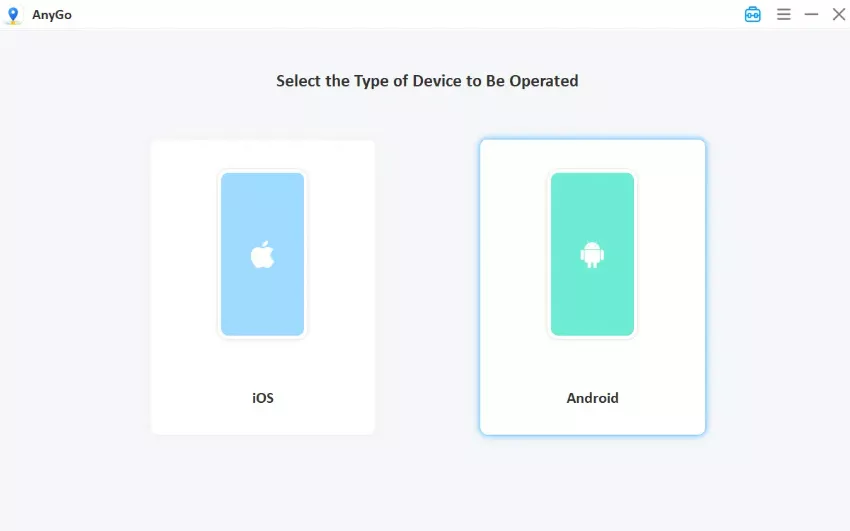
Step 3 Type your destination address, city name, or specific coordinates into the search bar, pick the spot on the map, then click “Go” to update your GPS. Your device location updates immediately. Open Pokémon GO or your other apps to confirm the new location shows up, and you are ready to play.

Step 4 (Optional) Choose Two-spot mode or Multi-spot mode. Enter your desired destinations and set walking speed. Your avatar will automatically follow these routes.

Conclusion
When pesky connection errors and sudden map freezes derail your plans, sticking with an unreliable app wastes precious time. Upgrading to iToolab AnyGo eliminates those frustrating roadblocks.
With updates that track the latest iOS and Android versions, built-in anti-ban safeguards, and a cleaner spoofing experience overall, AnyGo Location Changer for Pokémon lets you spend your sessions playing instead of troubleshooting. Skip the crashes and make iToolab AnyGo your go-to choice today.