

Pokémon GO has passed one billion downloads, and plenty of those players would rather catch rare Pokémon from a desk chair than out walking. A Pokémon GO emulator Android setup promises exactly that: the game on a big PC screen instead of a phone.
The catch is that the game’s developer treats emulators as a top detection target. Before you install anything, it helps to know what this method can do, what it risks, and what a safer alternative looks like.

Can You Play Pokémon GO on PC with an Android Emulator?
Yes, it is technically possible to play Pokémon GO on a PC with an Android emulator, but the risks are significant. An emulator copies how an Android phone works, right down to the touch screen and GPS chip, so the game runs in a window on your computer. Once it is installed, you can tap, swipe, and battle almost exactly like you would on a real device.
That word “almost” is where it falls apart. Emulators fake a phone environment, and the game’s anti-cheat systems are built to spot fake ones. Every emulator leaves fingerprints behind, things like unusual hardware IDs or missing sensor data that a real phone would normally send. Players accept that risk for the convenience, a bigger screen, a keyboard, and no drained battery, but the trade-off is your account’s safety.
5 Android Emulators Players Actually Try
Not every emulator is built the same way, and some handle Pokémon GO better than others. These five Pokémon GO emulator Android options are the ones that keep coming up in player forums and download charts, picked for how they handle performance, controls, and setup friction.
- BlueStacks: The most popular Android emulator for Windows and Mac. It has a large user base, regular updates, and an interface simple enough that most beginners start here.
- MEmu: Built with gaming in mind, MEmu delivers strong performance on Windows and can run several Android instances side by side, which is useful if you also play other mobile titles on your PC.
- LDPlayer: Known for smooth performance on lower-spec computers, LDPlayer supports keyboard mapping, so you can move with keys instead of dragging a virtual screen.
- NoxPlayer: A long-running option popular for its customizable controls and root access settings, though enabling root adds another layer of detection risk on top of the emulator itself.
- MuMu Player: Focused on speed and stability, MuMu Player has a lighter footprint that runs well even on older machines.


None of these five tools were built specifically for Pokémon GO. They are general-purpose emulators, which is a large part of why the detection risk stays high no matter which one you pick.
How to Set Up Pokémon GO on BlueStacks (Example)
The steps below use BlueStacks as the example, since it is the emulator most new users try first. Installation is the easy part. Getting the game to accept the environment is where most setups stall.
- Download BlueStacks from its official website and run the installer on your PC.
- Open BlueStacks once installation finishes, then sign in with a Google account. Use a spare account rather than your main one.
- Open the Google Play Store inside BlueStacks and search for Pokémon GO.
- Install the app and let it fully download before opening it.
- Launch Pokémon GO from the BlueStacks home screen and log in.

Two settings are worth checking along the way. In the performance tab, allocate at least 4GB of RAM and two CPU cores if your computer allows it, since Pokémon GO is graphics-heavy and lag makes catching harder than it needs to be. In the controls tab, rebind keys early, because BlueStacks maps your mouse to touch gestures by default and the default scheme is rarely the comfortable one.
Location is the last hurdle. Emulators handle GPS inconsistently: some report a location tied to the network, others return nothing, and the game may refuse to load. That is why location is what you have to solve next.
How to Spoof Location in an Android Emulator
Location settings are where emulators differ most.
- Open your emulator’s settings menu and look for a location or GPS option.
- Enter the coordinates of the spot you want to appear in, or drop a pin on the built-in map.
- Save the new location and restart Pokémon GO so the change takes effect.
- Where available, simulate walking along a route instead of teleporting in one jump. Gradual movement looks more natural to the game’s systems.
Most emulators include a basic map tool for this, and any separate GPS app you install works the same way: they feed a chosen location to every app that asks for one, Pokémon GO included.
This is not the same as a VPN. A VPN changes the IP address websites see, not the GPS coordinates a game reads from your device. Pokémon GO checks GPS data specifically.
Location changes carry more risk than any other step. Teleporting across the map in seconds, switching locations too often, or pairing spoofing with an emulator are the patterns the game’s anti-cheat systems watch for.
Ban Risks of Android Emulator Pokémon GO
The game’s developer enforces a three-strike system, and knowing what each stage does makes the risk a lot easier to weigh.
- First strike (warning): A warning appears on screen and lasts about seven days. During that period your account runs in a limited state: rare Pokémon stop appearing in the wild, and some social and gameplay features stay locked. It is a warning rather than a suspension, but it means the account is now on record.
- Second strike (suspension): A second violation locks the account for roughly 30 days. You cannot log in at all during that period, and everything on the account stays frozen until the suspension ends.
- Third strike (termination): The final stage. The account is closed permanently, and every Pokémon, item, and purchase on it goes with it.
Players also call the short cooldown that follows unnatural movement a “soft ban: PokéStops stop spinning and wild Pokémon flee, usually for 30 minutes to a few hours.

Running Pokémon GO through an emulator does not guarantee any of these on its own, but it raises the odds, especially with frequent location changes. The more unnatural your movement looks, crossing continents in seconds or catching in ten cities within an hour, the sooner the game’s systems notice.
How to Spoof Pokémon GO Without Emulator Risks
If those risks make you nervous, there is another route: change your location without running the game inside an emulator at all.
iToolab AnyGo is a GPS location tool that runs on Windows, Mac, iOS, and Android. It takes the emulator out of the picture entirely: the official Pokémon GO app stays on your real device, and only your coordinates change, so there is no virtual machine for anti-cheat systems to profile.
That single difference removes the problems listed above. There is no fake device signature to detect, no Android instance to maintain, and no mismatch between the app and the hardware it is running on. Your account, your device, and the game client all stay exactly as they were.
- Teleport to any location instantly with one simple click.
- Simulate custom walking routes at natural movement speeds.
- Catch Pokémon and spin PokéStop automatically via GO Catcher.
- Change iPhone location in official apps with Native Mode.
- Support GPS spoofing for Pokémon GO, Pikmin Bloom and other location apps.
- Run seamlessly on Windows, Mac, iOS, and Android devices.
- Fully support the latest iOS 27/Android 17.
How to Use AnyGo Instead of an Emulator
Step 1 Download and install iToolab AnyGo on your Windows or Mac computer. Launch AnyGo and select General Mode.

Step 2 Connect your iPhone or Android phone to your computer with a USB cable.
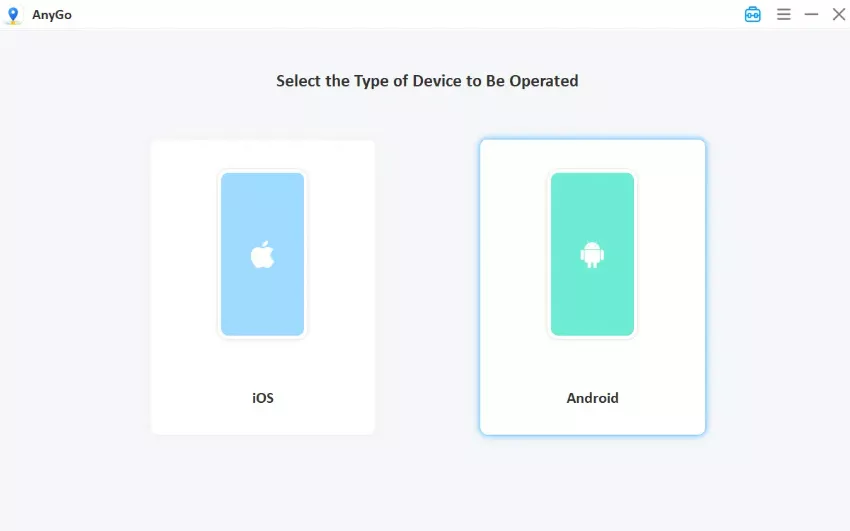
Step 3 Enter target locations or precise coordinates in the search box, and hit GO. Your location will update instantly. Open Pokémon GO on your phone and play from the new location.

Summary
An Android emulator can run Pokémon GO on a PC, but the risk runs from short cooldowns all the way to a permanent ban, and the developer actively watches for emulator signatures and movement no player on foot could produce.
If you want the same freedom without the emulator, AnyGo Spoofer for Pokémon GO changes your GPS on the device you already play on, across Windows, Mac, iOS, and Android. The official app stays intact and a built-in cooldown timer keeps your movement believable. Download iToolab AnyGo and see how much of the map you can cover without a virtual device in the middle.