

Wondering how to change location on Match? You’re in the right place. Match sets your feed and search radius from one field in your profile, the ZIP code you enter, so changing your location can be as simple as editing that code. The catch is that if your device GPS still points somewhere else, Match may quietly snap you back.
This guide covers four ways to make your new location stick. Whether you’re moving abroad next month or just curious who’s out there, you’ll know exactly which option fits your situation.

Part 1. What Is the Match App?
Dating apps come and go, but Match has stayed around for a reason. It’s a massive space where millions log on daily to find everything from casual coffee dates to long-term commitments. Maybe you are tired of running into the same local faces.
Or perhaps you just want to see who’s out there beyond your usual weekend spots. Either way, figuring out how Match location settings work changes everything. Suddenly, your radius opens up, letting you connect with people miles or even time zones away without ever leaving your couch.

How Does Match Track Your Location?
Ever wonder how the app actually figures out where you are? Instead of tracking your every move with live GPS, Match relies on the geographic info you type in yourself.
Your profile’s home base ties directly to the ZIP code or postal code you provide when signing up, and the system uses that code to calculate distances and pull up profiles nearby. It might check your IP address in the background for basic verification, but it isn’t constantly pinging your phone’s GPS. That is why updating your location is usually quick, though the platform may still flag obvious mismatches between your new ZIP and your device.
Part 2. How to Change Your Location on Match
Tweaking your postal code inside the app only gets you so far. It rarely gives you exact control over your search radius when you want to zero in on a specific neighborhood. When standard in-app options hit a wall, a third-party GPS location changer can shift your device coordinates anywhere worldwide.
Method 1. Change Match Location Using iToolab AnyGo
Hitting app boundaries can get annoying fast. When Match overrides your new ZIP code because the device GPS does not match, you end up stuck with the same local feed even after you typed in a new city.
iToolab AnyGo gives you a way around that. It is a GPS location changer built for dating apps like Match, and it shifts your actual device location so the platform sees a consistent new city on both ends. It runs on Windows, Mac, iOS, and Android. That makes AnyGo a practical fit for anyone planning an international move months ahead and hoping to scout out real matches in the new city before booking a flight.
- Change your device GPS to display a new city location for Match dating feeds.
- Modify location without jailbreak or root to keep your mobile device protected.
- Deliver realistic coordinates to pass Match’s multi-source location consistency checks.
- Change your iPhone location in official apps with
- Change iPhone location in official apps with Native Mode.
- Work well with Match, Tinder, Bumble, Hinge, and other location dating apps.
- Run seamlessly on Windows, Mac, iOS, and Android devices.
- Fully support the latest iOS 27/Android 17.
How to Change Your Match Location with AnyGo
Step 1 Download and install the iToolab AnyGo app on your iPhone or Android, then select General Mode from the bottom of the screen. (If you are using an iPhone, you can also choose Native mode.)
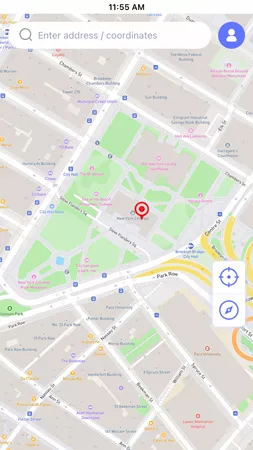
Step 2 Type the city you want to browse Match in into the search bar, pick the correct location from the dropdown, then click Teleport.
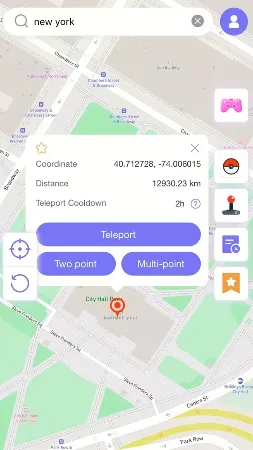
Step 3 The GPS of your device will update instantly. Open Match on your phone and start swiping through profiles from the new city right away.

Method 2. Change Location on Match.com Website
Desktop users have a straightforward way to modify their regional settings directly through a web browser. Figuring out how to change location on Match.com from a computer takes just a few steps:
- Open a web browser on your computer and go to the official Match.com homepage.
- Sign in with your registered email and password to reach your dashboard.
- Click your profile thumbnail in the top right corner, then select “My Profile” from the dropdown menu.
- Scroll to the section showing your current city, state, or postal code, then click the edit icon next to it.
- Type your new ZIP code into the input field and click Save to update your account.


Method 3. Change Location on Match App (iOS & Android)
Managing your profile directly from your smartphone offers total convenience when you are on the move. Knowing how to change location in the Match app takes only a couple of taps inside your account settings. You can quickly update your search region right from your iOS or Android device without needing to sit at a computer.
- Open the Match app on your smartphone and ensure you are signed into your active profile.
- Tap the profile icon or menu button located in the bottom navigation bar of the screen.
- Access your core preferences by tapping the gear icon positioned near the top of your layout.
- Locate your current city or postal code details under account settings, tap the edit option, and type in your new ZIP code to refresh your discovery radius.


Limitations of the Official Method:
Changing your ZIP updates your search area, but Match may override it back to your real location if it detects a mismatch with your device GPS or IP address. Native in-app adjustments only modify what appears on your profile text rather than altering your actual hardware coordinates.
Because the platform runs background checks comparing your profile data against your cellular network or Wi-Fi signals, discrepancies cause automated resets. If you want to bypass these regional restrictions completely without losing your settings, native profile updates alone will fall short.
Method 4. Contact Match Customer Care (For Stuck Accounts Only)
Support is worth a try when your location won’t save because of a technical glitch, not when you simply want to browse another city. Match agents can fix a ZIP code that’s tied to a broken account or a failed verification, but they won’t move you to a city you don’t actually live in. A request like “please change my location to New York” will almost always be declined.
How to ask Match support to fix a stuck location:
- Go to the Match Help Center and open the “Contact Us” form, or use the in-app support option.
- Pick the account or profile category so your ticket reaches the right team.
- Describe the technical problem, not the preference: “My ZIP code won’t save. I enter 10001 and it keeps reverting to my old city.”
- Include your account email, the ZIP code you’re trying to save, and a screenshot of the error, then wait for a reply (usually 24–48 hours).

When Support can’t help: If your profile saves fine but Match keeps pulling your real device location, that’s a GPS/IP mismatch issue and Support won’t override it. That’s exactly the case a GPS location changer like iToolab AnyGo is built for.
Part 3. FAQs about Changing Location on Match
Having trouble getting your regional details to stick or curious about how the platform processes movement? Reviewing common questions helps clarify how your profile handles geographic updates. These answers address the typical hiccups users encounter while managing their accounts.
Q1: Why is my Match location not updating after I changed my ZIP code?
Your location might fail to update if the app’s cache is outdated or if your device’s actual IP address contradicts the new postal code. Your location fails to update most often because the ZIP you typed doesn’t match your device GPS or IP address. The app then reverts to your old city. Clearing the cache helps only
if the profile itself is stuck.
Q2: Can I change my Match location while traveling?
Yes, you can manually update your ZIP code to reflect a destination city before you arrive. However, native settings only change your text-based home base rather than tracking your live GPS coordinates automatically.
Q3: How often does Match update my location?
Match does not track your live movements continuously like some real-time apps. Your location only changes when you edit the ZIP code in your profile, or when support corrects it for a stuck account.
Summary
Changing your location on Match doesn’t have to be frustrating when you choose the right approach. While native settings and customer support offer basic options, they often run into GPS restrictions and update lags.
AnyGo Location Changer for Match goes a different route by shifting your device GPS directly, so the new city shows up consistently across your profile, your feed, and the platform’s background checks. Try AnyGo free and start swiping in the city you actually want to meet people in.