

Crowds gather at the local park for Community Day, and a legendary raid egg is about to hatch. You tap the app icon expecting a smooth entry, but the loading screen freezes halfway. Then an error message pops up saying “Unable to authenticate,” and the game refuses to let you in.
Around you, the event continues without you. Friends catch shinies and raids fill up while you’re stuck staring at a frozen screen. Login problems like this can ruin the excitement in an instant. Fixing these frustrating blocks quickly is vital to getting back into the game without losing precious progress.

Part 1. Why Can’t I Sign in to Pokémon GO?
A variety of factors can trigger unexpected sign-in roadblocks in Pokémon GO. One moment you are loading into the map, and the next, a blank screen or a spinning icon leaves you completely stranded.
Usually, the fault lies with overloaded game servers during major in-game events, when millions try logging in at once. That is when you end up seeing messages like “Pokémon GO failed to sign in” or the dreaded “Unable to authenticate” pop-up.

Beyond server crashes, smaller everyday issues can trigger the same lockouts. Weak cell service, cached files sitting on your phone, or an outdated app version can easily cut your connection. Figuring out which of these problems is causing the roadblock makes fixing it a whole lot faster.
Part 2. 7 Pokémon GO Login Issues and How to Fix Them
Navigating Pokémon GO login issues can be frustrating when you are trying to catch rare creatures during an event. Fortunately, most error prompts can be cleared up quickly once you understand the root cause.
Error 1: Unable to Authenticate or Failed to Sign In
When players encounter the “Unable to authenticate” warning or find that Pokémon GO failed to sign in, the game servers are usually failing to verify account credentials due to heavy traffic spikes or a weak internet connection.

✅ How to fix it:
First, check your mobile data or Wi-Fi to ensure your network is stable. If your connection is solid, force close the app, clear your phone’s temporary app cache, or restart your device. For persistent blocks, verify that your login credentials (email and password) are correct.
Error 2: “Our Servers Are Humbled by Your Incredible Response”
This classic message appears when the game’s servers are overwhelmed by a sudden surge of players. It is one of the most common Pokémon GO login problems during major global rollouts or massive updates.

✅ How to fix it:
There is usually nothing wrong with your device or internet connection here. The best solution is simply to wait a brief moment. Check the official server status page or social media channels, give the system a few minutes to recover, and try logging back in later.
Error 3: Pokémon GO Error 15: Access Denied
Encountering Error 15 means your connection or IP address has been flagged or restricted by the game’s security protocols. Players often experience sudden Pokémon GO login trouble due to strict firewall settings, unstable proxy connections, or network security configurations blocking data packets.

✅ How to fix it:
Disable any active VPNs, public proxies, or restrictive corporate firewalls on your network. Switch from Wi-Fi to mobile data to test if your current IP address is the blocker. Restarting your router or clearing background network settings will usually clear the access block.
Error 4: Pokémon Trainer Club (PTC) Login Won’t Load or Times Out
Pokémon Trainer Club accounts frequently experience heavy server congestion independent of Google or Apple logins. When authentication servers for PTC experience backlogs, the login page spins indefinitely or times out completely before letting you access your profile.

✅ How to fix it:
Go to the official Pokémon Trainer Club website via a browser to check if their portal is down for maintenance. If the web login works, clear your app data, ensure your login credentials are correct, and try signing in through the app again.
Error 5: Can’t Sign in with Google or Facebook
Third-party authentication links can break due to expired session tokens or revoked app permissions. Many trainers run into stubborn Pokémon GO Facebook login issues or persistent Pokémon GO Google login issues when security tokens desynchronize between the app and social platforms.

✅ How to fix it:
Open your phone’s browser, log into your Google or Facebook account, and verify that Pokémon GO still has active app permissions. Revoke and re-grant access if necessary, clear your browser cache, or re-add your account profile under device settings.
Error 6: Error 26 (Failed to Get Game Data from the Server)
Error 26 shows up when the game cannot communicate with its servers and load your game data. It often appears after an update rollout, or when cached files on your phone fall out of sync with the server.

✅ How to fix it:
Head directly to the Apple App Store or Google Play Store to check for any pending game updates. Install the latest patch available. If your app is already fully updated, clear the app cache, restart your device, and reinstall a fresh, clean copy.
Error 7: Account Doesn’t Exist or Account Appears Deleted
Seeing an “Account doesn’t exist” warning can cause immediate panic. This terrifying glitch usually happens when you accidentally log in with the wrong email provider, a mistyped username, or an unlinked secondary account rather than your primary credentials.
✅ How to fix it:
Double-check all email addresses you might have used to register. Confirm whether your account was tied to Google, Facebook, Apple, or PTC. Log out completely, select the correct sign-in method matching your original signup choice, and verify your trainer details.
Part 3. How to Prevent Future Pokémon GO Login Issues
Fixing immediate server and account errors gets you back onto the map, but preventing future disruptions keeps your gameplay smooth. Proactively managing your network signals and device settings stops unexpected lockouts before they can interrupt your next community event.
1. Fix GPS Error 11 and Error 12 with AnyGo
Error 11 (“GPS signal not found“) and Error 12 (“Failed to detect location”) occur when Pokémon GO cannot accurately read your device’s location. This usually happens when you play indoors, stand surrounded by tall urban buildings that block satellite visibility, or run into minor software glitches on your phone.
Although these are technically location errors, they frequently trigger cascading connection failures, including frozen loading screens and sudden authentication blocks. The game needs a reliable location link to verify and maintain your active session, so a weak GPS signal can easily lock you out at the login screen.

To get past these location hurdles, many trainers turn to iToolab AnyGo, a professional location changer that works on both your phone and computer. It sets a stable virtual location in one step, so the game always has a clear position to read, even when your real GPS reception is weak. On top of that, AnyGo simulates realistic movement, teleports safely, and keeps a steady signal lock while you play. Fewer location drops mean fewer surprise logouts during raids and events.
- Teleport to any global location instantly with one‑click.
- Create two‑spot & multi‑spot routes with natural‑speed simulated movement.
- Activate auto‑catch & auto‑spin to collect resources hands‑free.
- Change iPhone location in official apps with Native Mode.
- Track safe waiting time via the built‑in cooldown timer.
- Run seamlessly on Windows, Mac, iOS, and Android devices.
- Fully support the latest iOS 27/Android 17.
How to Use AnyGo to Fix Login Errors
Step 1 Download and install iToolab AnyGo on your Windows or Mac computer. Launch AnyGo and select General Mode.

Step 2 Connect your iPhone or Android phone to your computer with a USB cable.
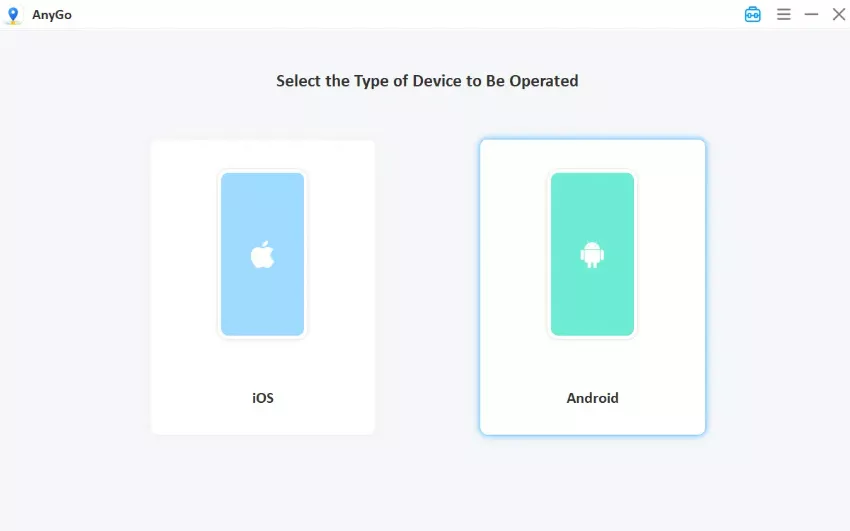
Step 3 Select your preferred operating mode, such as Teleport Mode or Two-Spot routing. Enter your target destination or coordinates into the search bar, then click “Go” or “Teleport.” Your device coordinates will update instantly. Your phone now reports a strong, stable location, and the Error 11 or Error 12 warning disappears when you open Pokémon GO.

2. Clear app cache regularly
Over time, temporary files accumulate on your device and can become corrupted, which directly triggers unexpected Pokémon GO sign in issues. To keep your game running smoothly, head into your phone settings, locate the app storage, and clear the cache regularly. This refreshes local data files and helps prevent sudden authentication failures or game freezes during startup.
3. Unlink your PTC account
Pokémon Trainer Club accounts are notoriously prone to server congestion, unexpected timeouts, and security locks. If you want to bypass frequent authentication errors, stop using your PTC account as your primary login method. Switching away from PTC to a more stable platform helps eliminate recurring sign-in roadblocks and keeps your access secure.

4. Enable additional login methods
Depending on just one login provider can leave you unable to access your account if their servers are down. Protect yourself from future Pokémon GO sign in issues by linking your profile to alternative platforms like Google, Apple, or Facebook. Having a secondary sign-in option ensures you can always access your account safely, even if your primary service experiences temporary outages.
5. Update Pokémon GO whenever possible
Running an outdated version of the application is a primary cause of compatibility crashes and login rejections. Always check the App Store or Google Play Store for the latest patches. Keeping your app fully updated ensures your client version matches current server requirements, preventing sudden error codes from blocking your gameplay.
6. Avoid rapid logins/logouts
Repeatedly tapping the login button or switching accounts in quick succession can trigger security flags on the game’s servers. If you experience minor connection delays, do not spam the sign-in screen. Give the system a moment to process your request to avoid temporary device blocks and frustrating authentication lockouts.
Conclusion
Overcoming persistent login obstacles and GPS errors doesn’t have to ruin your adventure. By managing your cache, safeguarding your credentials, and keeping your application up to date, you can maintain a seamless connection to the game server.
For players who want to clear location errors like Error 11 and Error 12 without tedious setup, iToolab AnyGo Location Changer offers a fast way back onto the map. One-click teleports, custom route simulation, and a built-in cooldown timer keep your gameplay steady, secure, and fun. Try iToolab AnyGo today and get back into the game in minutes!