

LocaChange not working? A blank map, a failed connection, or a sudden GPS reset can ruin a location-changing session in seconds. LocaChange may work fine one day and then refuse to detect your phone the next. Bluetooth pairing can fail too, and Pokémon GO may even throw Error 12 during setup. The causes usually come down to connection settings, permissions, network issues, or missing files.
If LocaChange is not working when you try to change your location, start with the simple checks before you touch deeper settings. The seven fixes below cover the most common causes and walk through them in a practical order.

Part 1. What Is LocaChange?
LocaChange is a location-changing tool that works with supported iOS and Android devices, and it runs on Windows and Mac as well. From a computer, it changes the reported position of a connected phone; the iOS and Android apps can do the same job directly on the device. Either way, you can choose another GPS position or create virtual movement between places, and compatible location-based apps will read the new spot.

LocaChange offers more than a single location option. It includes several ways to shape virtual movement:
- Change your GPS position instantly: Enter a location, address, or coordinates, and your reported position jumps to that point.
- Create two-point or multi-point routes: Pick a starting point and destination or add several stops. LocaChange can then simulate movement across your chosen route.
- Jump between selected places: Jump Teleport lets you switch between different map points without creating one long continuous path.
- Steer your position with a 360-degree joystick: Drag the on-screen joystick to guide your virtual position in any direction, and set the speed to match how you would really move.
- Use modes for different apps: Universal Mode works with many location-based apps while Specific Game Mode supports selected gaming scenarios.
- Avoid rooting or jailbreaking: LocaChange does not require you to root Android or jailbreak iPhone for everyday location changing.
Part 2. Why Does LocaChange Keep Failing?
When LocaChange suddenly stops responding, the cause isn’t always obvious. However, each error usually points toward a connection, software, or setup problem.
Before reinstalling everything, match what you’re seeing with these common LocaChange issues:
- The App stops working after an iOS update: System updates can change permissions, connection behavior, or compatibility requirements. If LocaChange worked before the update, an outdated version may no longer communicate correctly with your iPhone.
- Your computer can’t maintain a stable connection: A loose cable or unreliable USB port can break communication during setup. Missing the Trust This Computer prompt can also prevent LocaChange from recognizing your iPhone properly.
- The map stays blank or won’t respond: Map loading depends on a working network connection. Slow internet, temporary service problems, or an older LocaChange build may stop locations from appearing correctly.
- Pokémon GO displays error 12: This error appears when the game cannot detect or verify location information correctly. It may show up when the virtual location setup isn’t passing location data as expected.
- Your location jumps back to the real position: A spoofed location can reset when the connection becomes unstable. Bluetooth disconnection, interrupted software communication, or incomplete settings may cause the real GPS position to return.
- Bluetooth pairing keeps failing: If your chosen iPhone setup uses Bluetooth, pairing needs to remain stable. A failed prompt or saved connection problem can interrupt location changes unexpectedly.
- LocaChange freezes or closes unexpectedly: Crashes can happen when software files become outdated or incomplete. Compatibility issues and limited system resources may also make LocaChange unstable during longer sessions.

Part 3. 7 Fixes for LocaChange Not Working
Most LocaChange errors disappear after you check your setup and adjust a few settings. Follow these seven fixes in order, starting with the simplest connection checks.
Fix 1: Check Your USB Cable and Device Connection
Reconnect the phone while keeping its screen unlocked. On iPhone, accept Trust This Computer and enter the passcode. Try another USB port or cable if detection fails again. For Android, select MTP or PTP when required. Then restart both LocaChange and your connected phone afterward.

Fix 2: Turn On USB Debugging Correctly on Android
Open Developer Options and confirm that USB debugging stays enabled. Reconnect the phone, then approve the Allow USB Debugging prompt. For Universal Mode on Android, open Developer Options > Select mock location app, and choose LocaChange. Reopen LocaChange once the new setting is saved. For many players this alone clears Pokémon GO Error 12.

Fix 3: Check Your Internet Connection and DNS Settings
A blank map needs a different fix than a broken cable. Test another website first, then reconnect Wi-Fi if needed. Once the network is stable again, update LocaChange to the latest build. If a DNS-based setup disrupts Apple services, restore DNS to Automatic before testing again.

Fix 4: Re-Pair Bluetooth on iPhone
Bluetooth problems can make the spoofed position disappear during supported game connections. Keep Bluetooth enabled and approve each pairing prompt. If pairing still fails, remove the saved connection from both devices, then pair again. Leave Bluetooth connected while the selected LocaChange mode remains active.

Fix 5: Refresh Location Services and Reset Location Settings
Turn Location Services off briefly, then switch them back on. Restart the iPhone before testing the LocaChange connection again. If the issue continues, consider Reset Location & Privacy as a later step. This reset clears saved location permissions, meaning apps may request location access again afterward.

Fix 6: Update LocaChange and Repair Missing Files
Old program files can clash with newer phone software or required components. Install the latest LocaChange version, then restart the program. If your iOS setup reports missing files, run the repair option inside the current LocaChange desktop setup. On iPhone, note that the LocaChange iOS app is valid for about seven days and needs reinstalling afterward, so a setup that dies on a regular schedule may simply need a fresh install rather than a fix.

Fix 7: Enable Developer Mode on iOS 16 or Later
Some location-changing workflows need Developer Mode after the phone connects. Open Settings > Privacy & Security > Developer Mode, then turn it on. Restart the iPhone and confirm the setting after reboot. Apple introduced Developer Mode with iOS 16 for locally installed development workflows.

Part 4. Best LocaChange Alternative: iToolab AnyGo
If the same LocaChange errors keep coming back, the problem may not be another setting. iToolab AnyGo is a GPS location changer built to sidestep the failures covered above: a connection that holds on the first try, a setup you configure once, and a location that stays exactly where you put it.
LocaChange keeps you fighting the tool before you can play. As a solid LocaChange Alternative, AnyGo drops that fight: nothing to re-pair, no mode to reload after a game update, and no avatar that snaps back mid-session. It runs on Windows, Mac, iOS, and Android, so you can keep playing on the device you already use. If chasing errors has already cost you enough time, the points below show why this one holds up.
- Change GPS location on iPhone/iPad in clicks (No Jailbreak).
- Simulate GPS movement along any custom path with joystick.
- Collect and import popular GPX route files for future use.
- Change iPhone location in official apps with Native Mode.
- Work well with location-based social apps and AR games, include Pokémon GO, Instagram, Life360, Tinder, WhatsApp, and more.
- Run seamlessly on Windows, Mac, iOS, and Android devices.
- Fully support the latest iOS 27/Android 17.
How to Use AnyGo as Your LocaChange Alternative
1. Using AnyGo’s General Mode
Step 1 Download and install iToolab AnyGo on your Windows or Mac computer. Launch AnyGo and select General Mode.

Step 2 Connect your iPhone or Android phone to your computer with a USB cable.
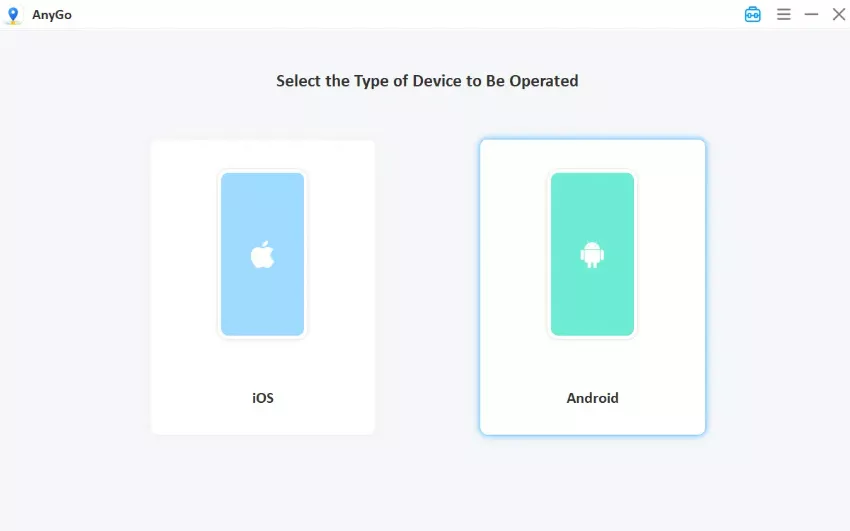
Step 3 Search for the location you were trying to reach in LocaChange, or click it directly on the map. Click Go to apply it, then open the app you were testing and confirm the new position sticks.

2. Using AnyGo’s Native Mode
Step 1. Download and launch the AnyGo iOS app, then select Native Mode from the bottom of the screen.

Step 2. Enter your target city or coordinates in the search bar, or tap any desired spot on the map. Tap Teleport.

Step 3. Set up the required VPN connection and trust the certificate. (This is a one-time setup for first use only.)

Step 4. Your iPhone GPS will update to the target location immediately. The spoofed location remains active even after you fully close the AnyGo app.

Conclusion
LocaChange usually stops working for one of a few reasons: a dropped connection, missing permissions, a weak network, outdated program files, or a setting that never got fully enabled. Working through them in order is what saves you from reinstalling the whole tool when a loose cable or an unchecked box was the real problem all along.
If LocaChange is still not working after all seven fixes, you’re not out of options. Switching tools usually costs far less than losing another session to the same setup problems. iToolab AnyGo Location Changer does everything you came here for: instant teleporting, two-point and multi-point route simulation, and 360-degree joystick movement — on Windows, Mac, iOS, and Android, so you can keep playing on the device you already use.
Start with the seven checks above, and if the errors come back, give AnyGo a try instead. Most users get their location set on the first attempt and never look back.